What should you check before choosing a connection?
Start with the laptop’s exact model and documented display capabilities, then match the monitor, connection and cable to the screen arrangement you need.
Direct HDMI or DisplayPort
Choose when: You need one larger screen and the laptop documents a suitable video output.
Trade-off: Charging and desk peripherals remain separate connections, and the laptop may not support the monitor’s maximum mode.
Direct multi-display connections or an adapter
Choose when: The laptop supports the number of independent displays and the required video mode through its available outputs.
Trade-off: Check the adapter direction and the full signal path; an ordinary splitter duplicates a signal rather than creating another independent display.
USB-C or Thunderbolt dock
Choose when: You often reconnect screens and peripherals, and the laptop supports the dock’s required video protocol and display arrangement.
Trade-off: USB-C data support alone does not establish video output; dual-screen behaviour and charging depend on the host and dock.
USB-A DisplayLink dock
Choose when: A compatible laptop lacks a suitable native video connection for the additional displays and you can install the required software.
Trade-off: Check software compatibility and host charging; some docks do not charge the laptop, and protected-video use may be limited.
| Concern |
What to check when buying |
Who this matters to |
| A usable larger screen |
Check the laptop’s video output, the monitor input, and support for your intended resolution and refresh rate. |
If I mainly need more screen space for work or study, I want a display that suits my setup without adding a dock I do not need. Around 36% of consumers put a usable larger screen first. |
| Two independent displays |
Check the laptop’s external-display limit, port video protocol, operating system and simultaneous display modes. |
If I need two separate desktops, I want to know the laptop and connection can extend the display rather than mirror it. Around 29% of consumers put independent screens first. |
| Peripheral connections and charging |
Check required USB and network ports, host video support, charging power and which power supply or cables are included. |
If I regularly reconnect several desk devices, I want fewer separate connections, with charging only if it meets my laptop’s requirements. Around 21% of consumers put peripheral consolidation first. |
| Using existing equipment |
Check the monitor inputs and cables you already own, the laptop output, and whether the intended display mode needs an adapter. |
If my existing monitor and connections may be enough, I would rather confirm that before buying more hardware. Around 14% of consumers put using compatible existing equipment first. |
Joybuy monitor choices for a laptop workspace
These Joybuy choices are external monitors for adding a screen to an existing laptop; check the laptop’s outputs and supported display mode before choosing a direct connection.
 No image available
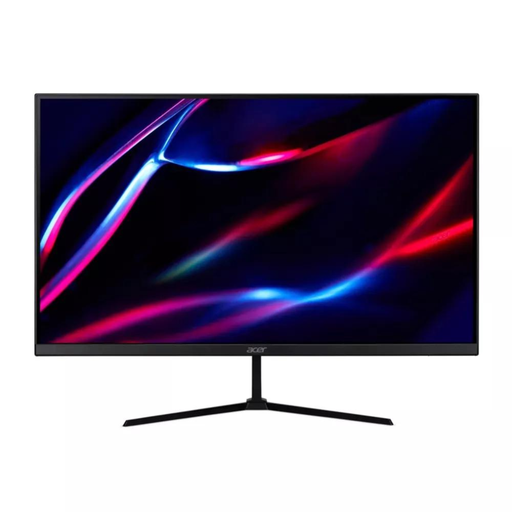
27-inch QHD IPS Monitor
A separate screen option when the laptop supports the display mode you intend to use.
QHD, IPS, 180Hz; two HDMI ports and DisplayPort. Check the laptop and cable support for your intended resolution and refresh rate.
Joybuy
 No image available
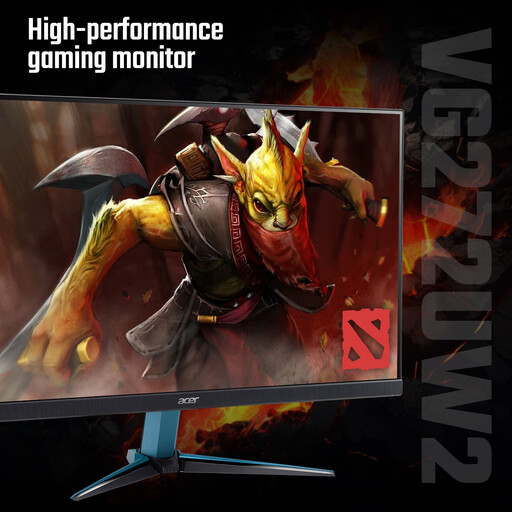
Acer Nitro VG272UW2bmiipx 27-inch QHD Monitor
A separate 27-inch screen option for a laptop setup, subject to the laptop’s supported display mode.
QHD, IPS, 240Hz; two HDMI ports and DisplayPort. Confirm the laptop and cable can support the mode you want.
Joybuy
 No image available
AOC Q32V4 31.5-inch 2K Ultra HD IPS Monitor
A larger separate screen option when the laptop supports the intended display mode.
31.5-inch 2K Ultra HD IPS display; 4ms response time and built-in speakers. Check the laptop’s supported output and the connection required.
Joybuy
 No image available
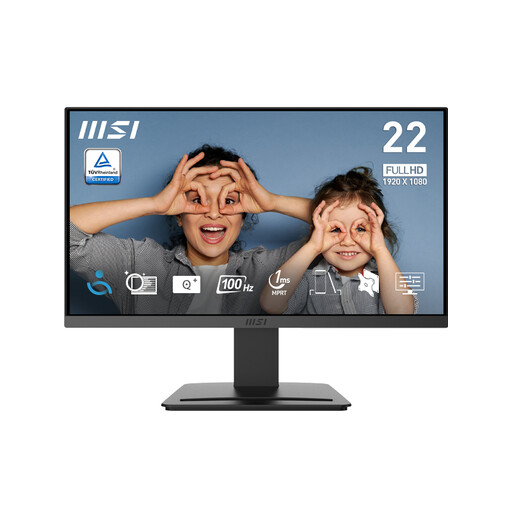
MSI PRO MP223 E2 21.45-inch Full HD Monitor
A dedicated screen option for desk work or study, provided the laptop supports the intended display connection.
Full HD, 100Hz; HDMI 1.4b and DisplayPort 1.2a. Match the connection and display mode to the laptop’s specifications.
Joybuy
 No image available
ASUS ProArt PA278CV IPS WQHD Monitor
A WQHD monitor option for a dedicated laptop workspace; confirm the laptop supports the display mode and connection you need.
IPS panel with WQHD resolution.
Joybuy
Frequently asked questions
What should I check on my laptop before buying a monitor or dock?
Find the exact laptop model, its supported number of external displays, each port’s video capability, the supported simultaneous resolutions and refresh rates, its operating system and its charging requirements. Then compare those details with the monitor or dock rather than relying on connector shape alone.
Does every USB-C port send video?
No. USB-C may provide data without native video; the laptop port must support the relevant video mode, such as DisplayPort Alt Mode. A USB-A-to-USB-C adapter does not add that capability, while a USB-A DisplayLink dock is a separate, software-dependent option.
Will two HDMI sockets give me two extended screens?
Not necessarily. Check the laptop’s display limit and the dock’s host and operating-system requirements. Microsoft Support explains that a signal splitter duplicates the same signal rather than creating two independent displays; Anker specifies that the A210B’s two external outputs mirror on macOS.
Can a dock replace my laptop charger?
Only if the exact dock supplies charging compatible with the laptop at sufficient power. For example, StarTech.com states that the DK30A2DH does not provide USB-C Power Delivery to charge the host laptop, so check the model’s charging specification before relying on a dock for power.
Do USB-A DisplayLink docks need software?
Yes, check the exact dock’s operating-system support and required software before buying. DisplayLink also documents a limitation affecting some protected video when its screens are connected to a Mac.


