Two-screen desk planners
You want documents or applications visible on separate external screens and need to confirm that your particular laptop can drive the planned display setup.


Start by checking your exact laptop model’s supported external-display count, video-capable ports and operating-system requirements, then match the screens and any dock to that host. Direct cables may be enough when the laptop’s outputs support your intended setup; USB-C or Thunderbolt docks can consolidate compatible connections, while a USB-A DisplayLink dock is a software-dependent alternative and does not charge the laptop through USB-A. Apple Support notes that a supported hub does not raise a MacBook Air’s model-specific display limit, so a dock’s advertised screen count is not a compatibility guarantee.
You want documents or applications visible on separate external screens and need to confirm that your particular laptop can drive the planned display setup.
Your laptop has USB-A or limited native video connections, so you need to check whether direct output or a software-dependent DisplayLink dock fits your device.
You regularly reconnect a screen and peripherals and are considering a dock, but need to check host compatibility and whether its charging output suits your laptop.
Check the laptop’s display limits and video-capable outputs first; then decide whether direct cables are enough or a compatible dock would make desk connections more convenient. If native video is insufficient, assess a specific DisplayLink dock and its software requirements rather than assuming a connector adapter adds display output.
| Concern | What to check when buying | Who this matters to |
|---|---|---|
| Display compatibility | Check the laptop’s supported external-display count, video-capable ports and intended resolution and refresh rate. Apple Support notes that a supported hub does not increase a MacBook Air model’s maximum display count. | I need the planned independent screens to work with my exact laptop model. Around 36% of consumers put display compatibility first. |
| Limited native outputs | Check whether the dock explicitly uses DisplayLink, supports your operating system and offers the required simultaneous display modes. DisplayLink Support says macOS requires Screen Recording permission for DisplayLink Manager. | I need another display route because the laptop’s native connections are limited. Around 29% of consumers prioritise a workable option for limited native outputs. |
| Cable and charging consolidation | Compare the dock’s host compatibility and power delivery with the laptop’s charging needs. Dell specifies up to 130 W for Dell systems and 96 W for non-Dell systems for its WD25TB4 dock. | I want to reconnect screens and peripherals with fewer cables, preferably while charging. Around 21% of consumers put cable and charging consolidation first. |
| Screen format and position | Match the monitor’s inputs to the laptop or dock, then consider its size and stand adjustments for your desk. LG specifies height, tilt and pivot adjustment on its 27-inch 27UP650K-W monitor. | I need a screen that fits my desk and the way I arrange documents. Around 14% of consumers prioritise screen format and positioning. |
A change of connector does not establish that the laptop can send video through that port. USB-C display output depends on the host’s video capability, while DisplayLink is a separate, software-dependent route.
Identify the laptop’s exact port capability and the dock’s video technology before choosing an adapter.
The host laptop’s supported display limit and the dock’s simultaneous display modes both affect the setup. Apple Support says a supported hub does not increase a MacBook Air model’s maximum display count.
Check the laptop and dock documentation together for the number of independent screens and the intended display modes.
A standard USB-A docking connection does not charge a laptop through USB-A. DisplayLink Support advises using the laptop’s own power supply with a USB Standard A-B docking station.
Compare the laptop’s charging requirement with the dock’s actual power delivery, and check whether a separate charger or cable is needed.
A separate laptop charger may still be needed; some USB-C hubs also require a suitable PD charger and cable.
DisplayLink Manager requires Screen Recording permission on macOS, and DisplayLink Support warns that some protected video may not play on a Mac while DisplayLink screens are connected.
Confirm that software installation and permissions are allowed on the laptop and that the documented limitations suit your intended use.
These examples represent different connection and screen options. Their stated features apply to the named models and do not establish compatibility with every laptop.
USB-A DisplayLink docks for laptops that need a software-based display route.
Thunderbolt docking, including the WD25TB4, for hosts confirmed to meet the dock’s video and connection requirements.
The ThinkPad Universal USB-C Dock 40AY0135UK is a one-cable option to check against the particular host.
Compact USB-C multiport hubs, including the 553 A8380, for hosts that support the intended connections.
Desktop monitors such as the 27UP650K-W for a fixed workspace.
These choices cover direct HDMI cabling, fixed and portable extra screens, and USB-C or HDMI display options; each setup still depends on the laptop supporting the chosen video path.
 No image available
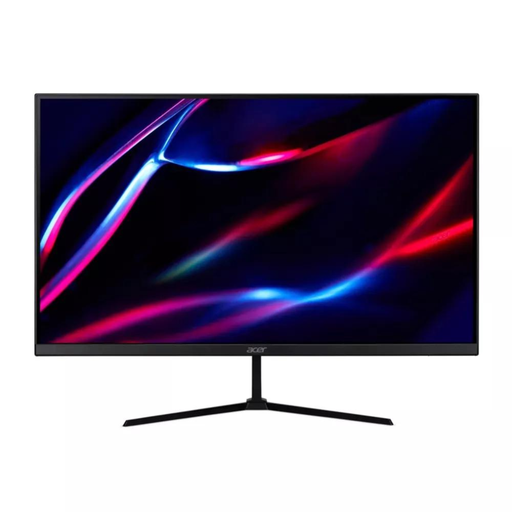
For a fixed desk that needs another screen, this monitor lists a 27-inch QHD IPS panel with 180 Hz refresh rate.
Inputs listed: 2 × HDMI and DisplayPort. The laptop needs a compatible video output for one of the monitor’s inputs.
 No image available
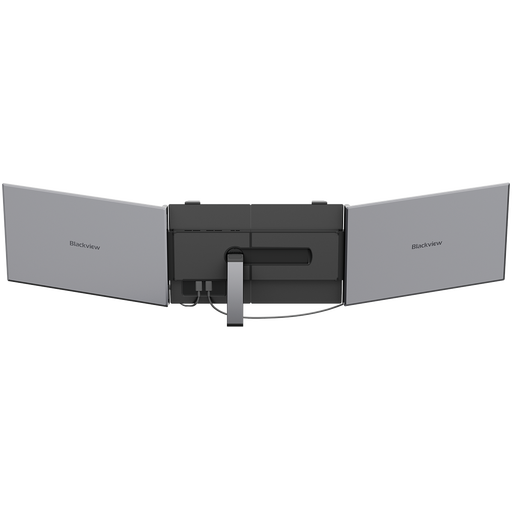
For a portable extra-screen setup, the listed specifications include a 15.3-inch IPS display and 1920 × 1200 resolution.
The title also lists 60 Hz, 1.2 kg and 100 W reverse charging. USB-C video use requires a compatible host video connection; a USB-C connector alone does not establish display capability.
 No image available
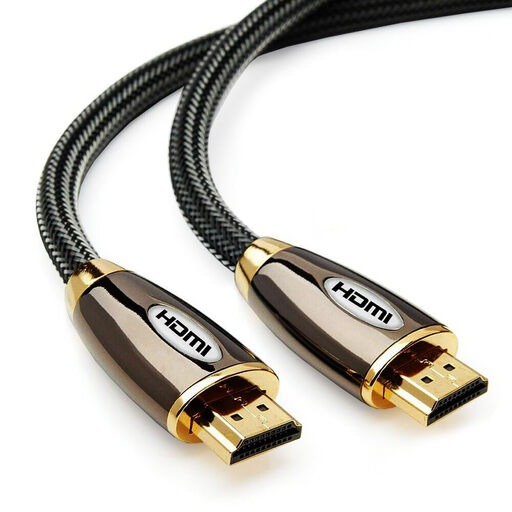
For a direct HDMI connection where a 5 m lead suits the desk layout, the listed cable has male-to-male connectors.
The title lists 4K support and Ethernet. The laptop and monitor need compatible HDMI connections; the cable cannot add video output to a laptop that lacks it.
No image available
For a direct HDMI connection where a 2 m lead is sufficient, this cable is listed as supporting 4K at 60 Hz.
The title also lists support for 2K at 144 Hz or 120 Hz, 1080p, ARC, HDR, 3D and Ethernet. The laptop and screen need compatible HDMI connections.
 No image available
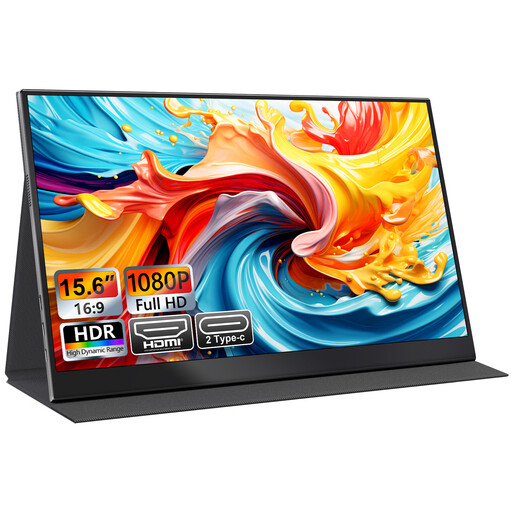
For a portable additional screen, the product name identifies a 15.6-inch FHD 1080p IPS display.
The title lists USB-C and HDMI connections. Check that the laptop supports video through the chosen connection before relying on it.
No. Check the exact laptop’s documented video capability, such as DisplayPort Alternate Mode or Thunderbolt, and verify the complete dock or adapter connection before buying. VESA and the USB Implementers Forum describe DisplayPort Alternate Mode as video over USB-C; connector shape alone does not confirm that the laptop supports it.
The laptop’s supported external-display count and the dock’s simultaneous display modes both matter. Apple Support says a supported hub or daisy-chaining does not increase a MacBook Air model’s maximum display count; Windows users can also review the multiple-display settings in Windows after connecting the screens.
Check the particular dock’s macOS support and install the required DisplayLink software. DisplayLink Support says macOS requires Screen Recording permission for DisplayLink Manager to function, and warns that some protected video may not play while DisplayLink screens are connected.
Not through a standard USB-A docking connection. DisplayLink Support advises connecting the laptop’s own power supply when using a USB Standard A-B docking station; for USB-C docks and hubs, check the laptop’s charging needs, the power delivered to the host and any required charger.