What to prioritise when choosing a laptop monitor
Choose the screen layout first, then confirm laptop video support and desk fit before paying for charging or hub features.
| Concern |
What to check when buying |
Who this matters to |
| Usable workspace |
Compare the monitor’s native resolution and size with your laptop’s supported output mode and the space available at your desk. |
If I keep documents and spreadsheets open together, I want readable workspace without crowding the desk. Around 26% of consumers put usable workspace first. |
| Video compatibility |
Check the exact laptop port’s video capability and the monitor’s matching input; a USB-C connector alone does not confirm video support. |
When I need a dependable connection to my particular laptop, I check its video output before choosing a screen. Around 21% of consumers prioritise laptop-to-monitor compatibility. |
| Desk fit and positioning |
Measure desk width and depth. For a monitor arm, check the display’s mounting points, weight and the desk attachment. |
If the display has to fit a compact desk, I want to know where it can sit and whether it can be positioned comfortably. Around 21% of consumers put desk fit and positioning first. |
| Charging and peripherals |
Compare the laptop’s video and charging requirements with the monitor’s stated USB-C functions, power delivery and available ports. |
If I reconnect a laptop often, I want to know whether the screen can handle the connections I use at my desk. Around 16% of consumers prioritise charging and peripheral convenience. |
| Complete setup and terms |
Check which cables or mounting parts are included, and review the seller’s return terms separately from the manufacturer’s warranty. |
If I need a complete working setup, I want to account for the connections and positioning equipment as well as the monitor. Around 16% of consumers put complete-setup cost and terms first. |
Joybuy monitor options for a laptop desk
These Joybuy options are desktop monitors for a separate laptop work view, including models with USB-C connections. Check each monitor’s listed connections against your laptop and desk arrangement before choosing.
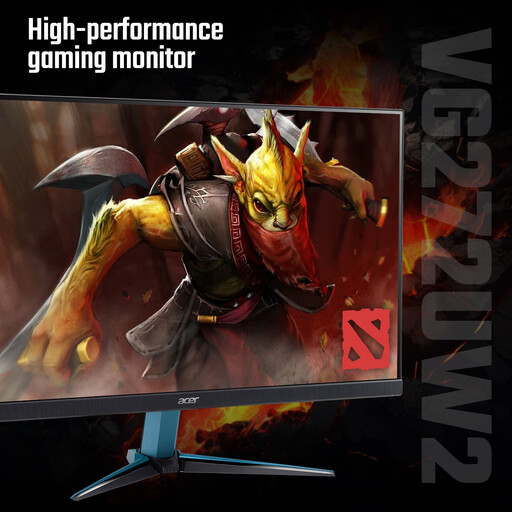 Image unavailable
Acer Nitro VG272UW2bmiipx 27-inch QHD monitor
A separate desktop screen option when your laptop has a compatible video output.
27-inch QHD IPS display; HDMI and DisplayPort inputs; 240 Hz; tilt adjustment.
View on Joybuy
 Image unavailable
MSI MAG 274QP QD-OLED X24 27-inch WQHD monitor
A separate screen option when the laptop supports its video connection; the product is described as a gaming monitor, so check that its features suit your office use.
27-inch QD-OLED display; 2560 × 1440 WQHD; HDMI and DisplayPort inputs; 240 Hz.
View on Joybuy
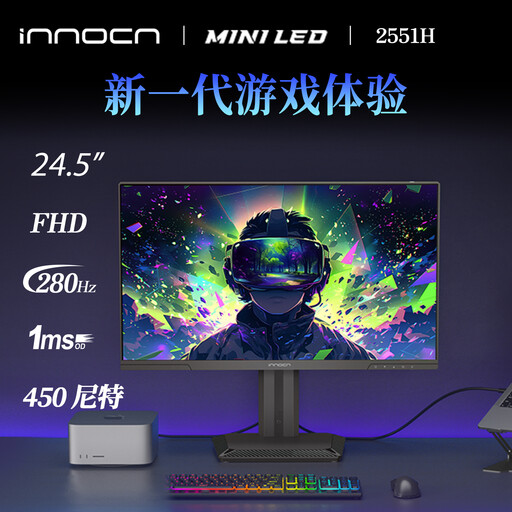 Image unavailable
INNOCN 2551H 24.5-inch Mini LED monitor
A smaller desktop-screen option when its display size and inputs fit your laptop work setup.
24.5-inch Full HD display; HDMI and DisplayPort inputs; height-adjustable stand; 100 × 100 mm VESA mount.
View on Joybuy
 Image unavailable
BenQ MA270UP 27-inch 4K USB-C monitor
Consider this USB-C desktop option after checking that the exact monitor and laptop support the video and power functions you need.
27-inch 4K UHD display; USB-C; HDMI and USB-A ports; adjustable stand.
View on Joybuy
 Image unavailable
MSI MD272UPSW 27-inch 4K UHD Smart Monitor
A USB-C option for a frequently connected laptop, provided the monitor’s listed power delivery suits that laptop.
27-inch 4K UHD display; USB-C with 65 W power delivery; Google TV.
View on Joybuy
Frequently asked questions
Does a USB-C socket on my laptop guarantee that a USB-C monitor will show video and charge it?
No. Check the exact laptop port’s video and charging support, the monitor’s upstream video mode and power delivery, and the cable. Dell documents laptop USB-C ports that transfer data but do not output video; its P2425H also illustrates that a monitor’s USB-C port may be data-only rather than a laptop video input.
Can a dock or daisy chain make any laptop run two external monitors?
No. Check the laptop model’s supported external-display count and output modes first. Apple Support says a supported hub or daisy chain does not increase a Mac’s maximum display count. A software-driven DisplayLink dock is a different option and needs its own compatibility checks.
How should I position a monitor for regular home working?
HSE guidance recommends positioning the top of the screen around eye level and the display about an arm’s length away. Measure the desk before choosing a larger panel or monitor arm. For prolonged laptop use, HSE also describes using a separate keyboard and mouse so the display can be raised.
Does UK display-screen-equipment law require every home worker to buy an external monitor?
No universal external-monitor purchase requirement follows from the cited HSE guidance. It says the regulations can apply to employees working at home who use display-screen equipment daily for continuous periods of an hour or more. Where they apply, the employer should assess the individual workstation and address identified risks; this is not a requirement for a particular screen size or model.
What should I check about returns and extra setup costs?
Check the cost of any needed cable, dock or mount and review the seller’s terms separately from the manufacturer’s warranty. GOV.UK distance-selling guidance says consumers generally have up to 14 days after delivery to cancel an online goods order without giving a reason. Change-of-mind cancellation and remedies for faulty goods are separate matters.


