Buying priorities
Start with where you work most often, then check the laptop connection, the screen space your tasks require and the desk space available.
Fixed 27-inch USB-C monitor
Choose it when: You mainly work at one desk and want room for documents, spreadsheets and several windows.
Consider: USB-C charging only works as intended when the laptop supports the required video connection and accepts the available charging power.
27-inch 4K USB-C monitor
Choose it when: Detailed visual work makes a 3840 × 2160 display and stated wider colour coverage relevant.
Consider: Check that your laptop can output 4K and that display scaling is comfortable for your usual work.
Portable 16-inch monitor
Choose it when: You need a second screen in more than one location and mobility matters more than a large permanent workspace.
Consider: A portable panel offers less viewing area and may need a suitable power source or HDMI plus USB-C power.
| Priority |
What to check |
Your needs |
| Laptop connection |
Match HDMI, DisplayPort or USB-C inputs to the laptop’s actual video output. For one-cable USB-C video, check for DisplayPort Alt Mode, Thunderbolt or USB4 support where applicable. Check the laptop’s supported external-display count before adding more than one screen. |
I need the display connection to work with my existing laptop and cables, including an independent extended display where required. |
| Screen space |
Compare the physical panel size and resolution with your desk depth and normal tasks. A 27-inch QHD or 4K monitor is a fixed-desk option; a 16-inch 1920 × 1200 panel prioritises mobility. |
I want enough room for documents, spreadsheets or detailed visual work without overwhelming a shallow, shared or temporary desk. |
| One-cable charging |
Check whether the monitor supplies power delivery, whether the laptop accepts USB-C charging and whether the available wattage meets the laptop’s requirement. Confirm that the cable supports the intended video, data and charging functions. |
I would like fewer desk cables and may prefer not to connect a separate laptop charger when working at my usual desk. |
| Desk mounting |
Confirm the monitor’s exact mounting pattern and weight. Compare them with the arm’s supported load range and the desk clamp or grommet requirements. |
I need to recover desk surface or adjust the display position, but only if my monitor and desk can support the mounting arrangement. |
Joybuy monitor options
Joybuy product options for expanding a hybrid laptop workspace, including fixed monitors with conventional video inputs and USB-C monitor options with stated power delivery.
 No image available
BenQ MA270UP Nano Glossy 4K USB-C 27-inch Monitor
For a fixed laptop workspace where detailed visual tasks and a one-cable setup are relevant.
Stated 27-inch 3840 × 2160 IPS panel, USB-C video and data connection, up to 90W power delivery, and a height-adjustable stand.
Check that the laptop supports 4K output, USB-C video and USB-C charging before relying on one cable. Mac-specific integration claims do not establish equivalent behaviour with non-Mac laptops.
Joybuy
 No image available
MSI MD272UPSW 27-inch 4K USB-C 65W Monitor
For a desk-based hybrid setup where a larger 4K screen and adjustable viewing position are useful.
Stated 27-inch 3840 × 2160 IPS display, USB-C connection with 65W power delivery, HDMI input, built-in speakers and an adjustable stand.
Confirm that your laptop can output the intended 4K signal through USB-C and accepts 65W charging before planning a one-cable desk.
Joybuy
 No image available
LG 27UP650K 27-inch 4K IPS Monitor
For a regular desk-based workspace where 4K detail and conventional video connections are the main requirements.
Stated 27-inch 3840 × 2160 IPS panel, HDMI and DisplayPort inputs, built-in speakers, and height, tilt and pivot adjustment.
The listed connections do not establish USB-C video or laptop charging, so check your laptop’s HDMI or DisplayPort capability and any adapter requirement.
Joybuy
 No image available
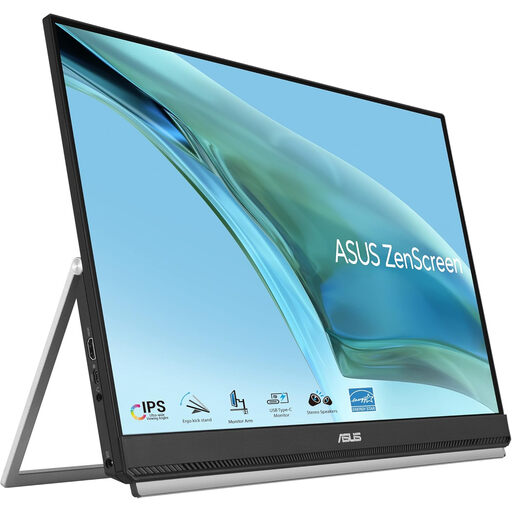
ASUS ZenScreen MB249C 23.8-inch USB-C IPS Monitor
For hybrid or smaller workspaces where adaptable placement is more important than a conventional fixed-monitor arrangement.
Stated 23.8-inch Full HD IPS display, USB-C with 60W power delivery, HDMI input, anti-glare treatment and included C-clamp arm and partition-hook kit.
Check USB-C DisplayPort Alt Mode, 60W charging compatibility and the intended desk, partition or mounting location before relying on the included accessories.
Joybuy
 No image available
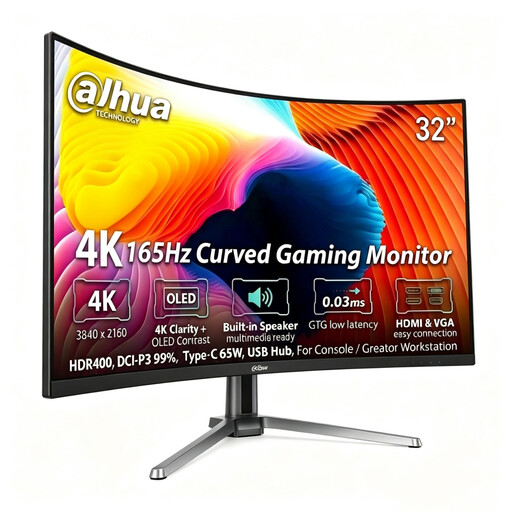
Dahua 32-inch Curved 4K OLED Monitor
For a spacious permanent desk where a large 4K display is the priority for detailed documents or creative tasks.
Stated 31.5-inch 3840 × 2160 curved OLED panel, HDMI, DisplayPort, Type-C 65W, USB hub, adjustable stand and 75 × 75 mm VESA mounting.
The stated 713.9 mm width needs substantial desk space. Check Type-C video and charging compatibility, as 65W may not meet every laptop’s charging requirement.
Joybuy
Frequently asked questions
Does a USB-C connector on my laptop guarantee that a USB-C monitor will work with one cable?
No. USB-C is a connector type, not proof of a particular video capability. ASUS states that the ZenScreen MB16FC needs DisplayPort Alt Mode for its one-cable USB-C setup; otherwise, use HDMI for video plus USB-C for power and check the laptop manufacturer’s specifications before buying.
How can I tell whether a USB-C monitor can replace my laptop charger at the desk?
Compare the monitor’s stated power-delivery output with the laptop manufacturer’s charging requirement, then confirm that the laptop accepts charging through USB-C. Dell and LG each list up to 90W power delivery for the cited P2725DE and 27UP85ZK-W models, but that does not establish compatibility with every laptop.
When is a portable monitor more suitable than a fixed 27-inch display?
A portable monitor is more suitable when you need a second screen in several locations and can accept a smaller panel. The ASUS ZenScreen MB16FC has a 16-inch display with USB-C and mini-HDMI, while a fixed 27-inch QHD or 4K monitor offers more permanent desk workspace.
Can I use a monitor arm with any monitor?
No. Check the monitor’s exact mounting specification, the arm’s supported display weight and the desk-installation requirements. The Video Electronics Standards Association explains that VESA FDMI is a mounting-interface standard, but it does not make every monitor and arm combination compatible.
What should I do with an old monitor in the UK?
Use an appropriate electrical-equipment recycling or take-back route rather than disposing of a monitor with general waste. The Office for Product Safety and Standards and the Department for Environment, Food & Rural Affairs state that the UK WEEE framework is intended to encourage recovery, reuse and recycling; check the options offered by your retailer and local authority.


