What should you check first?
Confirm the laptop connection before choosing screen size: a suitable panel will not deliver the intended workspace if the laptop, cable or display arrangement cannot support it.
USB-C monitor with power delivery
Choose when: The laptop supports video through the chosen USB-C connection and the monitor’s power output suits your usual charging needs.
Bear in mind: A USB-C socket alone does not establish video support, and a low-power monitor may leave you using the laptop charger.
HDMI or DisplayPort monitor
Choose when: The laptop has a compatible video output or verified adapter route and you are content to charge it separately.
Bear in mind: Display and charging normally need separate cables; confirm that the connection supports your intended display mode.
Dock or adapter
Choose when: You need a verified way to connect the planned monitor arrangement or additional desk peripherals.
Bear in mind: A dock cannot automatically increase the number of independent displays your laptop supports.
| Concern | What to check | Who this matters to |
|---|
| Laptop compatibility |
Check the exact laptop model’s video-capable ports and supported external-display modes; match the monitor input and cable. |
I want the screen to work with my laptop without relying on an unsuitable port or adapter. Around 31% of consumers put connection compatibility first. |
| Usable workspace |
Compare screen size and resolution, then consider the text scaling you would use for documents and multiple windows. |
When I move between spreadsheets, documents and calls, I need enough readable space to keep the relevant windows in view. For around 38% of consumers, that workspace is the primary concern. |
| Desk fit |
Measure desk width and depth with the laptop in place; check stand dimensions and available adjustments. |
My shared desk must still be usable when the monitor and its cables are in place. Desk fit comes first for around 23% of consumers. |
| Expanded displays |
Check the laptop’s supported external-display count and output modes before planning two independent screens or an ultrawide. |
I need a wider layout for several applications, but it has to work as intended through my laptop. Around 8% of consumers primarily prioritise that expanded arrangement. |
Monitor brands to consider
These examples show why the exact model matters more than the brand name when comparing connections, charging and screen space.
Dell
Dell’s UK range includes USB-C hub monitors for fixed desks, including standard-width and ultrawide models.
- Dell specifies up to 100W power delivery for the 27-inch Full HD P2726HE and up to 90W for the 34.1-inch P3425WE.
- Check each model’s resolution, footprint and ports against your laptop; these features do not apply to every Dell monitor.
BenQ
BenQ’s home-office range includes USB-C monitors with charging and adjustable stands.
- BenQ lists 65W USB-C power delivery, USB-A ports and height, pivot, swivel and tilt adjustment for the GW2786TC.
- Its daisy-chain arrangements depend on the computer and connection type; check the specific laptop before planning multiple displays.
LG
LG has UK USB-C monitors with different resolutions and markedly different charging outputs.
- LG specifies a 27-inch QHD screen and up to 15W power delivery for the 27U631A-B, versus a 27-inch 4K screen and 90W for the 27U730A-B.
- Check whether the laptop supports the intended resolution and whether the particular model’s charging output meets its needs.
Lenovo
Lenovo’s monitor catalogue includes QHD displays and models with USB connections or multi-monitor features.
- Lenovo lists a 27-inch QHD screen and four USB ports for the ThinkVision P27Q-40.
- The P27Q-40’s listed USB-C output is 15W; do not assume it can replace a laptop’s usual charger.
Joybuy monitor choices
These monitors cover compact desk screens, a wider single-screen layout and different laptop connection plans. Choose by the screen and desk arrangement you need, then check the exact laptop connection before purchasing.
 No image available
ASUS ZenScreen MB249C IPS USB-C Monitor
Consider this USB-C model if you want a screen you can position between work areas. Confirm USB-C video support and suitable charging for your laptop, and check the supplied model’s weight if you plan to carry it frequently.
View on Joybuy
 No image available
Dell P2425H 24-inch Full HD Monitor
A choice for one external document-work screen while keeping laptop charging separate. The listed 1920 × 1080 IPS display has a 100Hz refresh rate, with HDMI and DisplayPort among the named connections. Check the exact USB-C functions before planning a one-cable setup.
View on Joybuy
 No image available
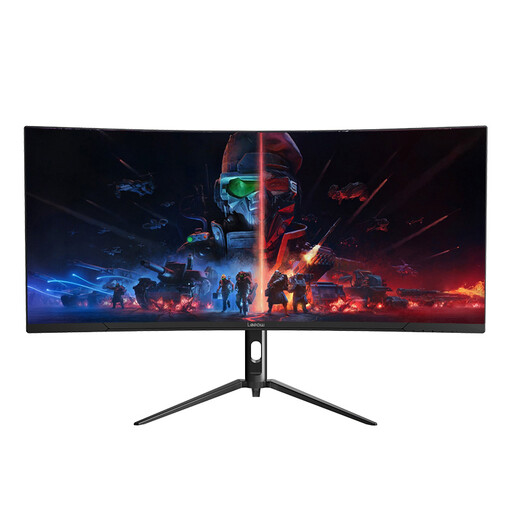
Lepow HC-SJ34MZ5 34-inch Curved Ultrawide Monitor
Consider a single wide panel if you want to arrange several work windows on one screen. This model’s name specifies 3440 × 1440 resolution and 165Hz; measure the available desk space and confirm your laptop can output the intended resolution.
View on Joybuy
 No image available
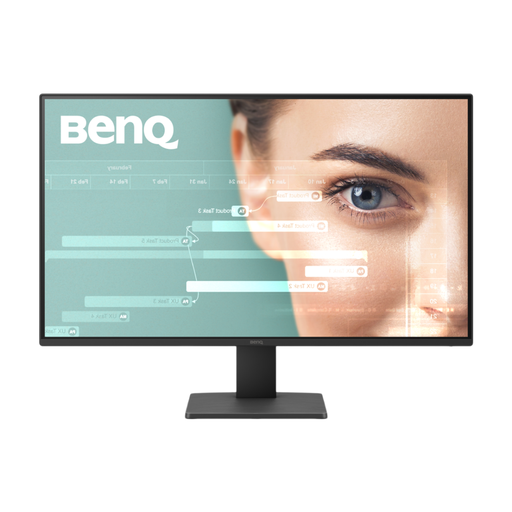
BenQ GW2791 27-inch Full HD Monitor
This 27-inch IPS screen is an option for a fixed work or study space. Its name specifies Full HD resolution and 100Hz; confirm the exact video inputs and the cable or adapter your laptop needs before choosing a connection.
View on Joybuy
 No image available
AOC Q32V4 31.5-inch IPS Monitor
Consider this larger desktop screen if the desk can accommodate it. The product name identifies an IPS display and built-in speakers; check its exact resolution, stand dimensions and adjustment options against your workspace and laptop output.
View on Joybuy
Frequently asked questions
What should I check on my laptop before buying a monitor?
Check the exact model’s video ports, supported external-display count and modes, and charging requirement. Apple directs Mac users to their model’s Display Support or Video Support specifications, while Microsoft notes that a display adapter may limit the number of external monitors. Match those details to the monitor input and the cable or adapter you intend to use.
Will any USB-C laptop port work with a USB-C monitor?
No: USB-C describes the connector, not a guarantee of video output. Check whether your laptop supports a suitable display connection through that port, then confirm the monitor’s video functions, power-delivery output and required cable if you also want charging.
When does a USB-C monitor simplify a home-working desk?
It can reduce the number of connections when your laptop supports video over USB-C and the monitor provides suitable charging through a compatible cable. Charging output varies by model: LG specifies up to 15W for the 27U631A-B and 90W for the 27U730A-B, so compare the exact monitor with your laptop’s charging needs.
Can a splitter give me two independent external screens?
A splitter that duplicates one display signal will not create two independent desktops. Microsoft distinguishes duplicated output from support for multiple external monitors; for an extended setup, confirm that the laptop, any dock and the connection method support the two displays you intend to use.


