Buying priorities
Start with the laptop connection, then check screen placement and desk dimensions before choosing a stand, arm or larger display.
| Priority |
What to check |
Your needs |
| Laptop connection |
Confirm the laptop’s video-output capability, the monitor input and any adapter direction. For USB-C, check video support and the monitor’s power-delivery rating against the laptop maker’s charging requirements. |
I want a connection that works with my existing laptop without relying on the USB-C connector shape alone. VESA explains that DisplayPort Alt Mode is one route for video over USB-C. |
| Screen position |
Look for height adjustment, tilt and other movement where needed. Plan for a separate keyboard and mouse when elevating a laptop screen or using a second display for prolonged work. |
I need the screen to sit near eye level and roughly an arm’s length away, rather than adapting my posture to a fixed low stand. This follows Health and Safety Executive display-screen guidance. |
| Desk fit |
Measure usable width and depth, including the stand or clamp, laptop, keyboard and mouse. Compare the monitor’s with-stand dimensions and any clamp clearance with the desk. |
I need enough room to keep a comfortable viewing distance without crowding the keyboard, mouse or laptop. A larger display is only useful when the desk can accommodate its placement. |
| Energy and replacement |
Check the energy label and product information sheet for an in-scope electronic display. If replacing an old monitor, check the retailer’s applicable take-back arrangements. |
I want regulated energy information before buying and a practical route for recycling the old display. GOV.UK includes electronic displays within the energy-labelling scope. |
Joybuy product options
Joybuy monitor options for laptop-based home work and study, including USB-C desk displays and a portable second-screen route.
 No image available
iiyama ProLite XUB2792UHSU-B6 27-inch 4K Monitor
A desktop monitor option for a laptop desk that needs a 27-inch 4K screen and flexible connection planning.
Check whether its USB-C connection supports the video input and laptop charging arrangement required by your computer. The listed stand depth is 209 mm, so measure usable desk depth and viewing distance.
Joybuy
 No image available
ASUS ProArt PA278CV IPS WQHD Monitor
A WQHD monitor for a laptop workspace where HDMI, DisplayPort or USB-C connection options are being considered.
Confirm that the monitor’s USB-C power delivery suits your laptop’s charging requirements, and check whether the 210.7 mm stand depth fits alongside the laptop, keyboard and mouse.
Joybuy
 No image available
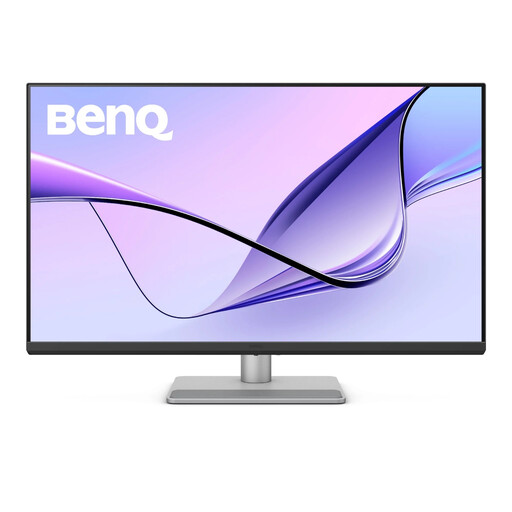
BenQ MA320UP 32-inch 4K USB-C Monitor
A 32-inch USB-C monitor for a home workspace seeking a larger 4K display and a potential single-cable laptop setup.
The listing states 90W power delivery; verify that the laptop accepts this charging arrangement and supports USB-C video output. Measure desk space and viewing distance before choosing this size.
Joybuy
 No image available
Dahua 32-inch 4K Curved OLED Monitor
A full-size 4K curved monitor for a fixed workspace with room for a 32-inch display.
The listed connections include USB-C with 65W, DisplayPort and two HDMI inputs. Check that 65W meets the laptop’s charging needs, and verify the 75 x 75 mm VESA interface, monitor weight and mount limits before using an arm.
Joybuy
 No image available
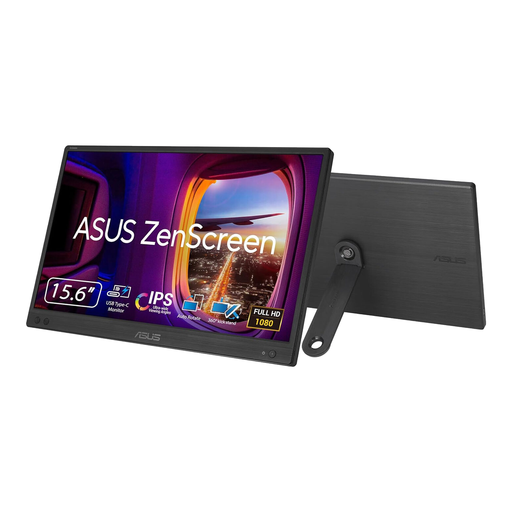
ASUS ZenScreen MB166CR FHD Portable Monitor
A portable second-screen option for a small desk or for moving a laptop setup between rooms.
USB-C display use requires a compatible DisplayPort Alt Mode connection, and HDMI is not supported. Check whether the stand or a separate riser can bring the screen to a suitable height for sustained desk work.
Joybuy
Frequently asked questions
Does every USB-C laptop port work with a USB-C monitor?
No. A USB-C connector alone does not establish video-output capability. DisplayPort Alt Mode is one route for video over USB-C, so check the exact laptop port functions in the manufacturer’s specifications, along with the monitor input and charging requirements.
Can a monitor replace a separate keyboard and mouse for long laptop sessions?
No. Health and Safety Executive guidance says that, for prolonged laptop use, the keyboard and mouse should be separate so the screen can be elevated or a separate display can be used. A monitor helps only when the rest of the workstation is arranged to suit it.
How can I tell whether my desk can take a larger monitor or clamp stand?
Measure usable desk width and depth, including the monitor stand or clamp, laptop, keyboard and mouse. For an arm or C-clamp stand, check the required desk-edge or grommet conditions, desk-thickness range, monitor weight limit and mounting interface; a VESA pattern alone is not complete compatibility proof.
Do UK home workers have display-screen equipment rights?
The Health and Safety Executive says the Display Screen Equipment Regulations can apply to people working at home daily for continuous periods of an hour or more. Employers must arrange an eye test when a display-screen equipment user requests one, and provide glasses where they are needed only for that work.
Can I compare monitors using UK energy labels?
Yes. GOV.UK includes electronic displays within the energy-labelling scope. For in-scope products, the label must be displayed clearly at the point of sale, including on websites, and consumers should be able to access the product information sheet.


