What should you check before buying?
Choose the connection route from the laptop’s documented capabilities, then check the screen and desk arrangement as a complete setup.
Direct video connection
Choose when: One screen can connect to a documented, compatible laptop video output and monitor input.
Trade-off: A cable or simple video adapter does not also gather your other desk peripherals into one connection.
USB-C or Thunderbolt dock
Choose when: You want one desk connection for a supported display arrangement and several peripherals.
Trade-off: Lenovo’s dock guidance ties display configurations to the host system, and notes possible functional limitations across laptop brands; a dock’s video sockets do not override laptop limits.
DisplayLink device
Consider when: Native video outputs are insufficient and a compatible USB graphics device is supported on your laptop.
Trade-off: DisplayLink requires software; on macOS, DisplayLink Manager also requires Screen Recording permission, which may matter on a managed work laptop.
| Priority | What to check | Your needs |
|---|
| Display compatibility |
Find the exact laptop model’s supported external-display count, resolution and refresh rate. Compare those limits with the monitor input and any dock or adapter configuration. |
I want the extra screen to work at the resolution and refresh rate I plan to use, not merely connect to a matching socket. |
| Desk connections |
Check the video ports at both ends. If choosing a dock, check its laptop-specific display configuration and the connections needed for your existing peripherals; confirm charging separately if you need it. |
I would rather leave my keyboard, mouse and call equipment connected at the desk than reconnect each one every day. |
| Software permissions |
For a DisplayLink device, check support for the exact operating system and whether installation is permitted. DisplayLink says its Manager needs Screen Recording permission on macOS. |
My work laptop may restrict software installation or permissions, so I need a connection route my employer allows. |
| Screen position |
Measure usable desk space and check the monitor stand’s adjustments. If using an arm, check the mounting interface, monitor weight, arm capacity and desk attachment. |
I need to place the screen comfortably alongside the laptop and still have room for my input devices. |
Relevant brands and technologies
These references are useful for checking particular connection routes; a brand name alone does not confirm compatibility with your laptop.
Lenovo
Relevant when checking a ThinkPad and Lenovo dock combination against Lenovo’s published display configurations.
- Lenovo lists supported video configurations by ThinkPad system and dock, including display modes.
- Lenovo notes possible functional limitations when certain docks are used with non-Lenovo laptops; a ThinkPad configuration should not be applied to another system.
Dell
Relevant to Dell laptop owners checking a particular Dell dock for a fixed desk connection.
- Dell’s WD19 guidance covers connecting displays and peripherals through the dock.
- Dell instructs WD19 users to update the system BIOS, graphics drivers and dock drivers before use; those instructions do not establish a display mode for every laptop.
DisplayLink
DisplayLink is a USB graphics technology used in compatible docks and adapters, rather than a monitor brand.
- It offers a route to consider when a compatible laptop needs display expansion beyond its native video connections.
- DisplayLink software and operating-system permissions are part of the setup; its macOS Manager requires Screen Recording permission.
Joybuy options for a second screen
These options include desk monitors, a portable screen and USB-C connections for a laptop-based setup. Match each one to your laptop’s video capabilities and the way you want to connect your desk equipment.
 No image available
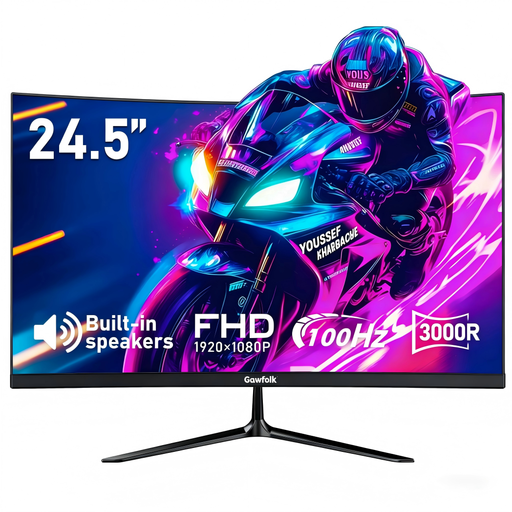
Gawfolk 24.5-inch curved FHD monitor
A curved desk screen to consider if its stated HDMI connection suits your laptop. The product name specifies 100Hz, a 3000R curve, built-in speakers and a 75 × 75 mm VESA mount. Check the laptop’s supported display mode and whether the supplied stand or a compatible mount will position the screen as you need.
Joybuy
 No image available
V7 V7UC-U3CRJ45HDVG-BLK USB-C adapter
For a desk needing video and other connections from one USB-C adapter, its name lists 4K HDMI, VGA, Gigabit Ethernet, dual USB 3.0 ports and 100W Power Delivery. This is described as a single-display route requiring USB-C Alt Mode; confirm that your laptop supports it and check how power delivery works with your setup.
Joybuy
 No image available
MOVESPEED DK5A1 USB-C docking station
A USB-C dock to consider when a desk needs an HDMI screen connection alongside peripheral ports. Its name specifies 4K 60Hz HDMI, USB-C and USB-A data ports, SD/TF readers and 3.5 mm audio. Verify that your laptop can supply the required video mode; if one-cable laptop charging matters, check that function separately.
Joybuy
 No image available
ASUS ZenScreen MB166CR FHD
A portable second-screen option for a laptop with a compatible USB-C video connection. Check that the exact laptop supports USB-C DisplayPort Alt Mode; this monitor is not described as having an HDMI input. For a permanent desk, also check how its stand positions the screen.
Joybuy
 No image available
AOC Q32V4 31.5-inch monitor
A larger desk-screen option if the available space and your laptop’s output suit it. The product name specifies an IPS display and built-in speakers. Check the exact input and display mode you intend to use, as well as the stand’s adjustments if screen height or position matters.
Joybuy
Frequently asked questions
What should I check on my laptop before buying a monitor?
Check the exact model’s available video outputs and supported external-display count, resolution and refresh rate. Then compare the intended monitor, cable and any dock or adapter as one connection: Lenovo’s dock configuration guidance illustrates why a dock’s sockets alone cannot establish the mode a laptop will drive.
When is a direct cable enough?
A direct cable or suitable video adapter is a route for one screen when the laptop’s documented output supports the monitor’s input and intended display mode. Consider a dock separately if you also want to leave several peripherals connected through one desk connection.
Can any USB-C laptop port connect to a monitor?
No conclusion follows from the connector shape alone. Check the exact port’s documented video capability and display modes; Lenovo specifies USB-C Alt Mode or Thunderbolt support for notebooks using its relevant USB-C and Thunderbolt docks.
Could an older laptop without USB-C use two external screens?
It may be possible with a compatible DisplayLink dock or adapter, but check the exact laptop, device and operating system before buying. The route requires supported software, and an example of a hybrid USB-A connection does not establish that every older laptop can run two external screens.
What matters before using DisplayLink with a work Mac?
Confirm that the chosen device uses DisplayLink, supports your macOS version and is permitted by your employer’s IT policy. DisplayLink says its Manager requires Screen Recording permission on macOS, so check whether that permission can be granted on the work laptop.


