What to check before choosing a screen setup
Decide how many screens you need for your work first; then check laptop display support and desk space before choosing a monitor, adapter or dock.
| Concern |
What to check when buying |
Who this matters to |
| Room for simultaneous work |
Decide which windows must stay visible; compare screen count, resolution and available inputs. |
If I need documents and communication visible together, I will weigh one external screen against the extra space and connections of a second; about 29% of consumers put simultaneous work first. |
| Laptop compatibility |
Check the exact laptop model, video-capable ports and supported number of external displays. |
If I am buying for a laptop I already own, I need the proposed screen count and connection route to work with its limits; about 23% of consumers prioritise compatibility. |
| Desk fit and screen position |
Measure usable width and depth, and check the stand base, adjustment range and any mount requirements. |
If my desk is compact, I need a screen position that leaves room for my viewing distance and input devices; about 18% of consumers put desk fit first. |
| Reconnecting a laptop |
Check USB-C video support, the laptop’s charging requirement, power delivery and the ports or software your setup needs. |
If I move my laptop on and off the desk, I want to avoid repeatedly reconnecting separate devices where a compatible setup can combine them; about 18% of consumers prioritise quick reconnection. |
| Keeping the setup simple |
Check which cables and input devices you need, and whether a basic connection meets your requirements before adding a dock. |
If I mainly want a more comfortable screen position without extra display area, I would rather avoid components I do not need; about 12% of consumers put simplicity and expense first. |
Joybuy product options for laptop screen setups
These options cover a single 27-inch external monitor and portable laptop screen extenders, including dual-screen arrangements. Check your laptop’s display support and connections, and consider whether a fixed desk or mobile workspace better suits the format.
 No image available
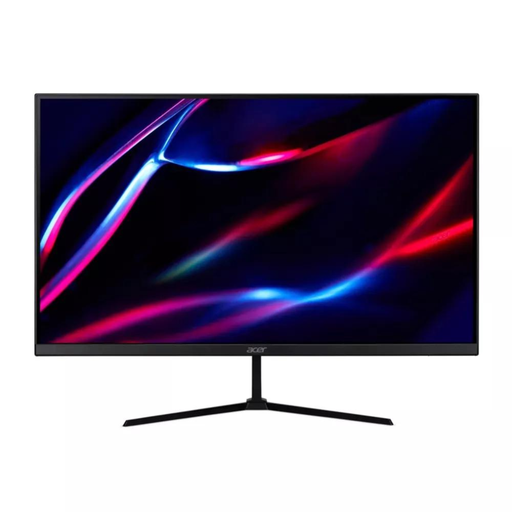
27-inch QHD IPS monitor, 180Hz
A single external screen option if you want a larger display alongside your laptop.
27-inch QHD IPS display; 180Hz; two HDMI inputs and DisplayPort. The product name also lists HDR400 and FreeSync Premium.
Joybuy
 No image available
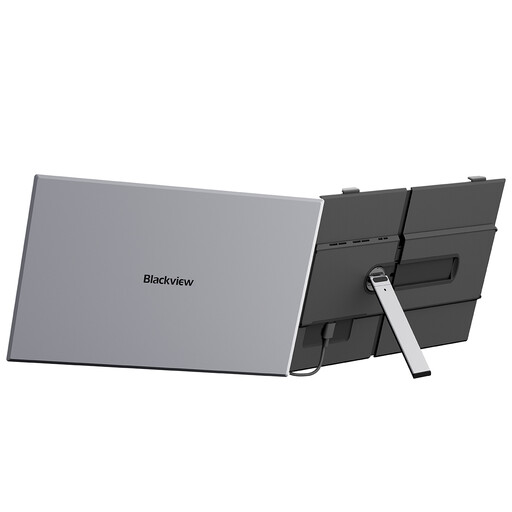
Blackview SCM8 15.3-inch FHD IPS screen extender
A portable screen extender option if you want additional display space alongside a laptop.
The product name lists Windows, Mac, Linux, PS4/5 and Switch, and states 100W reverse charge. Check the connection requirements for your device.
Joybuy
 No image available
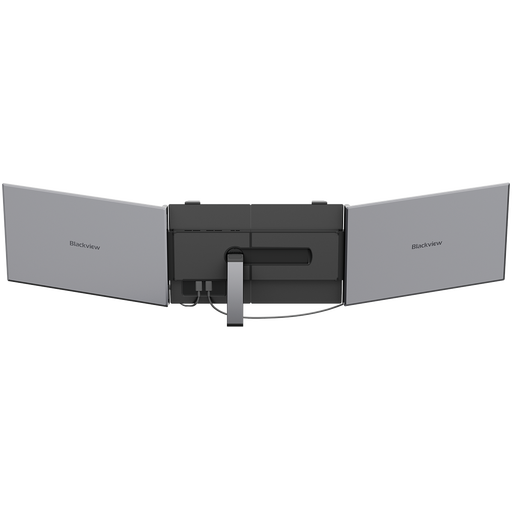
Blackview DCM8 15.3-inch portable screen extender
A portable external screen option for a laptop-based setup; the product information states that the laptop is not included.
15.3-inch IPS display, 1920 × 1200 resolution, 60Hz and 1.2kg. The product name also states 100W reverse charging.
Joybuy
 No image available
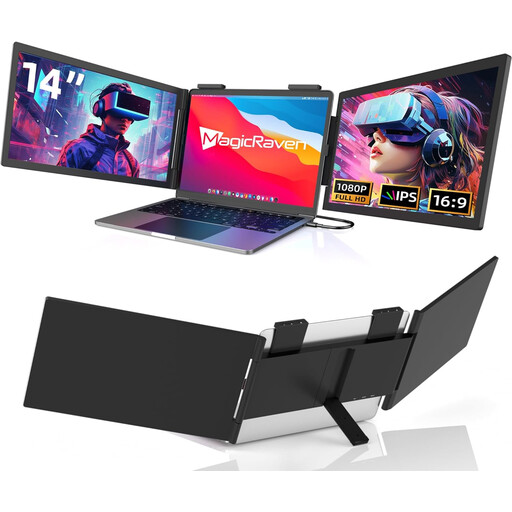
Dual-screen portable monitor for 14–16-inch laptops
A laptop-attached option if you want two additional screens rather than a single external display.
The product name specifies two FHD 1080p screens at 60Hz, USB-C connectivity and compatibility with 14–16-inch laptops.
Joybuy
 No image available
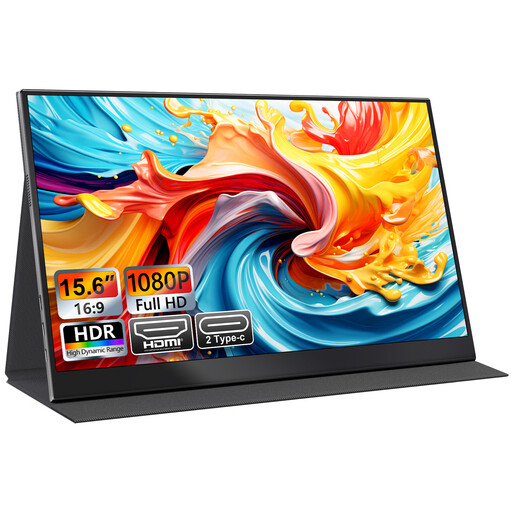
UFYQL M156F04 15.6-inch FHD IPS portable monitor
A portable single-screen option if you want an external display that can be used with a laptop.
The product name lists USB-C and HDMI connections, a smart-cover stand and VESA mounting.
Joybuy
Frequently asked questions
Does a USB-C socket mean my laptop can send video and charge from a monitor?
No. Check the exact laptop port’s video capability, the monitor’s USB-C video and power specifications, and your laptop’s charging requirement. DisplayPort Alt Mode is one method of sending video over USB-C. BenQ specifies 65 W for the GW2790QT; that figure does not apply to every USB-C monitor.
Will a dual-output dock give every laptop two external displays?
No; the laptop’s display limit and the dock’s video method both matter. Apple Support UK specifies one native external display for the M1 MacBook Air, while its instructions for using two displays with M3 MacBook Air models include model-specific conditions, including closing the lid. DisplayLink is a separate driver-dependent route, so check whether you can install the software and meet its requirements.
How do I arrange connected screens in Windows?
In Windows, open Settings, then System and Display to identify and arrange connected screens. Microsoft Support explains how to detect displays; match the on-screen layout to where the monitors sit on your desk and check the connections if a display is not detected.
Does a UK hybrid worker have to buy a monitor personally for display-screen work?
Not automatically. Health and Safety Executive guidance says that where a display-screen equipment assessment indicates equipment is needed, workers cannot be charged for it. Whether equipment is needed depends on the assessment of the relevant workstation and circumstances.
What if an online monitor does not fit my desk?
For an eligible UK distance purchase, GOV.UK guidance says you can notify the seller of cancellation within 14 days of receiving the item and then have another 14 days to return it. Check the applicable exceptions and the seller’s return procedure. Faulty or misdescribed goods are subject to separate rights.


