More room for laptop work
For work or study involving several documents and applications, the key decision is whether one external screen gives you enough space to view them together.


Start with the screen arrangement you need, then check your exact laptop model’s supported display count, resolution and refresh rate before choosing a monitor connection. A directly connected monitor can suit a one-screen addition; a compatible USB-C or Thunderbolt dock can bring supported connections together, while an adapter only bridges compatible ports. Neither a standard dock nor a cable should be assumed to overcome the laptop’s display limits; DisplayLink docks use a different, software-dependent route with their own limitations.
For work or study involving several documents and applications, the key decision is whether one external screen gives you enough space to view them together.
If you want several independent displays, check whether your exact laptop model supports the number of screens and display modes you plan to use before choosing a dock.
If you regularly connect a laptop at a desk, compare the display, data and charging functions you need rather than assuming every USB-C connection provides all three.
When it fits: You want one additional screen and your laptop supports the monitor’s intended resolution and refresh rate.
Trade-off: You may still need separate cables for power and peripherals.
When it fits: Your laptop supports the required display connection and count, and you want to connect supported desk devices through one hub.
Trade-off: Check video support and laptop-facing charging separately; a charging rating must meet your laptop’s requirements.
When it fits: Your laptop already supports the display mode, but its connector differs from the monitor’s input.
Trade-off: The cable or adapter must support the intended resolution and refresh rate; it cannot add display capability the laptop lacks.
When it fits: You are considering a USB-graphics route because the native display arrangement does not meet your needs, and the required software is acceptable.
Trade-off: Check software requirements, charging and operating-system limitations. DisplayLink Support documents that some protected video may not play on a Mac while DisplayLink screens are connected.
When it fits: The verified display arrangement or other required computer capabilities cannot be met acceptably with your current laptop and a suitable connection.
Trade-off: Compare the replacement computer’s exact display specifications; this is a broader purchase than adding a screen or connection device.
Start by deciding how many independent screens you want, then check the laptop and every part of the connection chain against their intended display modes.
| Concern | What to check when buying | Who this matters to |
|---|---|---|
| Usable screen space | Compare the monitor’s resolution and inputs with the laptop’s supported output mode and planned screen count. | If I switch between several documents, I want enough room to see them together rather than constantly rearranging windows. Around 33% of consumers prioritise workspace. |
| Additional-display support | Check the exact laptop model’s external-screen limit and the resolution and refresh rate supported for each screen. | When I need independent external screens, I want confirmation that my laptop can run the number and modes I intend to use. Around 27% of consumers prioritise display compatibility. |
| Desk connections | Check host video support, dock or monitor functions, laptop-facing charging output and the laptop’s power requirement. | If I reconnect at the same desk, I want the connection to handle the functions I need, including charging only when the specifications match. Around 20% of consumers prioritise a consolidated connection. |
| Sustained-use layout | Plan screen position and whether separate input devices suit the setup; these do not add video outputs. | For longer periods at a desk, I want a practical screen and input arrangement that suits how I work. Around 20% of consumers prioritise sustained-use setup. |
USB-C functions vary by model and port. Dell specifies the P2425H monitor’s USB-C port as downstream data-only, with up to 15 W; LG specifies display, data and up to 90 W connected-device charging over USB-C for its 27UP850K-W. Those model specifications are not interchangeable.
Check the direction and functions of the exact port, then compare its video and charging specifications with your laptop’s requirements.
A separate video connection, laptop charger or different monitor may still be needed.
The laptop’s display limits and the dock’s connection technology both affect the result. A DisplayLink dock is a different route from native video and can have software and usage limitations.
Confirm your laptop’s supported screen count and modes, then check whether the proposed dock uses native video or USB graphics. If considering DisplayLink, check software permissions and operating-system requirements.
An unsuitable dock may need replacing, and a USB-graphics option can require additional software.
Apple Support notes that a cable or adapter that does not support the display’s resolution and refresh rate can result in a dark display or a lower mode.
Check the monitor, laptop output and every cable or adapter in the connection path against the same intended resolution and refresh rate.
A suitable cable or adapter may be an additional purchase.
The P2425H is a 23.8-inch Full HD example with HDMI and DisplayPort inputs, for buyers comparing a directly connected office monitor.
The 27UP850K-W is a 27-inch 4K USB-C monitor example for comparing a display with connected-device charging.
ThinkVision T24m-29 is a 23.8-inch Full HD USB-C monitor with a hub, Ethernet and DisplayPort output.
The GW2790QT is a 27-inch QHD USB-C monitor example where screen size, hub functions and charging output may all affect the choice.
The DK30A2DH illustrates a DisplayLink USB-A or USB-C dock route for buyers considering two external display connections.
These choices are external monitors and portable screens for adding workspace to a laptop setup. Check your laptop’s supported display output and the intended resolution before choosing.
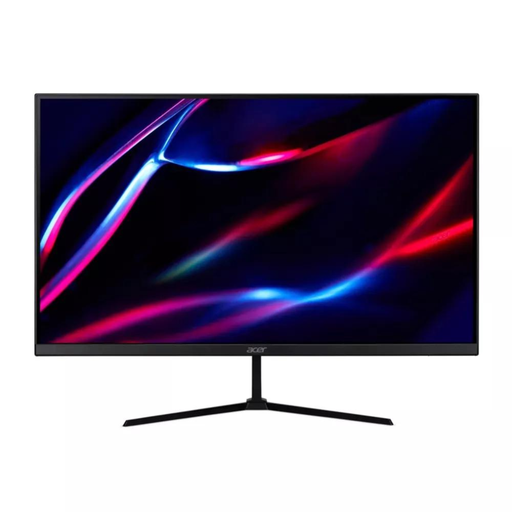 Image unavailable
For a laptop setup that needs a separate external screen, this listing specifies a 27-inch QHD IPS monitor.
The product name lists HDMI, DisplayPort and 180 Hz. Its supplied stand does not offer height adjustment.
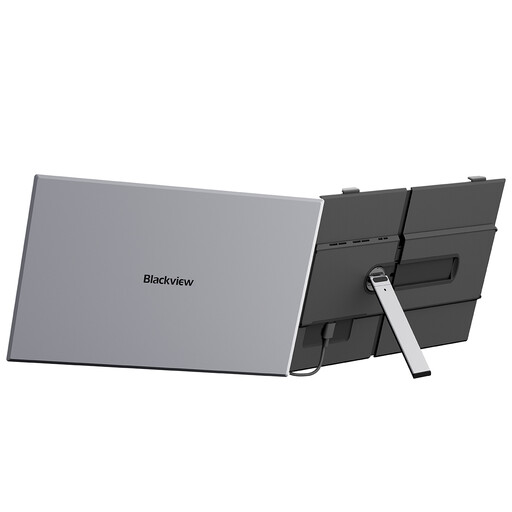 Image unavailable
For a laptop setup where a portable additional screen is being considered, this listing specifies a 15.3-inch FHD IPS display.
The product name lists 100 W reverse charge and use with Windows, Mac, Linux, PS4/5 and Switch; check that the intended host and connection support your setup.
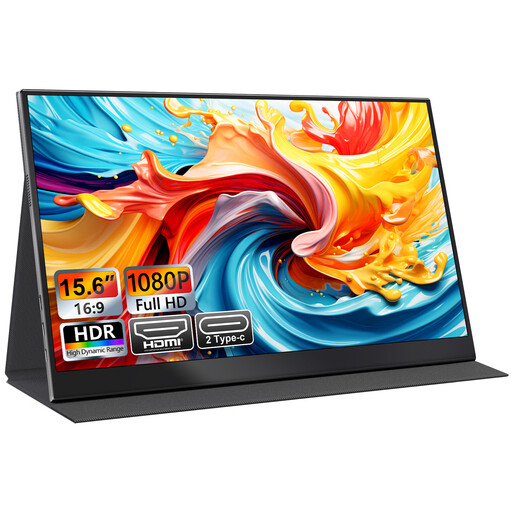 Image unavailable
For adding a portable screen to a laptop setup, this listing identifies a 15.6-inch FHD IPS monitor.
The product name lists USB-C and HDMI connections, a smart-cover stand and VESA mounting.
 Image unavailable
For a laptop setup where a larger external display is being considered, the product name specifies a 31.5-inch 2K Ultra HD IPS monitor.
The product name also lists 4 ms response time, Adaptive Sync and built-in speakers. Check the laptop and connection path against the display mode you intend to use.
 Image unavailable
For a portable additional display, this listing specifies a 17.3-inch 1080P FHD monitor.
The product name lists USB-C, HDMI and an integrated kickstand; check that the laptop supports the required video connection.
Not by itself. Check the exact laptop’s external-display specifications and the full connection path, including the cable or adapter, for the target resolution and refresh rate. Apple Support’s model-specific guidance shows why supported screen count and output modes need to be checked for the computer in question.
No. Check whether the dock provides laptop-facing USB Power Delivery and compare its stated output with your laptop’s requirements. StarTech states that the DK30A2DH does not provide USB-C Power Delivery, while LG specifies up to 90 W charging for the 27UP850K-W monitor.
A native-video dock should not be assumed to override the laptop’s display limits; check the exact model and intended display modes. Thunderbolt Technology Community describes support for up to two 4K 60 Hz monitors through a compatible Thunderbolt 4 dock or adapter, but the computer’s own specifications still matter. DisplayLink is a separate USB-graphics route with software requirements and documented limitations.
After connecting supported displays, use Windows display settings to identify and arrange them, then select an extended desktop rather than duplicating the screen. Microsoft Support explains how to detect a connected display; those settings cannot make unsupported hardware or a mismatched connection work.
For employees covered by Great Britain’s display screen equipment guidance who use such equipment daily for continuous periods of an hour or more, the employer must carry out a workstation assessment. The Health and Safety Executive’s guidance makes this a conditional workplace duty, not a universal requirement for every personal monitor purchase.