Check your exact laptop’s external-display limit and video-capable ports before choosing a connection. A direct HDMI or DisplayPort connection may cover one monitor; a compatible USB-C or Thunderbolt dock can bring displays and desk peripherals together, while a DisplayLink USB graphics adapter is an option when native outputs are insufficient. For two independent screens, confirm the intended resolution and refresh rate, and account for any driver or protected-video limitations.
Who is this setup for?
People working at a home or hybrid desk
If you use an existing laptop at a desk and want more screen space, start with the laptop’s display support rather than a dock’s port count. The Office for National Statistics reported that 28% of working adults in Great Britain were hybrid working in autumn 2024; that figure describes working arrangements, not demand for monitors or docks.
People who need two independent screens
For separate extended desktops rather than mirrored images, check how many external displays your exact laptop supports and under which resolution and refresh-rate conditions. Apple Support and Microsoft Support both direct users towards device-specific display guidance.
Owners of laptops with limited display ports
If your laptop has one native video output or only USB-A for an additional connection, a DisplayLink-capable USB graphics adapter may be worth considering. Check the adapter’s operating-system and driver requirements before choosing it.
What should you check before buying?
Identify the laptop model and the number of independent screens you need, then match a connection route to its documented display capabilities.
Direct video connection
Choose when: A verified laptop video output meets your one-monitor requirement.
Bear in mind: A second independent screen needs another supported display route.
USB-C or Thunderbolt dock
Choose when: The laptop supports the dock’s required video connection and you want to connect desk peripherals through it too.
Bear in mind: A dock’s advertised display modes do not override the host laptop’s limits.
DisplayLink USB graphics
Choose when: Native video outputs are insufficient and a compatible USB graphics adapter supports your intended displays.
Bear in mind: Check software requirements; DisplayLink says some protected video may not play on macOS while its screens are connected.
| Priority | What to check | Your needs |
|---|
| Display count |
Find the exact laptop model’s external-display limit. Check whether two screens can be extended independently at your intended resolution and refresh rate. |
I need separate space for documents or meetings, not the same picture repeated on both monitors. |
| Video connection |
Identify a native HDMI or DisplayPort output, or confirm that the USB-C host port supports the video mode required by the hub or dock. Check the cable’s capabilities too. |
A connector that fits is not enough: I want to know that my laptop can send a picture through it. |
| Desk connections |
Compare the dock’s display outputs, peripheral ports, network connection and charging requirements with those of the laptop and desk equipment. |
I want fewer separate connections when I sit down, without losing the ports or charging arrangement I use. |
| USB graphics software |
For DisplayLink hardware, check operating-system support, required drivers and supported display modes. On macOS, consider DisplayLink’s protected-video limitation. |
If I use USB graphics, I need the software to work on my laptop and the setup to suit what I watch as well as what I work on. |
What can go wrong?
-
Assuming two video sockets mean two extended screens
A hub’s HDMI or DisplayPort sockets cannot override the laptop’s external-display limit. The connection method can also affect the resolution or refresh rate available, as Microsoft Support notes for its device guidance.
Check the laptop’s supported display count and modes alongside the exact hub or dock specification before buying.
-
Buying by USB-C connector shape alone
Microsoft Support notes that a USB-C display adapter needs a host port configured for video output and that USB-C cables do not all support the same features.
Check the laptop manufacturer’s port specification and choose a cable that supports the required display connection.
-
Overlooking DisplayLink software requirements
USB graphics may require drivers. DisplayLink also says some protected video may not play on macOS while a DisplayLink screen is connected.
Check operating-system support and installation requirements; favour a supported native video route if protected playback is central to your use.
-
Expecting a higher-specification dock to change the laptop’s limits
Dell lists multi-display modes for its SD25TB4 dock, but those specifications do not establish what every connected laptop can drive.
Confirm the laptop’s display support first, then compare docks against the monitor count, resolution, peripherals and charging you actually need.
Relevant brands and technology
These references illustrate different connection routes; each specification applies to the named product or technology, not every device carrying the brand.
Dell
Dell’s SD25TB4 is a Thunderbolt 4 dock to consider when the laptop has a suitable host connection and desk peripherals also need connecting.
- Dell UK lists dual 4K displays at 60Hz among the SD25TB4’s modes and specifies power delivery of 130W for Dell systems or 96W for non-Dell systems.
- The laptop’s own display and connection limits still determine which mode can be used.
Targus
Targus’s DOCK116GLZ is a DisplayLink-based docking example for users considering USB graphics and peripheral expansion.
- Targus UK lists one 2560 × 1440 display at 50Hz or two 2048 × 1152 displays at 60Hz for the DOCK116GLZ.
- Check DisplayLink software compatibility and the exact display modes required. These DOCK116GLZ specifications do not describe the Targus product listed below.
StarTech.com
StarTech.com’s USB32DP24K60 is a USB graphics adapter example for a laptop that needs two DisplayPort connections.
- StarTech.com UK describes the USB32DP24K60 as a USB 3.2 5Gbps adapter for two DisplayPort displays, with 4K at 60Hz in its product specification.
- The named adapter requires drivers on Windows and macOS; check its requirements against the intended computer.
DisplayLink
DisplayLink is a USB graphics technology to check when native laptop video outputs do not meet the intended display count.
- DisplayLink provides installation guidance for supported operating systems, including Windows and macOS.
- DisplayLink says some protected video may not play on macOS while DisplayLink screens are connected.
Joybuy dock and hub options
These USB-C dock and hub options are relevant if you want display outputs alongside other desk connections. Check each one against your laptop’s video-capable port and intended monitor arrangement.
 No image available
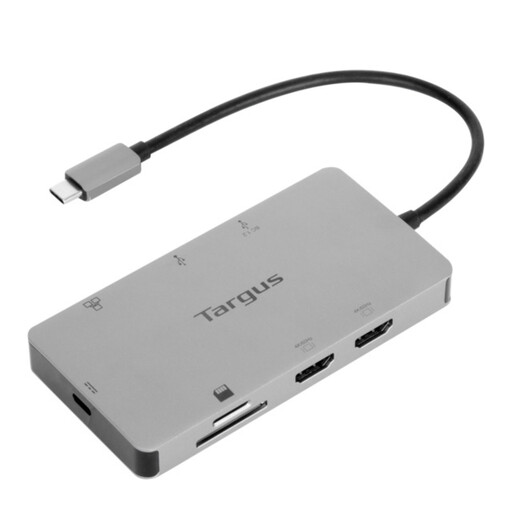
Targus USB-C Universal Dual HDMI 4K Docking Station, 100W Power Delivery Pass-Thru (Retail Packaging)
Consider this dock if you want two HDMI connections and power delivery pass-through at your desk. Its title specifies 4K and 100W Power Delivery Pass-Thru; confirm the two-display modes your exact laptop can provide, along with the required external power adapter, before choosing it.
Joybuy
 No image available
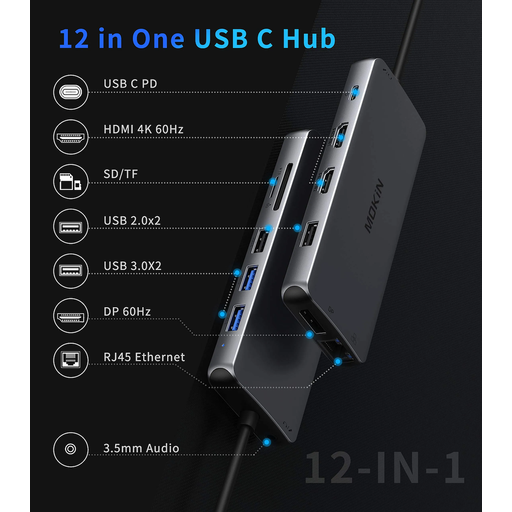
USB-C hub with 2 HDMI, DP, USB, RJ45, PD, SD/TF and audio
This hub offers several connection types to assess for a desk with displays and peripherals. Its name lists 2 HDMI outputs, DP, 2 USB 3.0 ports, 2 USB 2.0 ports, RJ45, PD, SD/TF and audio. Confirm the supported display count, resolution, refresh rate and operating-system requirements for your exact laptop before relying on its video outputs.
Joybuy
Common questions
How can I tell whether my laptop supports two external monitors?
Find the exact laptop model and check its manufacturer’s display-support specification for the number of external screens and the resolution and refresh-rate conditions. Apple Support advises Mac users to check model-specific video ports and display limits; Microsoft Support likewise notes that the connection method can affect available display modes.
Will any USB-C port run a monitor?
No. Microsoft Support states that a USB-C display adapter needs a computer port configured for video output. Check the laptop’s port specification and the cable’s supported features before buying a USB-C display hub or dock.
When should I consider a DisplayLink adapter?
Consider one when the laptop’s native video outputs cannot provide the displays you need, including where a suitable USB-A connection is the available route. Check the exact adapter’s driver, operating-system and display-mode requirements; StarTech.com specifies drivers for its USB32DP24K60 on Windows and macOS.
Could DisplayLink affect streaming on a Mac?
Yes, for some protected video. DisplayLink says content from certain services and applications may not play while a DisplayLink screen is connected on macOS, so check whether that limitation affects how you intend to use the setup.


