Laptop workers needing more screen room
If documents, meetings and other windows compete for space on your laptop, an external display may help. Compare the screen and its stand with the desk space you can actually use.


Start with the screen space and position you need, then check your laptop’s video outputs and supported number of external displays. A compatible monitor may need only a cable; consider a hub monitor or dock if you also need connections for peripherals or laptop charging. A USB-C socket alone does not establish video or charging support, and an arm is worth considering only if the screen and desk suit its mounting requirements.
If documents, meetings and other windows compete for space on your laptop, an external display may help. Compare the screen and its stand with the desk space you can actually use.
If you regularly connect a screen, keyboard or other devices, a hub monitor or separate dock may reduce the connections you make at the laptop. Check which video, data and charging functions your particular laptop supports.
A compact screen or adjustable stand may fit more readily than a larger display. If you are considering an arm, its mount and clamp must also fit the monitor and desk.
Choose the screen and its position first, then work out whether a direct cable covers your connections or whether a compatible hub, dock or adapter serves another need.
| Priority | What to check | Your needs |
|---|---|---|
| Screen space | Compare screen size, resolution and stand footprint with your available desk space. Check whether the screen can sit at a suitable viewing distance. | I need room for documents and meetings, but I still need space to work at my desk. |
| Video connection | Match the laptop’s video-capable output to the monitor input and cable or adapter. Check the exact laptop model’s external-display limit before planning two monitors; a hub does not necessarily increase it. | A second screen is useful only if my laptop can drive it in the arrangement I intend to use. |
| Charging and peripherals | Check the ports on the monitor or dock and their compatibility with your laptop. If you want USB-C charging, compare its power-delivery rating with the laptop’s requirement. | I regularly connect desk devices and would prefer fewer laptop connections, provided charging and video both work. |
| Screen position | Check the supplied stand’s adjustments before adding an arm. For an arm, match the monitor’s mount pattern and weight to the arm, then check the desk clamp and clearance. | I want to position the screen without assuming that an extra mount will fit my desk. |
USB-C laptop ports differ in function. Dell Support documents ports on certain laptops that transfer data without providing display output.
Check the exact laptop port’s video capability and charging requirements against the proposed monitor, dock or adapter.
The number of external displays depends on the laptop and configuration. Apple Support notes that a supported hub does not increase a MacBook Air’s maximum display count.
Check your exact laptop model and intended display configuration before buying for two external screens.
A screen also needs to fit the desk and allow a suitable viewing position; its resolution, stand footprint and adjustments affect that choice.
Measure the usable desk area and compare the complete monitor dimensions and stand adjustments, not just the diagonal.
The monitor’s mount and weight, the arm’s supported load and the desk clamp all affect whether an arm can be installed.
Check those specifications for the particular products and desk. Keep the supplied stand if it already places the screen where you need it.
These models illustrate different screen and connection choices; a brand’s features on one model should not be assumed on another.
The Philips 27E1N1600AE/00 is a QHD USB-C monitor, while the 27B1U7903/00 is a separate 4K Thunderbolt model.
The GW2490 is a 23.8-inch Full HD monitor. The different GW2790QT is a 27-inch QHD USB-C option.
The ProLite XUB3293UHSN-B5 is a 32-inch monitor with a built-in USB-C dock for a desk with several devices.
The 27UP850K-W is a 27-inch 4K USB-C monitor to consider when display detail matters to the work at hand.
The Dell P2725HE is a 27-inch Full HD USB-C hub monitor.
These options include external monitors and a separate USB-C dock. Choose a screen for the space you need, or consider the dock if you already have displays and need compatible connections for them.
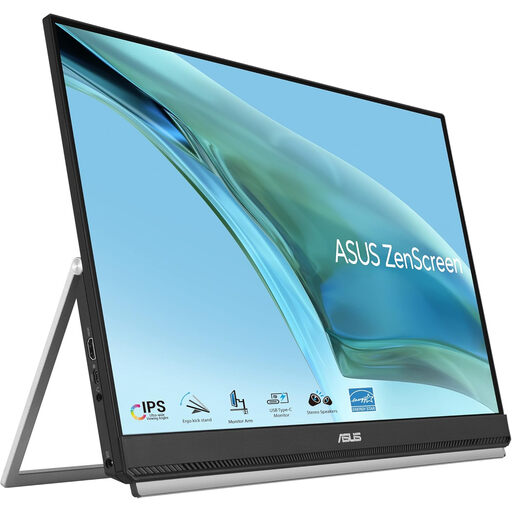 No image available
Consider this external display if you want a USB-C monitor for a home laptop workspace. Check your laptop’s video output and the connection and mounting arrangement you plan to use.
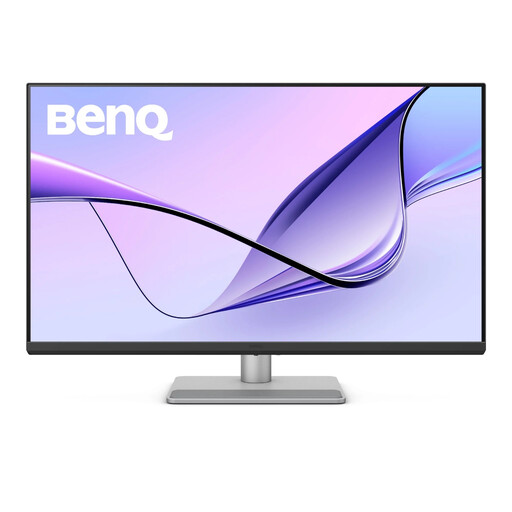 No image available
The 32-inch 4K UHD screen is an option if you have room for a larger display. Its product name specifies a height-adjustable stand; check the full desk footprint and your laptop’s USB-C compatibility before relying on that connection.
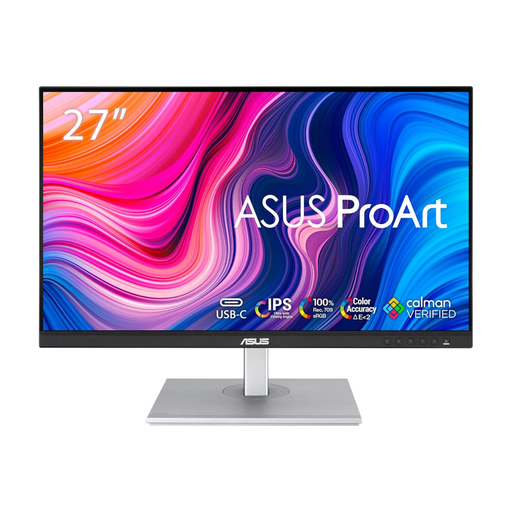 No image available
The WQHD display is worth comparing if you work across several windows or need to inspect visual material. Check its inputs and stand against your laptop and desk, and confirm charging capability before planning a single-cable setup.
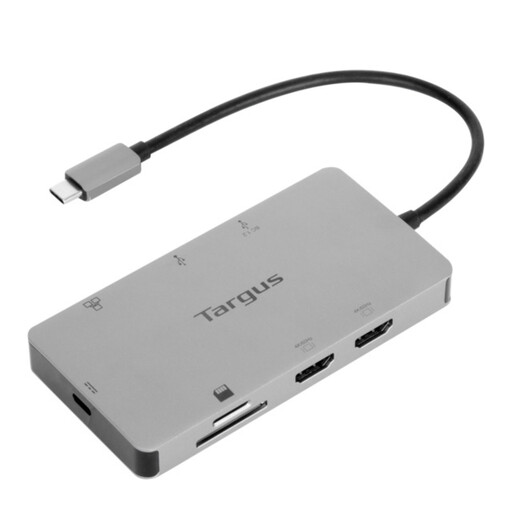 No image available
This is a dock, not a monitor: consider it when you need HDMI connections for external displays. Its name specifies dual HDMI 4K and 100W power-delivery pass-through; check your laptop’s supported display count, USB-C video capability and charging requirements for the intended setup.
 No image available
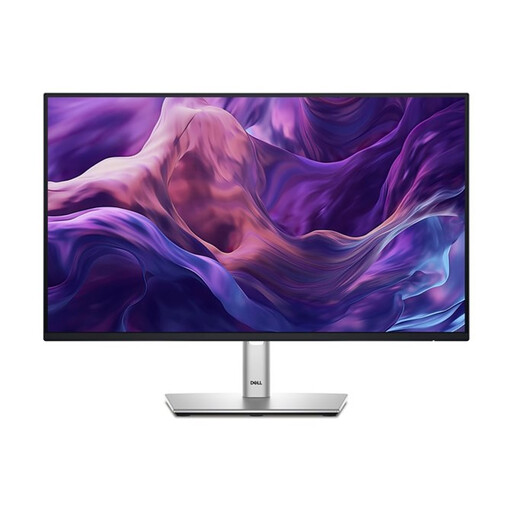
For a desk where you are considering a 24-inch external screen, compare this model’s footprint and 1920 × 1080 resolution with your working distance. Its listed connections include USB-C, DisplayPort, HDMI and VGA; check what your laptop can output, and confirm charging capability if you need it.
No. Check the video capability of the exact laptop port, then match it to the monitor or dock. Dell Support documents USB-C ports on certain laptops that transfer data but do not output video.
Not necessarily. Check the exact laptop’s external-display limit and the dock’s supported configuration. Apple Support says a supported hub does not increase a MacBook Air’s maximum number of external displays.
Match the monitor’s mounting pattern and weight to the arm, then check the desk against that arm’s clamp and clearance requirements. Clamp dimensions differ between arms, so use the specifications for the particular model you intend to buy.
If a display-screen-equipment workstation assessment indicates that equipment needs to be provided, the Health and Safety Executive says workers cannot be charged for that equipment. Ask your employer which actions its assessment requires for your workspace.