Choose a fixed monitor with a direct display connection if you mainly work at one desk, or a portable monitor if your second screen needs to travel with you. A dock makes more sense when you also connect desk peripherals, but check your exact laptop’s display limits, video connection and charging requirements before relying on a dock or a single USB-C cable.
Who needs which setup?
Home-based laptop workers
If documents, messages and work applications compete for space on your laptop screen, consider a fixed second monitor at your usual desk. Check for a compatible direct connection before deciding whether you also need a dock.
Hybrid workers carrying a second screen
A portable monitor offers a second display you can move between locations. Check how it receives video and power from your laptop, and whether its connection method requires software.
Workers with several desk peripherals
If you regularly connect a display alongside USB devices or networking, a dock can bring those connections together. Its ports do not override your laptop’s external-display limit, so check display support and charging wattage for your exact model.
What should you check before buying?
Decide where the screen will be used, then check the complete connection from laptop to display before choosing a cable, adapter or dock.
Fixed monitor
Choose it when: You mainly work at one desk and want a separate screen for documents and applications.
Bear in mind: A direct display cable does not add the peripheral connections of a dock.
Portable monitor
Choose it when: Your second screen needs to move with your laptop.
Bear in mind: The intended connection may draw power from the laptop or require a driver.
Docking station
Choose it when: You routinely reconnect displays and other peripherals at a desk.
Bear in mind: More dock ports do not, by themselves, increase the number of displays your laptop supports.
| Priority | What to check | Your needs |
|---|
| Usable screen space |
Check that the laptop detects the monitor as another display. Arrange it as an extended desktop rather than mirroring the laptop screen if you need separate workspace; Microsoft Support explains how to arrange detected displays in Windows. |
I want documents and messages visible on separate screens, rather than the same picture on both. |
| Video connection |
Compare the laptop’s video-capable port with the monitor input and the cable or adapter between them. A USB-C connector alone does not establish video support; Apple Support specifies supported display-adapter technologies for Macs. |
Before choosing a monitor or adapter, I need to know that my laptop can send video through the connection I plan to use. |
| Display limits |
Check the exact laptop model’s external-display count and the resolution and refresh rate supported through the proposed connection. Apple Support says Mac display count depends on the model and display settings; Microsoft Support documents model-specific trade-offs for dual external displays on Surface Laptop. |
If I plan to use two external screens, I want to know whether my laptop can run both at the settings I intend. |
| Laptop charging |
Compare the monitor or dock’s USB Power Delivery output in watts with the laptop maker’s recommended minimum adapter wattage. Check video and charging separately: LG UK lists USB-C display connectivity but only up to 15W power delivery for its 27U631A-B. |
A single desk cable appeals to me only if it can also supply enough power for my laptop. |
Which setup mistakes should you avoid?
-
Assuming every USB-C connection carries video
The laptop port, cable and adapter must support the intended display path; matching connector shapes are not enough.
Identify your exact laptop port’s video capability, then match the cable or adapter to that capability and the monitor input.
-
Counting dock ports instead of supported displays
A laptop can still limit the number of external screens or the resolution and refresh rate available when several are connected. Apple Support also documents model-specific conditions for certain Mac dual-display setups.
Check the laptop maker’s display specifications and the dock’s supported output at your intended settings.
-
Assuming a USB-C monitor will replace the charger
Video connectivity does not establish that a monitor supplies enough charging power. LG UK, for example, specifies up to 15W power delivery for its 27U631A-B.
Compare the monitor or dock’s stated wattage with your laptop maker’s recommended minimum; keep using a suitable separate charger if the output is insufficient.
-
Overlooking portable-monitor power and software
A portable screen’s intended connection can depend on laptop-supplied power or a driver. ASUS says the USB-A hybrid-signal connection on its ZenScreen MB14AC requires a DisplayLink driver.
Check the connection and power requirements of the exact portable-monitor model, especially if software installation is restricted on your work laptop.
Relevant brand references
Dell
Dell’s P1425 is a 14-inch portable-monitor reference for workers considering a screen they can carry between locations.
- Its portable format makes it relevant to a travel-based second-screen setup.
- Check the exact model’s connection and power arrangements before treating it as a one-cable charging solution.
ASUS
ASUS’s ZenScreen range includes portable displays with model-specific connection methods.
- The MB14AC is an example to consider when a portable second screen is the priority.
- According to ASUS, the MB14AC’s USB-A hybrid-signal route requires a DisplayLink driver; check whether you can install it on your laptop.
LG
LG’s 27U631A-B illustrates why USB-C video connectivity and laptop charging must be checked separately on a desk monitor.
- LG UK specifies USB-C display connectivity for this model.
- LG UK specifies up to 15W power delivery for the 27U631A-B; compare that figure with your laptop’s charging requirement rather than assuming it can replace the charger.
Joybuy options for your setup
These options cover a desk dock, a portable second screen, fixed monitors and a direct HDMI cable. Choose the type of connection you need first, then check it against your laptop.
 No image available
Targus USB-C Universal Dual HDMI 4K Docking Station, 100W PD Pass-Thru
Consider this dock for a desk where you reconnect HDMI displays and peripherals. Its name specifies dual HDMI and 100W power-delivery pass-through, but check your laptop’s supported display count and charging requirement; the listing also calls for an external 100W+ adapter.
View on Joybuy
 No image available
ASUS ZenScreen MB166CR FHD
This portable monitor suits a second-screen setup that moves with your laptop. Check that the laptop’s USB-C port supports the monitor’s intended video connection and can meet its power requirements.
View on Joybuy
 No image available
Dahua 4K 165Hz Curved OLED Monitor, Type-C 65W
This fixed monitor is an option for a permanent desk display. Its name specifies 3840 × 2160 resolution and Type-C 65W; check your laptop’s video output and charging needs. Confirm the screen size before buying, as the listing gives both 32-inch and 31.5-inch figures.
View on Joybuy
 No image available
ASUS ProArt PA278CV IPS WQHD
Consider this fixed monitor when you want a separate desk screen for documents and applications. Check that your laptop supports the intended video connection and WQHD resolution; confirm the USB-C power-delivery wattage if you also want the monitor to charge it.
View on Joybuy
 No image available
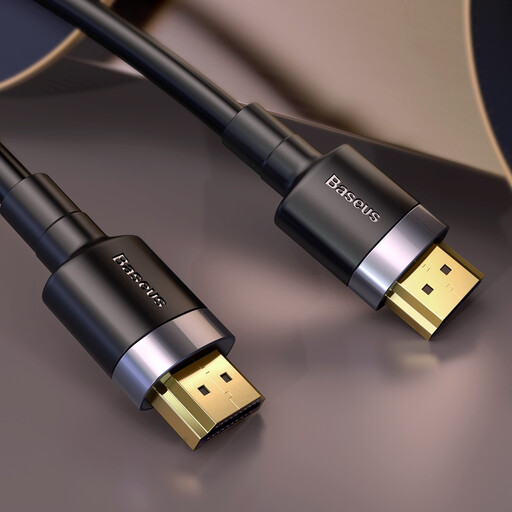
Baseus Cafule 4KHDMI Male-to-Male Cable, 3 m, Black
A direct cable is worth considering if your laptop and monitor both have compatible HDMI ports. Check their supported display settings and whether the stated 3 m length fits your desk; the cable does not add dock connections or charge a laptop over USB-C.
View on Joybuy
Common questions
Does every USB-C laptop port support an external monitor?
No. USB-C describes the connector, not a guaranteed video output. Check your laptop’s port specification and match the cable or adapter to the monitor; Apple Support says Mac display adapters must support an applicable technology such as DisplayPort Alt Mode or Thunderbolt.
Will a dock let any laptop run two external monitors?
No. Check the external-display limit of your exact laptop model, then confirm the intended resolution and refresh rate through the dock. Apple Support says Mac display count depends on the model and display settings; its guidance for certain M3 MacBook dual-display setups also specifies lid-closed and power conditions.
Can a USB-C monitor replace my laptop charger?
Only if its power-delivery output meets your laptop’s requirement. Compare the monitor’s stated wattage with the laptop maker’s recommended minimum: LG UK lists up to 15W for its 27U631A-B, while Apple Support advises using a display or adapter that supplies at least the recommended minimum for the Mac model.
When should I choose a portable monitor instead of a fixed one?
Choose a portable monitor when you need to carry your second screen between work locations. For a permanent desk, compare the fixed monitor’s connections with your laptop instead; for a portable model, check its video and power requirements and whether your intended connection needs a driver.


