What to prioritise when choosing a laptop monitor
HDMI or DisplayPort
Consider this when: your laptop has a matching video output, or supports a suitable adapter, and you are happy to charge it separately.
Trade-off: the monitor does not necessarily charge the laptop through the video connection.
USB-C video and power delivery
Consider this when: your laptop supports USB-C video and the monitor’s stated power delivery meets its charging needs.
Trade-off: a USB-C connector alone does not confirm video support, charging capacity or cable suitability.
| Concern |
What to check when buying |
Who this matters to |
| Connection and charging |
Check the laptop’s documented video output, the monitor’s input and any adapter or cable needed. For USB-C, confirm video support and compare power delivery with the laptop’s charging requirement. |
If I want one cable to handle video and charging, I need both devices and the cable to support that setup. Around 27% of consumers put connection compatibility first. |
| Screen space and text |
Compare screen diagonal, native resolution and full monitor width with your intended documents, window layout and desk space. |
If I often work across several documents, I want more usable display space without choosing a screen that overwhelms my desk. Around 27% of consumers prioritise screen space and readable text. |
| Desk fit and positioning |
Measure the usable width and depth, including the stand footprint. Check adjustment range or, for a separate mount, the monitor’s mounting pattern, weight and desk fixing. |
When my desk is shallow or crowded, I need to position the screen comfortably without losing space for a separate keyboard. Around 26% of consumers put desk fit and positioning first. |
| Whole-setup cost |
List the cables, adapters, charger and any arm or stand you actually need before comparing complete setups. |
If I already have a suitable charger or adapter, I do not want to pay for monitor features my laptop cannot use. Around 20% of consumers prioritise the overall setup cost and avoiding unnecessary extras. |
For screen positioning, HSE advises placing the top of the screen around eye level and the screen about an arm’s length away. Check how the full display, stand and keyboard will fit your actual workstation.
Joybuy monitor choices for laptop work
These Joybuy choices include USB-C-labelled monitors and models for laptop work. Check each exact model’s video inputs, charging details and dimensions against your laptop and desk.
 No image available
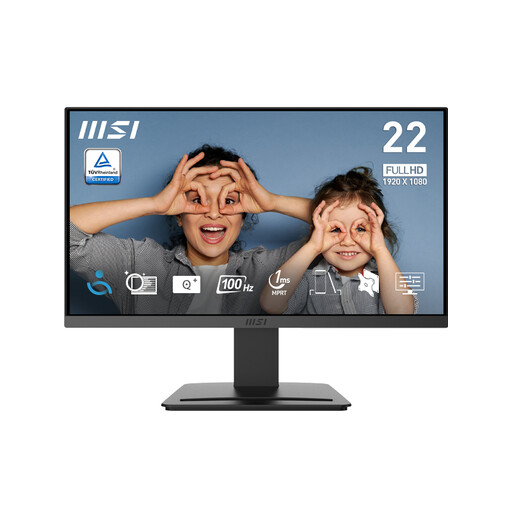
MSI PRO MP223 E2 21.45-inch Full HD Office Monitor
Consider it if you want a compact Full HD monitor and your laptop can connect through one of its listed video inputs.
21.45-inch Full HD; 1920 × 1080; 100 Hz; HDMI 1.4b and DisplayPort 1.2a.
Joybuy
 No image available
ASUS ZenScreen MB249C IPS USB-C
Consider this model if you are looking for a USB-C monitor; confirm your laptop’s video support and compare the exact monitor’s charging details before relying on a one-cable setup.
Check the mounting or stand arrangement and package contents for the particular listing before planning your desk layout.
Joybuy
 No image available
Lenovo L32p-30 31.5-inch 4K UHD IPS USB-C Monitor
Consider it if your desk can accommodate a 31.5-inch display and you want a model identified with USB-C; check the exact connection and charging requirements for your laptop.
31.5-inch 4K UHD; IPS; USB-C.
Joybuy
 No image available
Dell 24 Monitor P2425
Consider this 24-inch model if its exact inputs and stand adjustments suit your laptop and desk; check those details for the listed variant before choosing cables or a mount.
24-inch display.
Joybuy
 No image available
iiyama ProLite XB2492HSU 24-inch Full HD Monitor
Consider it if a 24-inch Full HD screen suits your workspace; check the exact variant’s video inputs and adjustment range against your laptop and desk.
24-inch Full HD; 16:9.
Joybuy
Frequently asked questions
Does any USB-C port let a monitor show my laptop screen and charge it?
No: the connector shape alone does not confirm either function. Check the laptop’s documented USB-C video support, the monitor’s input and stated power delivery, and the cable. The Video Electronics Standards Association describes DisplayPort Alternate Mode as a way to carry video over USB-C; Samsung specifies 90 W charging for the S60UD LS27D600UAUXXU, not for USB-C monitors generally.
How should I position a monitor for prolonged laptop work?
HSE advises positioning the top of the screen around eye level and the screen about an arm’s length away. For prolonged laptop use, it advises using a separate keyboard and mouse with the laptop screen raised, or using a separate display. Consider the whole workstation, not just the monitor stand.
Will a monitor arm solve a shallow-desk setup?
An arm may change how much space the screen and stand occupy, provided the monitor and desk can accept it. Check the monitor’s mounting pattern and weight, the arm’s range and supported load, and the desk fixing; then make sure the display can still sit at a comfortable viewing distance.
Who pays if an employed home worker needs extra display equipment following a DSE assessment?
Under HSE guidance, an employer cannot charge a worker for equipment needed as an action indicated by a Display Screen Equipment (DSE) assessment. The rules apply to workers using DSE daily for continuous periods of an hour or more in the circumstances HSE describes; this is not a blanket entitlement to a particular monitor.
What if an online monitor purchase does not fit my desk or arrives faulty?
GOV.UK says distance-sale customers can generally notify the seller within 14 days of receiving an item that they wish to cancel, then have another 14 days to return it. It separately says faulty or misdescribed goods require a remedy. Check the seller’s process and distinguish a change-of-mind return from a fault claim.


