Laptop workers at a regular desk
If you use a laptop for sustained work, an extra screen is only part of the arrangement. The Health and Safety Executive advises a separate keyboard and mouse so the screen can be raised to a suitable position.


Connect a monitor directly if you need one extra screen and your laptop has a confirmed video output for it. Consider a USB-C hub monitor when you also want charging through the display connection, or a separate dock when you regularly connect several peripherals; either choice depends on your laptop’s port capabilities, charging needs and display support. For sustained desk work, plan how to raise and position the screen while using a separate keyboard and mouse, as the Health and Safety Executive advises.
If you use a laptop for sustained work, an extra screen is only part of the arrangement. The Health and Safety Executive advises a separate keyboard and mouse so the screen can be raised to a suitable position.
A USB-C hub monitor may suit you if you want to connect a display and charge your laptop with one cable. Check that the laptop supports video through the chosen port and accepts the monitor’s available charging power.
If you repeatedly connect a display, keyboard, mouse or wired network at one desk, a dock may simplify that routine. Its functions still depend on the laptop’s supported port protocol and the dock’s compatibility requirements.
Start with the screen and desk arrangement you need, then confirm the laptop’s video connection. Charging and peripheral connections determine whether a direct cable, hub monitor or separate dock makes sense.
Choose it when: You need one additional display and have a confirmed video connection or compatible adapter path.
Trade-off: A video connection alone does not provide laptop charging or extra desk ports.
Choose it when: One external screen is enough and the laptop supports the monitor’s video connection and available charging power.
Trade-off: You may still need the laptop charger if the monitor’s power delivery does not meet your laptop’s requirements.
Choose it when: You regularly connect several peripherals or need the dock’s specified display outputs.
Trade-off: A dock cannot override the laptop’s display limits or its port and operating-system compatibility requirements.
| Concern | What to check | Who this matters to |
|---|---|---|
| Screen position | Check stand adjustment or mounting options, desk depth and space for a separate keyboard and mouse. The Health and Safety Executive advises raising the screen for prolonged laptop use. | If I work at the same desk for long stretches, I need a screen and keyboard arrangement that does not keep my head lowered. Roughly 25% of consumers put screen positioning first. |
| Usable screen space | Match the screen’s size and shape to the windows you use, and measure the desk space available for the display and its stand. | When I need documents and other work visible together, the extra display must also fit my desk. About 25% of consumers make usable screen space their primary concern. |
| One-cable connection | Confirm the laptop port’s video capability and charging requirements against the monitor or dock, including the required cable. | I want to connect my screen and charge my laptop without managing separate desk cables. For roughly 31% of consumers, that one-cable requirement is the main priority. |
| Peripheral connections | List the ports and displays you need, then check the dock against the laptop model’s supported display count and operating system. | If my regular desk also has a wired network or several accessories, I want to reconnect them without rebuilding the setup each time. Around 19% of consumers prioritise those peripheral connections. |
A matching connector does not establish that a monitor or dock will work. Lenovo specifies USB-C Alt Mode or Thunderbolt support for its USB-C and Thunderbolt docks, while Microsoft notes that USB-C functionality can vary with hardware and software.
Check the exact laptop model’s port specifications, then match the accessory and cable to its supported video protocol.
Dell states that its P2425HE provides up to 90W of power delivery; LG states up to 65W for its 34WR55QK-B. Neither figure establishes that a particular laptop can receive video and sufficient power through the same connection.
Compare the laptop maker’s charging requirements with the chosen monitor’s output, and confirm video support on the intended laptop port.
If the available power does not meet your laptop’s needs, you may have to keep using its own charger.
A monitor does not automatically put the screen at a suitable height. The Health and Safety Executive advises a separate keyboard and mouse for prolonged laptop use so the screen can be elevated.
Measure the desk and check the monitor’s adjustment or mounting options before deciding how to position it.
A riser or arm, separate keyboard and mouse, or a change to the desk layout may be needed.
Apple says a Mac’s supported external-display count depends on its technical specifications. Microsoft likewise says external-display capability depends on the device model, cables and adapters.
Check the laptop maker’s specifications for your exact model and intended display arrangement before choosing a multi-display dock.
Dell’s P2425HE is an example of a USB-C hub monitor for a desk where one display and laptop charging are priorities.
LG’s 34WR55QK-B is an ultrawide USB-C monitor to consider if your work calls for a wider display and the desk has room for it.
Lenovo’s ThinkPad Universal USB-C Dock illustrates the separate-dock route for connecting a monitor and desk peripherals.
These monitors offer different screen sizes and connection choices for adding a display to a laptop desk. Check your laptop’s video output and the space available before choosing one; a monitor purchase does not itself provide a separate dock.
 No image available
Consider this larger display if you have room on the desk and a suitable laptop video connection. Its listed resolution is 2560 × 1440, with HDMI and DisplayPort inputs and VESA 100 × 100 mm mounting; check how you will position the screen, as tilt is stated but stand height adjustment is not confirmed.
 No image available
This is another large-screen option for a desk with enough space for the display and stand. The product name specifies a 31.5-inch IPS screen and built-in speakers; confirm its physical dimensions, positioning options and connection to your laptop before buying.
 No image available
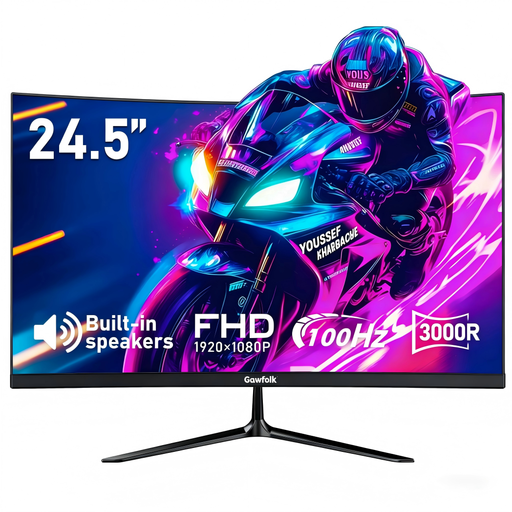
Consider this screen if its size and curved shape suit your available desk space. The product name lists HDMI and VESA 75 × 75 mm mounting; confirm the laptop connection and how the screen will sit at a suitable height.
 No image available
Consider the MB166CR when you need an additional screen for hybrid working rather than a fixed large desk display. Check that your laptop’s USB-C port supports the DisplayPort Alt Mode video connection required for this model, and confirm how you will position the screen during sustained work; do not assume it charges the laptop.
 No image available
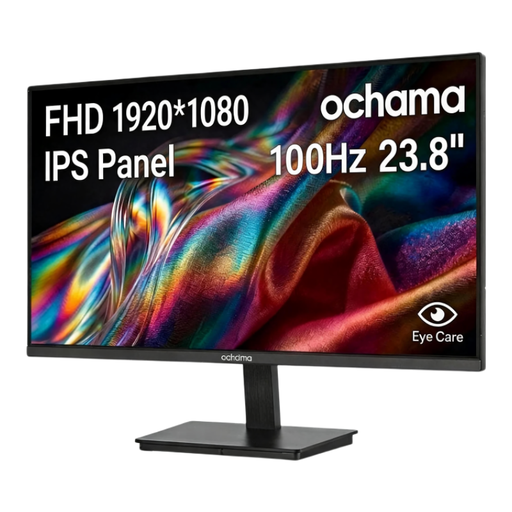
This 23.8-inch 1080p monitor is an option for an additional screen at a home-working desk. Its product name lists a 100Hz refresh rate; confirm its video inputs against your laptop and check its stand adjustment before planning the desk arrangement.
A direct connection is enough for one extra screen if your laptop supports the intended video output and you have the right cable or documented adapter path. Consider a hub monitor or dock if you also need charging or regularly reconnect several peripherals.
Check your exact laptop model’s video-capable ports, supported external displays and charging requirements against the accessory and cable. Lenovo specifies USB-C Alt Mode or Thunderbolt support for its USB-C and Thunderbolt docks; Microsoft cautions that some USB-C hardware and software combinations have limited functionality.
Do not rely on a dock to change the laptop’s stated display limits. Apple says external-display support depends on the specific Mac’s technical specifications, and Microsoft notes that the device model, cables and adapters affect display capability.
The Health and Safety Executive advises placing the top of the screen around eye level, about an arm’s length away. Use a separate keyboard and mouse so a laptop screen can be raised, and check whether your monitor stand or mounting arrangement allows the position you need.
The Health and Safety Executive says display-screen equipment rules can apply to workers who work at home permanently or long term, or routinely split their time between home and a workplace. It says employers must assess the workstation when workers use display-screen equipment daily as part of normal work for continuous periods of an hour or more.