Two-screen desk users
If you need two external work displays, check that your laptop, operating system and connection route support the intended simultaneous setup.


For a fixed laptop work desk, choose a monitor or dock only after checking your exact laptop’s display limit, video-capable ports, operating system and charging needs. A direct monitor connection may suit a one-screen setup; a compatible native-video dock can bring desk connections together, while a USB-A DisplayLink dock is a conditional option when native video is unsuitable, with software support and separate laptop charging to check.
If you need two external work displays, check that your laptop, operating system and connection route support the intended simultaneous setup.
If one external screen covers your work needs, a separate dock may only be useful when you also want to connect several peripherals or simplify reconnection.
If your laptop lacks suitable USB-C video, check whether a compatible USB-A display dock suits your operating system and software permissions, and how the laptop will be powered.
For a routine laptop work desk, start with the number of screens your laptop can run, then decide whether you need a dock for peripherals, charging or both.
| Concern | What to check when buying | Who this matters to |
|---|---|---|
| Two independent displays | Check the laptop’s simultaneous external-display limit, operating-system conditions and the resolution and refresh rate you intend to use on each screen. | If I need two separate screens for work, I want to know my laptop can run both at once. Around 25% of consumers put that two-display requirement first. |
| One practical external screen | Match the laptop’s video output to the monitor input and intended display mode; check whether the monitor’s stand and any hub or charging features suit your desk. | If one screen is enough, I want a straightforward connection without adding a dock I will not use. Around 25% of consumers prioritise a single useful work display. |
| Video from a laptop without suitable USB-C | For a USB-A display dock, confirm host-port and operating-system support, any required software and whether you will need the laptop’s separate power supply. | When my laptop lacks suitable native USB-C video, I need a supported way to connect a work screen. Around 19% of consumers put that connection problem first. |
| Connecting desk peripherals | List the devices you use and check the dock’s host cable, downstream ports, any required network connection and laptop-specific charging output. | If I reconnect several desk devices, I want the dock’s ports and power arrangement to match them. Around 19% of consumers prioritise consolidating their desk connections. |
| Screen positioning | Check desk space, the monitor’s adjustment options and whether a separate keyboard and mouse would let you position the screen independently. | If I use the desk for prolonged laptop work, I want the screen and input devices positioned to suit the workstation. Around 12% of consumers put screen placement first. |
The laptop’s own display limit and operating-system conditions still apply. Apple Support’s MacBook Air guidance shows why the exact model matters; a dock’s advertised outputs do not determine how many displays the host can run.
Check the laptop’s supported simultaneous display count and the intended screen modes before choosing a dual-output dock.
A connector adapter does not add native video capability to a laptop port. Dell Support notes that not every USB-C port supports video.
Check the laptop’s documentation for video output over the port, or look for an explicitly compatible USB graphics dock if native video is not suitable.
DisplayLink Support says a USB Standard A-B docking connection needs the computer’s own power supply for charging. StarTech.com also states that its DK30A2DH does not provide USB-C Power Delivery to the laptop.
Check charging support for the exact dock and host combination, and keep the laptop’s separate charger available when required.
A separate laptop charger may still need to occupy a desk socket while the dock is connected.
Compatibility and restrictions can vary by model and operating system. Plugable’s UD-6950Z requires a driver on Mac and is not intended for protected-content playback; DisplayLink also documents a protected-video limitation on Mac while its screens are connected.
Before choosing this route, check the exact dock’s operating-system support, whether your work device permits software installation and whether it suits the applications you use.
HP’s Series 5 Pro 524pf is a 23.8-inch FHD monitor example for a straightforward work-screen setup.
Dell’s P2425HE hub monitor and SD25TB4 Thunderbolt dock are examples for different desk arrangements.
The DK30A2DH illustrates a DisplayLink dock designed for USB-A or USB-C host connections and two monitor outputs.
The UD-6950Z is an example of a USB-A or USB-C host DisplayLink approach for supported office-work laptops.
These product choices cover external monitors and a USB-C hub for fixed laptop desks. Check your laptop’s display support and ports before choosing a connection route.
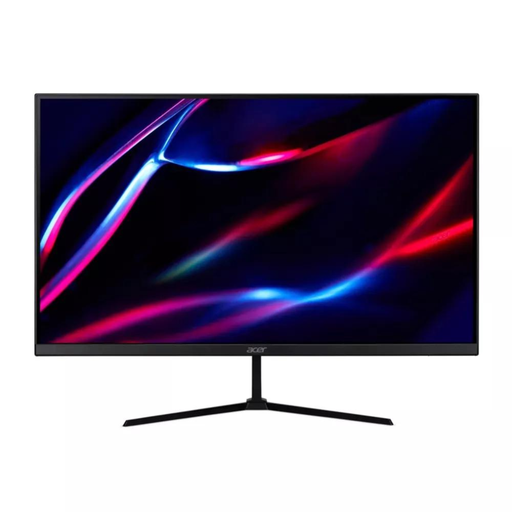 No image available
An external-screen option for a fixed desk when your laptop supports the intended QHD display mode.
27-inch QHD IPS; 180Hz; HDMI and DisplayPort.
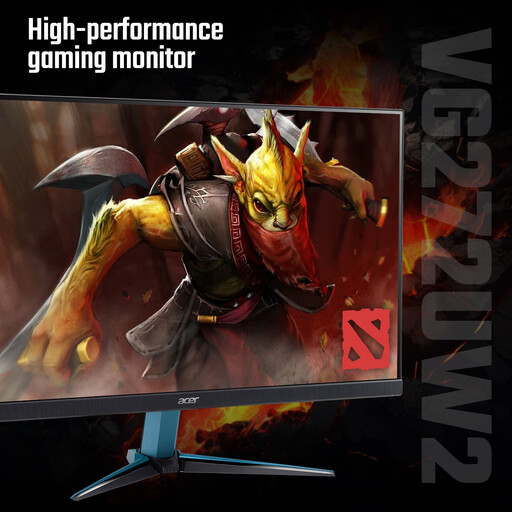 No image available
A 27-inch external-screen option when your laptop and work setup support the intended QHD mode.
27-inch QHD IPS; 240Hz.
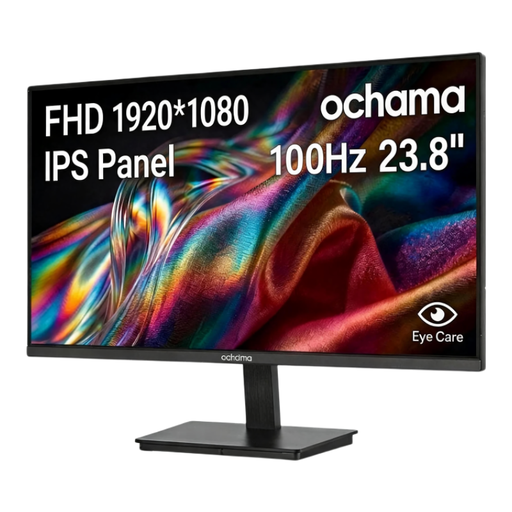 No image available
A single external-screen option for routine desk work when a 23.8-inch 1080p display suits your setup.
23.8-inch; 1080p; 100Hz.
 No image available
A USB-C hub option for connecting displays and desk peripherals, provided the laptop’s USB-C port supports DisplayPort Alt Mode.
Two HDMI outputs listed as 4K 120Hz and 4K 60Hz; USB-A and USB-C ports; RJ45; SD/TF card slots; USB-C PD port.
Video output requires a host USB-C port that supports DisplayPort Alt Mode. Check the exact host and intended display arrangement before buying.
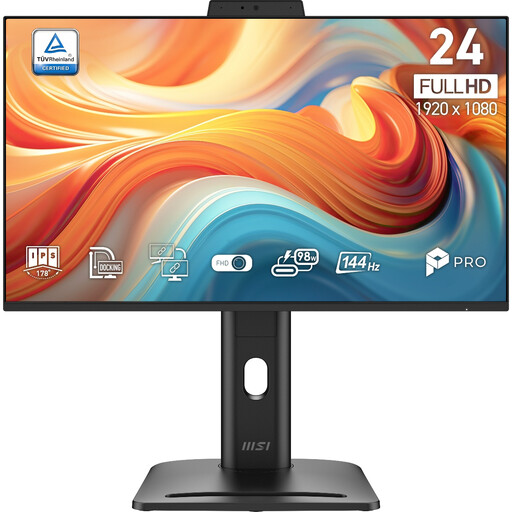 No image available
An external-screen option for a fixed desk when Full HD resolution suits the intended work setup.
24-inch; 1920 × 1080 (FHD); 144Hz.
No. Check the exact laptop’s documentation for video output over that USB-C port, its supported external-display count and the dock’s required host mode. Dell Support notes that not every USB-C port supports video.
Do not assume it can. DisplayLink Support says USB Standard A-B docking does not charge the computer, and StarTech.com states that its DK30A2DH does not provide laptop USB-C Power Delivery. Keep the laptop’s required power connection unless the exact host-and-dock arrangement specifies otherwise.
Check the exact dock’s operating-system support and install any required software using the provider’s instructions. If it is a managed work laptop, confirm installation is permitted; for prolonged laptop use, the Health and Safety Executive advises separate input devices so the screen can be positioned independently.
The Health and Safety Executive does not prescribe a particular monitor or dock in the cited guidance. Where display-screen-equipment requirements apply, the employer should assess the individual home workstation and address identified risks; if that assessment indicates that equipment needs to be provided, the worker cannot be charged for it.
For covered distance sales, GOV.UK guidance says customers can notify the seller that they wish to cancel within 14 days of receiving goods, subject to applicable exceptions. Faulty or misdescribed goods have separate remedies, so check the seller’s terms and the item’s warranty without treating a manufacturer warranty as a replacement for statutory rights.