What should you check before choosing?
Start with the laptop’s supported display output, then decide how much screen space and desk adjustment you need. For a laptop-based home-office setup, the connection routes below solve different problems.
Direct HDMI or DisplayPort
Choose it when: The laptop and monitor have compatible video connections and you mainly need one external screen.
Trade-off: A video connection alone does not add laptop charging or peripheral ports.
USB-C hub monitor
Choose it when: Your laptop supports the required USB-C video route and you would use the monitor’s charging or peripheral connections.
Trade-off: The port shape does not establish video support, and the monitor’s power output must suit the laptop.
Separate dock or adapter
Choose it when: A compatible device solves a specific missing video port or need for additional connections.
Trade-off: The dock or adapter adds another component whose display support must be checked.
| Concern |
Buying checks |
Who this matters to |
| Workable screen space |
Measure the usable desk area; compare screen size and resolution with the work windows you want visible. |
Keeping documents and messages in view together matters most when the laptop screen feels cramped. About 29% of consumers put usable work space first. |
| Connection compatibility |
Check the exact laptop’s video-output specification and the cable or adapter needed for your intended display. |
If an external screen is central to the working day, I need to know the laptop can run it through the proposed connection. Confirmed compatibility is the primary concern for about 29% of consumers. |
| Desk fit and placement |
Check the monitor and stand footprint; compare adjustment or mounting requirements with the desk. |
On a restricted desk, being able to place the screen comfortably takes precedence over choosing a larger panel. Roughly 24% of consumers prioritise that fit. |
| Fewer connections |
List the peripherals you use; compare the monitor or dock’s ports and power delivery with the laptop’s needs. |
Connecting a display, peripherals and suitable charging with less cable handling can make a regular desk setup easier to manage. For about 18% of consumers, consolidating those connections is the main priority. |
Joybuy monitor selections
These external monitors offer different screen formats to consider for a laptop-based home office. Match any chosen display and connection method to your laptop and available desk space.
 No image available
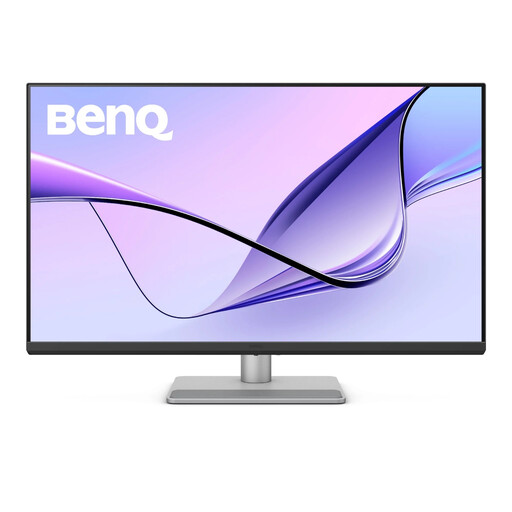
BenQ MA320UP 32-inch 4K USB-C monitor
Consider this larger display if your desk has room and you want a USB-C option for a laptop setup. The product name specifies an IPS panel and a height-adjustable stand; check your laptop’s video output and charging requirements before relying on the USB-C connection.
View on Joybuy
 No image available
ASUS ProArt PA278CV IPS WQHD monitor
The WQHD IPS display is an option to compare if you want an external screen for several work windows. Confirm the connection you intend to use against the exact laptop model; if charging through the monitor matters, check its stated power output too.
View on Joybuy
 No image available
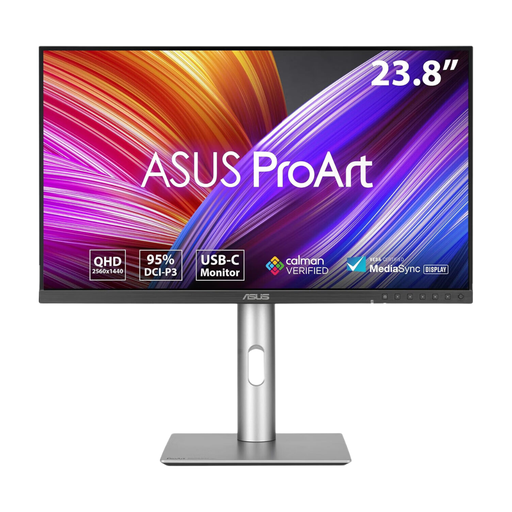
ASUS ProArt PA24ACRV IPS QHD monitor
This QHD IPS model is worth considering when you want a work display while paying close attention to desk fit. Check its dimensions and stand arrangement for your workspace, and confirm laptop video and charging compatibility for your intended connection.
View on Joybuy
 No image available
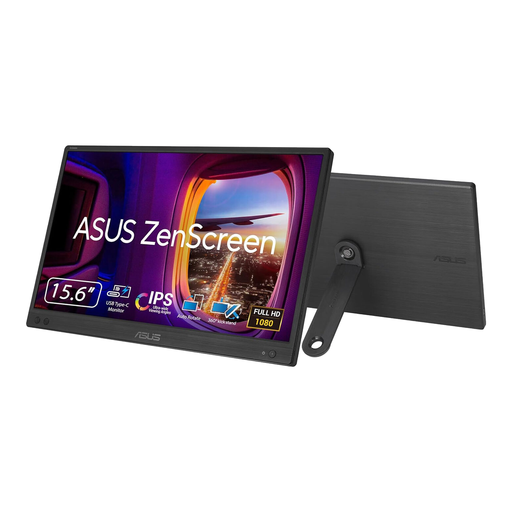
ASUS ZenScreen MB166CR FHD monitor
Consider this ZenScreen for a laptop workspace that needs a portable second display rather than a conventional desk monitor. Its product name specifies FHD resolution; confirm that your laptop supports the video connection required by this exact model.
View on Joybuy
 No image available
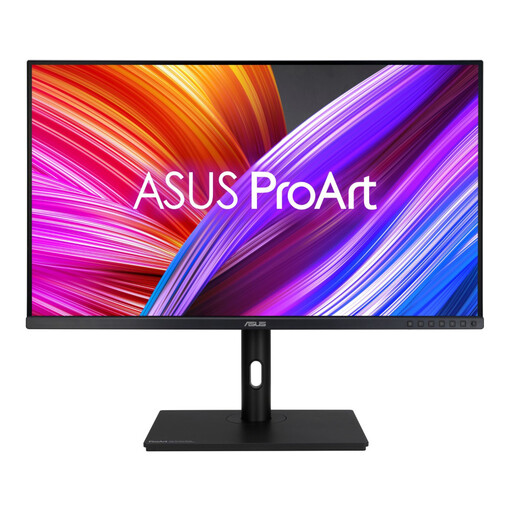
ASUS ProArt PA328QV IPS WQHD monitor
If you are considering a larger work display, compare this WQHD IPS model’s dimensions with the space available behind your keyboard and laptop. Check that its video connections match your laptop before ordering.
View on Joybuy
Frequently asked questions
How can I tell whether my laptop’s USB-C port supports a monitor?
Check the video-output specification for your exact laptop model rather than relying on the port shape. VESA explains that DisplayPort Alt Mode can carry display output over USB-C in compatible equipment; the monitor, cable and any adapter must also suit the intended connection.
Will a USB-C monitor charge my laptop and show video through one cable?
Only if the laptop supports the required USB-C video route and the monitor and cable support it too. Compare the monitor’s stated power delivery with the laptop’s charging requirements before expecting the same connection to provide suitable charging.
Do I need a dock for one external home-office monitor?
Not if a compatible direct connection meets your display needs. Consider a dock or adapter for a specific port or peripheral requirement, and confirm that it supports the intended display; Microsoft Support notes that docks and adapters can introduce connection conflicts.
Can I connect two external monitors to any laptop?
No; check the exact laptop’s supported external-display count and the resolution and refresh rate available through your chosen connections. Apple Support says these limits vary by Mac model, while Microsoft advises checking display-hardware support when an additional monitor does not work. A splitter does not create two independent extended displays from one signal.


