Add an external monitor if regularly keeping documents, spreadsheets or calls in view would make your desk work easier; keep the laptop-only setup if its screen already accommodates your tasks. For a monitor, confirm the laptop’s display output before choosing HDMI, USB-C or a dock. USB-C video and charging depend on the exact laptop port and the monitor’s Power Delivery rating; a dock does not override the laptop’s external-display limits.
Who might need another screen?
The reason to add a monitor is the work you need to see at your desk, not simply the size of your laptop.
Laptop users working across documents and spreadsheets
An external screen is worth considering when keeping several work windows visible matters more than preserving a laptop-only desk. Which? discusses monitors as part of a home-office setup for viewing day-to-day tasks; the right screen size still depends on your desk and preferred layout.
Hybrid workers with a regular plug-in desk
A monitor, peripherals and perhaps Ethernet can make a fixed desk easier to reconnect to. Check the exact laptop’s video-capable ports and supported external-display count before deciding whether a direct cable or dock fits that arrangement.
Employees using a home workstation for sustained screen work
Screen position and the wider desk arrangement matter alongside display specifications. The UK Health and Safety Executive says employers must assess workstations where employees use display screen equipment daily, as part of normal work, continuously for an hour or more; its home-working guidance explains when the regulations can apply.
What should you check before buying?
Decide whether a second screen solves a regular task-layout problem, then check the laptop’s display connection and the space available on your desk.
Add an external monitor
Choose it when: You regularly need documents, spreadsheets, browser windows or calls visible together at a fixed desk.
Allow for: The screen needs desk space and a display connection your laptop can actually use.
Stay laptop-only
Choose it when: The laptop screen already accommodates your work, or you move desks frequently.
Allow for: There is less simultaneous screen area for multi-window tasks; sustained workstation needs may also call for a broader assessment.
| Priority |
What to check |
Your needs |
| Working space |
Compare screen size, resolution and the space available on your desk. For example, a 27-inch QHD screen has a stated 2560 × 1440 resolution; check whether your laptop supports the intended output and whether the layout suits your scaling preference. |
I want documents or spreadsheets alongside another work window, rather than switching constantly on the laptop screen. |
| Video connection |
Match a confirmed laptop video output to the monitor’s HDMI, DisplayPort or USB-C input. Which? advises using HDMI or a USB-C port that supports video; VESA explains that DisplayPort Alt Mode is one way to carry video over USB-C. |
A direct cable would suit me if my laptop and chosen monitor have compatible display connections. |
| Laptop charging |
For a one-cable desk, check both USB-C video support and the monitor’s Power Delivery wattage against the laptop manufacturer’s charging requirement. Otherwise, plan to use the laptop charger separately. |
I would like fewer cables at my desk, but only if the monitor can provide the display connection and charging my laptop requires. |
| Docks and displays |
Check the exact laptop model’s supported external-display count and resolution and refresh-rate combinations, as well as the dock’s connection and monitor outputs. Apple Support says Mac display support depends on the model; Microsoft Support provides settings guidance for connected Windows displays. |
If I connect several peripherals or more than one display, I need the whole laptop-and-dock setup to support that arrangement. |
| Screen position |
Check the stand’s stated adjustments and whether the screen fits your desk and lighting. If considering an arm, confirm monitor mounting compatibility and the desk arrangement. |
I need to place the screen comfortably within my workstation, not just choose a larger panel. |
What can go wrong with the setup?
-
Assuming every USB-C port carries video
USB-C describes the connector, not every function it supports. As VESA explains, DisplayPort Alt Mode can carry display signals over USB-C, but the laptop port must support the intended connection method.
Find the exact laptop model’s external-display specifications, then match its video output to the monitor input before choosing a cable or dock.
An adapter or dock cannot resolve a missing display capability simply because its connector fits.
-
Equating USB-C Power Delivery with enough laptop charging
Manufacturer figures differ by model: BenQ states 65W Power Delivery for the GW2790QT, while LG states 15W for the 27U631A-B. Neither figure establishes what a particular laptop needs.
Compare the monitor or dock’s stated wattage with the laptop manufacturer’s charging specification. Keep a separate charger in the plan unless the intended one-cable arrangement is compatible.
-
Choosing screen size without considering the workstation
A monitor still needs an appropriate position on the actual desk. The UK Health and Safety Executive’s display-screen-equipment guidance considers workstation arrangement as well as equipment.
Check the stand or compatible mount, available space and lighting. Where an employer’s display-screen-equipment assessment applies, use that process to consider the whole home workstation.
Which monitor models illustrate the options?
These manufacturer models illustrate different connection and charging configurations; their specifications are model-specific, not assessments of every monitor from those brands.
BenQ
The GW2790QT is a reference for a 27-inch QHD USB-C monitor at a fixed desk.
- BenQ UK states that this model offers USB-C data transfer and 65W Power Delivery, alongside ergonomic adjustment.
- A one-cable arrangement still depends on the laptop’s USB-C video capability and charging requirement.
LG
The 27U631A-B illustrates a 27-inch QHD IPS monitor with HDMI and USB-C inputs.
- LG UK lists HDMI and USB-C, allowing buyers to assess either connection against their laptop.
- LG states 15W USB-C Power Delivery for this model; check the laptop’s requirement rather than assuming monitor charging can replace its charger. The listed stand is tilt-only.
Dell
The Pro 27 Plus QHD USB-C Hub Monitor P2725DE illustrates an integrated hub-monitor route.
- Dell UK identifies this exact model as a 27-inch QHD USB-C hub monitor with extensive connectivity.
- Inspect the exact port configuration, charging output and required cables against the laptop before planning a one-cable desk.
Joybuy monitor options
These external monitors offer different screen sizes and stated wired connection options for laptop-based desk work. Choose between them only after checking your laptop’s output and the space on your desk; the list does not replace the decision to stay laptop-only or establish that a dock is needed.
 No image available
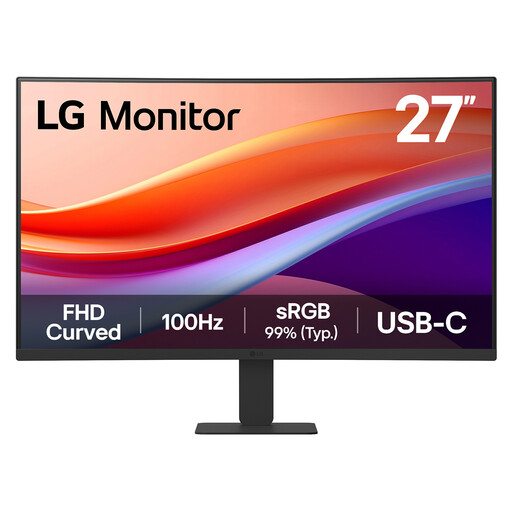
LG 27U421A 27-inch curved Full HD monitor
Consider this for a 27-inch desk screen if Full HD meets your workspace needs. The listing states a VA panel, 1080p resolution, 100Hz refresh rate, HDMI and USB-C display options, plus tilt adjustment. Confirm that your laptop supports the intended connection; check the USB-C charging wattage against its requirements before planning to charge through the monitor.
Joybuy
 No image available
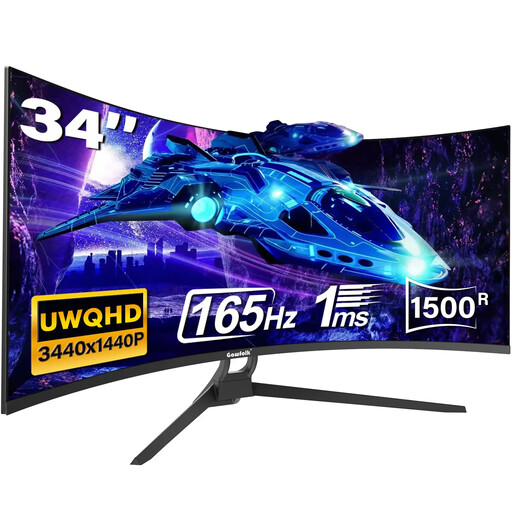
Gawfolk 34-inch curved UWQHD ultrawide monitor
The stated 34-inch, 3440 × 1440 ultrawide screen is an option to assess if you want several work windows in view and have room for it. The detailed connection information lists HDMI and DisplayPort. The title also mentions Type-C, but its display and charging functions need confirmation before you plan a USB-C connection; check the laptop’s output limits for the intended display mode.
Joybuy
 No image available
Samsung Odyssey G6 S27DG612 27-inch QHD OLED monitor
This 27-inch QHD option has stated HDMI 2.1 and DisplayPort 1.4 inputs for a conventional wired display connection. Its description also states height, tilt, swivel and pivot adjustment. The 240Hz specification is gaming-oriented rather than evidence of better office-task performance; check what resolution and refresh rate your laptop can output through the chosen port.
Joybuy
 No image available
HKC G27H2DPro 27-inch QHD Fast IPS monitor
For a 27-inch QHD screen connected by HDMI or DisplayPort, this model lists 2560 × 1440 resolution and both inputs. Its 220Hz specification is not, by itself, evidence of improved document or spreadsheet work. Confirm the laptop’s output capability for the display mode you intend to use, and check charging separately if that matters to your desk setup.
Joybuy
 No image available
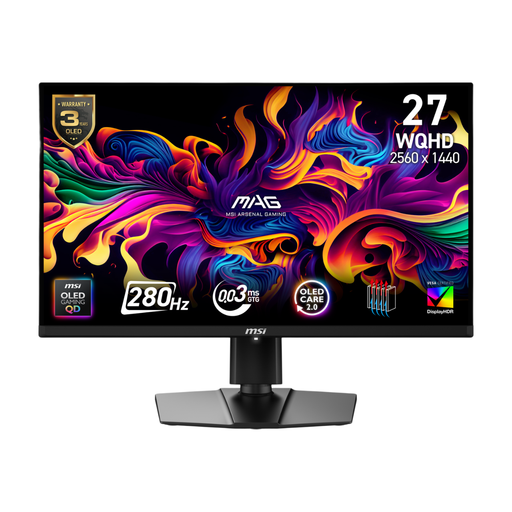
MSI MAG 271QP QD-OLED X28 QHD monitor
This QHD model lists a 26.5-inch panel with 2560 × 1440 resolution, HDMI and DisplayPort inputs, and an adjustable stand. Its stated USB-C Power Delivery is 15W; compare that with your laptop’s charging requirement, and confirm USB-C video capability before relying on that connection. Check the laptop’s output limits for the intended resolution and refresh rate.
Joybuy
Common questions
Will any USB-C port on my laptop connect to a USB-C monitor?
No: the connector alone does not establish video support. Check the exact laptop model’s documentation for a supported external-display method, such as DisplayPort Alt Mode or a manufacturer-specified Thunderbolt or USB-C display connection. VESA explains how DisplayPort Alt Mode can carry video over USB-C.
Can a USB-C monitor take the place of my laptop charger?
Only when the laptop supports the intended USB-C charging and display arrangement and the monitor’s Power Delivery output meets its charging requirement. BenQ UK states 65W for the GW2790QT, while LG UK states 15W for the 27U631A-B; compare the exact model’s figure with your laptop manufacturer’s specification.
Will a dock let my laptop run two external monitors?
Not necessarily: the laptop’s supported external-display count and display modes still matter. Apple Support says Mac support varies by model. Check your exact laptop, the dock connection and each intended resolution and refresh rate together before buying.
Does adding a monitor settle home-working workstation needs?
No. Screen position and the rest of the workstation also matter. For employees who use display screen equipment daily as part of normal work for continuous periods of an hour or more, the UK Health and Safety Executive says employers must carry out a workstation assessment; its home-working guidance sets out when the regulations can apply.


