Buying priorities
Work from the laptop outward: establish a usable screen and input position, then check display connections, charging and the space available on your desk.
| Priority |
What to check |
Your needs |
| Screen and input position |
Check whether the screen can sit directly in front of you, with its top around eye level and about an arm’s length away. For prolonged laptop use, plan for a separate keyboard and mouse if the laptop is raised. |
I want to stop looking down at a low laptop screen while the attached keyboard and trackpad dictate where my hands sit. |
| Dock and charging compatibility |
Confirm the exact laptop supports the required DisplayPort Alt Mode, Thunderbolt or USB4 connection. Compare external-display limits, resolution, refresh rate and USB Power Delivery wattage with the dock or monitor. |
I need a connection that can actually provide the display, peripherals and charging functions required at my desk. |
| Screen area for work |
Choose size and resolution together with text scale, viewing distance and usable desk depth. A second display or dual-display dock should match the applications and windows you use side by side. |
I need room for documents, calls and applications without constantly hiding or resizing windows. |
| Workplace support |
For regular employed home or hybrid work, ask about a display-screen-equipment assessment, IT support, repairs and equipment responsibility before committing to a purchase. |
I want to know whether the arrangement should be assessed or supported through my employer rather than treated only as a personal purchase. |
Joybuy product options
Joybuy product options for an external-monitor or USB-C display-adapter route in a regular home-working laptop setup.
 No image available
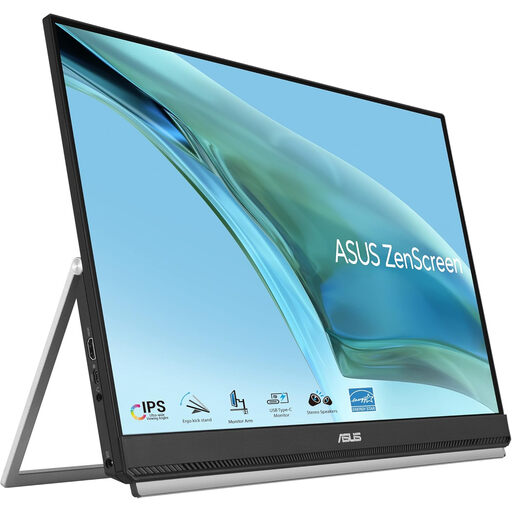
ASUS ZenScreen MB249C IPS USB-C Monitor
A separate 23.8-inch Full HD IPS screen for a hybrid or space-constrained desk where the display needs to sit independently from the laptop.
Stated features include USB-C with DisplayPort Alt Mode, 60W power delivery, HDMI, speakers, anti-glare IPS and supplied kickstand, C-clamp arm and partition-hook mounting options.
Check that your laptop supports USB-C DisplayPort Alt Mode, that 60W is sufficient for charging, and that the desk edge suits the chosen mounting method.
Joybuy
 No image available
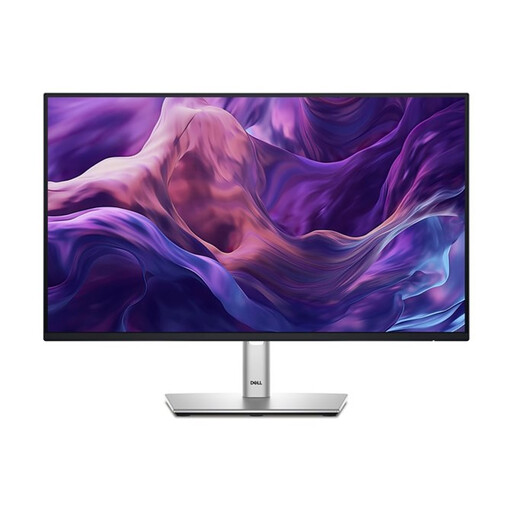
Dell P2425H 24-inch Full HD IPS Monitor
A 24-inch separate display for sustained document and meeting work at a fixed home desk.
The listing states 1920 × 1080 resolution, 100Hz, IPS, HDMI, DisplayPort, USB-C, VGA and height, tilt and swivel adjustment.
Confirm the USB-C function and any charging capability before planning a one-cable setup; an elevated laptop still needs separate input devices for prolonged use.
Joybuy
 No image available
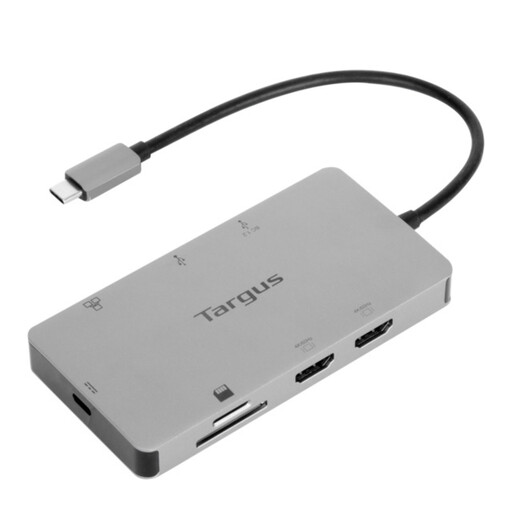
Targus USB-C Universal Dual HDMI 4K Docking Station
A portable desk-expansion option for a compatible laptop that needs displays, Ethernet and USB peripherals through one host connection.
The listing states two HDMI 2.0 ports, dual 4K at 60Hz, Gigabit Ethernet, USB-A ports, SD and microSD readers, and up to 100W power-delivery pass-through.
Confirm USB-C Alt Mode, your laptop’s external-display limits and whether a suitable 100W or higher power adapter is included.
Joybuy
 No image available
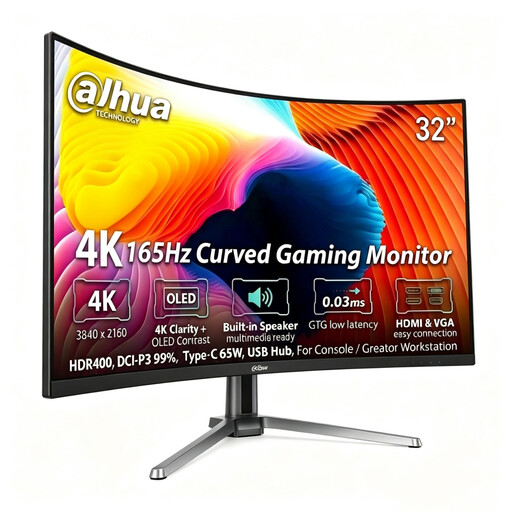
Dahua 32-inch 4K Curved OLED Monitor
A large, separately positionable work area for a permanent desk with extensive document or creator-workspace requirements.
The listing states a 31.5-inch 3840 × 2160 QD-OLED panel, Type-C 65W, HDMI 2.1, DisplayPort 1.4, USB hub, speakers, height adjustment and VESA mounting.
Measure desk space and viewing distance: the listed width is 713.9 mm. Also verify that your laptop supports video output and has suitable charging requirements for the stated 65W connection.
Joybuy
 No image available
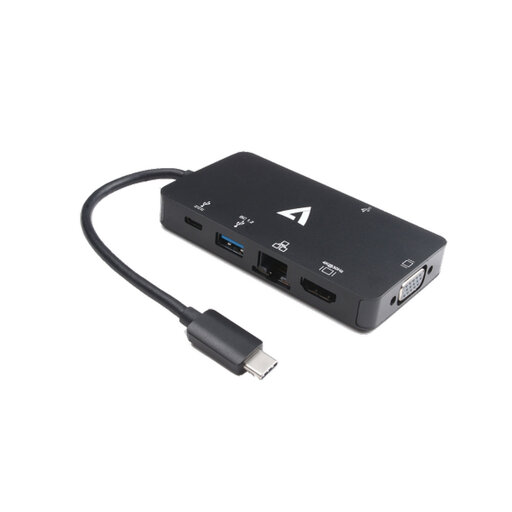
V7 USB-C Adapter with HDMI, VGA and Ethernet
A compact option for a compatible laptop that needs one external display, wired network access and basic USB expansion.
The listing states HDMI up to 3840 × 2160 at 30Hz, VGA up to 1920 × 1200 at 60Hz, Gigabit Ethernet, two USB 3.0 ports and 100W power delivery.
This is limited to a single-display SST setup and requires USB-C DisplayPort Alt Mode; check that 4K at 30Hz suits the intended monitor and work pattern.
Joybuy
Frequently asked questions
Does UK guidance require every home worker to buy an external monitor?
No. The Health and Safety Executive does not prescribe an external monitor for every person. For workers covered by display-screen-equipment rules, the employer should assess the individual workstation; HSE says prolonged laptop use can use either an elevated laptop with a separate keyboard and mouse or a separate display screen.
What should I check before buying a USB-C dock or charging monitor?
Check the official specifications for your exact laptop model: USB-C video output, required DisplayPort Alt Mode, Thunderbolt or USB4 support, USB Power Delivery charging, required charging wattage, and supported display count, resolution and refresh rate. A USB-C connector alone does not prove all of these functions.
How should I position a monitor or elevated laptop for sustained work?
HSE guidance says the top of the screen should be level with the eyes and about an arm’s length away, with the screen directly in front. For prolonged laptop work, use a separate keyboard and mouse so the laptop can be raised on a riser, or use a separate display.
Can a USB-A dock charge my laptop while connected?
Do not assume so. DisplayLink says USB Standard A-B docking stations are not designed to charge laptops or Windows tablets, so the laptop’s own power supply will normally still be needed. USB-C docks may charge a compatible host, depending on the dock, cable and laptop Power Delivery implementation.
Who pays for equipment identified in a DSE assessment?
For workers covered by the DSE rules, HSE says that equipment indicated by an assessment cannot be charged to the worker. Acas also advises employers and staff to agree responsibility for equipment, repairs, technical support and training. This does not mean every personal monitor purchase must be reimbursed.


