For aligning and reviewing multitrack takes, start with a capable multi-core processor, at least 16GB of memory and a fast SSD rather than choosing a laptop for its gaming graphics. Ableton recommends 16GB or more for larger Live projects, but your choice of Windows or macOS should follow the exact DAW, plug-ins and audio interface you use. If you record beside the laptop, check independent fan-noise testing for the configuration you plan to buy.
Who needs which setup?
Take-alignment editors
If you mainly line up recorded takes, audition edits and use basic processing, prioritise processor capability, memory and SSD storage. Ableton identifies CPU and fast storage as important to Live; a dedicated graphics card is not the starting point for this audio task.
Plug-in and sample-heavy producers
If your sessions include many tracks, virtual instruments, effects or sample libraries, allow more room for memory and local storage. Ableton recommends 16GB of memory or more, while the capacity you need depends on the size of your projects.
Quiet-study editors who use peripherals
If you record near the laptop or move your setup between rooms, check fan noise for the exact configuration and count the connections needed for your interface, headphones and storage. RTINGS notes that a nearby microphone can pick up laptop fan noise.
What matters when choosing?
Choose for your DAW and existing equipment first, then size the processor, memory and storage for your sessions; check room noise and connections before settling on a model.
| Concern |
What to check |
Who this matters to |
| Responsive playback |
Check processor capability against your DAW’s requirements, with at least 16GB of memory as a practical starting point for larger Ableton projects. |
When I am lining up takes, interrupted playback makes timing decisions harder; roughly 33% of consumers would put responsiveness first. |
| Room for growing projects |
Choose a fast SSD with enough space for your projects and libraries; consider more memory if you expect heavy plug-in or sample use. |
If I build sessions with instruments and samples, I need space for those files and headroom as the project grows. Around 27% of consumers would make capacity their primary concern. |
| Software and interface fit |
Confirm support for the exact DAW, plug-ins, operating-system version and audio-interface driver before buying. |
I want to keep using my existing recording setup without replacing software or an interface; for approximately 20% of consumers, compatibility would come first. |
| Quiet-room setup |
Look for independent fan-noise testing of the exact configuration and count the ports needed at the same time. |
If I record beside my laptop, I do not want its fan in a take or a shortage of connections for my equipment. Roughly 20% of consumers would prioritise this setup fit. |
Buying pitfalls
-
Buying only to the DAW’s minimum requirements
A minimum can be enough to run the software without leaving the headroom wanted for larger sessions. Ableton lists 8GB as a Live minimum but recommends 16GB or more for more demanding projects.
Use your expected track, plug-in and sample workload to choose memory and SSD capacity; consider 32GB if those demands are likely to grow.
-
Assuming the right port means the interface will work
A matching connector does not establish DAW, operating-system or driver compatibility. For example, Focusrite specifies ASIO-supported DAWs on Windows and Core Audio-supported DAWs on macOS for its Scarlett 16i16.
Check your exact interface model, driver and DAW together, as well as whether its connector requires an adapter.
-
Overlooking fan noise in the recording room
A nearby microphone may capture fan noise even when the rest of the study is quiet, as RTINGS points out in its music-production laptop guidance.
If you will record in the same room, seek independent noise testing for the exact configuration and assess microphone placement in your own setup.
-
Assuming memory can be upgraded later
Some thin-laptop configurations use on-board or on-package memory. ASUS lists such configurations for the Zenbook S 14, so the product-family name alone does not establish upgrade options.
Check the exact model specification and select enough memory for the sessions you expect to run.
Relevant brands to consider
Apple
MacBook Air is a portable macOS option when your DAW, plug-ins and interface support the version of macOS you intend to use.
- Apple lists 16GB unified memory as standard in the current MacBook Air range, with 24GB and 32GB configurations.
- Check whether your existing peripherals need adapters and whether older plug-ins and interface drivers support your chosen macOS version.
ASUS
Zenbook S 14 offers a compact Windows route for editors considering 16GB or 32GB memory configurations.
- ASUS lists Zenbook S 14 configurations with up to 32GB LPDDR5X memory.
- Memory configuration varies by model and may be on-package or on-board; check the exact variant rather than assuming a later upgrade.
ASUS ROG
The ROG Zephyrus G14 GA403 is a Windows option to assess if audio editing shares a laptop with graphics-heavy work or numerous peripherals.
- ASUS ROG lists GA403 configurations with 16GB or 32GB memory and connections including USB-A, USB-C, HDMI and a 3.5mm audio jack.
- Dedicated graphics are not an Ableton requirement for audio alignment; assess fan noise independently if recording nearby.
Laptops to consider on Joybuy
These laptops offer different memory and storage configurations for multitrack editing. Before choosing one for a quiet study, check your exact software and interface support, and seek noise testing if you will record nearby.
 No image available
ASUS Vivobook 14 X1407QA-LY003W, Quiet Blue
Consider this 14-inch laptop if 16GB memory and 512GB local storage suit your take-alignment sessions. Its listed configuration has a Snapdragon X processor and a 512GB SSD. Check that your DAW, plug-ins and audio-interface driver work with this Windows-on-Snapdragon setup, and assess fan noise if you record nearby.
View on Joybuy
 No image available
Microsoft Surface Laptop 7 15-inch, Maya
This 16GB configuration is worth assessing if your projects and libraries fit within its 256GB SSD. The listed processor is a Snapdragon X Elite; confirm support for your DAW, plug-ins and interface driver on Windows-on-Snapdragon before buying. Check fan noise separately if the laptop will sit near a microphone.
View on Joybuy
 No image available
Lenovo Legion Pro 7 16IAX10H, 83F5000UUK
Its 64GB memory and 2TB SSD make this a configuration to consider if you also run large plug-in or sample-heavy projects. The title lists an Intel Core Ultra 9 processor, NVIDIA GeForce RTX 5090 graphics and Windows 11 Home. Dedicated graphics alone do not establish an advantage for aligning audio takes; check the SSD performance, connections and fan noise against your setup.
View on Joybuy
 No image available
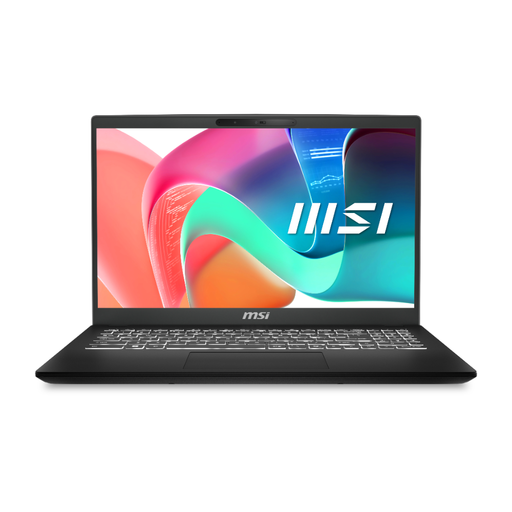
MSI Modern 15 C2RMG-282UK, 9S7-15H431-282
This 15-inch configuration offers 16GB memory and a 512GB SSD for editors considering a straightforward study setup. Its title lists an Intel Core 5 processor. Check the precise processor, SSD specification and operating-system version against your DAW’s requirements, along with interface support and fan noise for the exact model.
View on Joybuy
 No image available
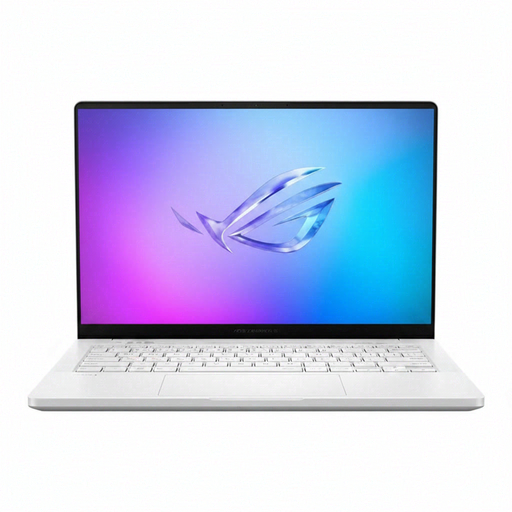
ASUS ROG Zephyrus G14 GA403WR-QS088W, German Grey
Consider this 14-inch configuration if your audio sessions need its 32GB memory and 2TB PCIe SSD, or if the same laptop will handle graphics-heavy work. The title lists an AMD Ryzen AI 9 HX 370, NVIDIA GeForce RTX 5070 Ti and Windows 11 Home. Confirm connections and software support for your equipment, and seek noise testing before using it to record in a quiet study.
View on Joybuy
Common questions
Is 8GB of memory enough to align a few takes?
It meets Ableton Live 12’s stated minimum, but 16GB or more is the more useful buying target if your sessions may grow. Ableton recommends that capacity for larger projects with multiple tracks and plug-ins, while Avid specifies 16GB for Pro Tools computer systems.
Do I need dedicated graphics for audio alignment?
Dedicated graphics are not required for the audio task in Ableton’s published recommendations. Consider them if the laptop will also run video or other graphics-dependent software; otherwise, assess the CPU, memory and SSD against your audio workload first.
Should I use an external audio interface?
If you need to record or monitor through an interface, choose one supported by your DAW and operating system rather than relying on the laptop’s headphone socket for that role. Ableton’s latency guidance also makes clear that buffer settings affect monitoring delay, so the laptop specification alone cannot settle that question.
Can I choose either Windows or macOS for this work?
Either can be a route for multitrack editing, provided your exact DAW release, plug-ins and audio interface support the operating-system version. Ableton and Avid publish software-specific requirements; check those alongside your interface manufacturer’s driver information before choosing or upgrading.


