Choose a laptop that works with the museum’s software and the standing-desk setup, rather than choosing by screen size alone. For prolonged writing, the Health and Safety Executive advises raising the screen and using a separate keyboard and mouse; if you move between museum spaces, weigh that desk setup against the portability of the exact laptop configuration.
Who needs this setup?
Standing-desk label writers
If you draft and proof labels for sustained periods at a standing desk, plan where the screen, keyboard and mouse will sit. The Health and Safety Executive advises separate input devices when a laptop screen is raised for prolonged use.
Museum staff who move between spaces
If your laptop travels between galleries, collections areas, meetings and a desk, compare the weight and size of the configuration you would actually carry.
Writers who depend on workplace systems
If your work relies on museum templates, fonts, collection-management tools or peripherals, confirm that they work with the intended operating system before choosing a laptop.
What matters when choosing?
For museum-label writing at a standing desk, check workplace compatibility and the desk arrangement before deciding how much built-in screen space or portability you need.
| Concern |
What to check |
Who this matters to |
| Standing-desk setup |
Check that the screen can be raised or connected to a separate display, with room for a separate keyboard and mouse. |
For long stretches of label writing, I need to position the screen without putting the laptop’s built-in keyboard too high. Roughly 40% of consumers would put this workstation need first. |
| Portability |
Compare the weight of the exact configuration and decide whether its screen size works at each location where you write. |
Moving between galleries, meetings and a desk makes carrying the laptop part of my working day; around 30% of consumers would prioritise portability. |
| Compatibility and proofing |
Confirm the required templates, fonts, software and peripherals work; check screen space or external-display connections for reviewing material side by side. |
Before settling on macOS or Windows, I need to know that I can open the museum’s files and review label copy alongside references. Compatibility and proofing would come first for roughly 30% of consumers. |
Buying pitfalls
-
Raising the laptop but typing on its built-in keyboard
Raising the screen also raises the keyboard. For prolonged laptop use, the Health and Safety Executive advises a separate keyboard and mouse so the screen can sit on a riser, or the use of a separate display.
Check that the laptop, screen support and input devices fit on the standing desk at your intended working height.
-
Choosing an operating system before checking museum tools
A familiar operating system is not enough if the museum’s templates, fonts, collection tools or peripherals do not work with it.
Ask the museum’s IT or collections team which applications, file formats and connected devices your laptop must support.
-
Assuming every laptop includes the power equipment you need
Dell’s UK listing for the XPS 13 DX13260 states that a charger is not included.
For that configuration, check which compatible charger and cable you need before comparing it with another laptop.
Relevant brands to consider
Apple
MacBook Air is a macOS option when the museum’s writing workflow works on macOS and the laptop may connect to displays at a fixed desk.
- Apple’s UK MacBook Air specifications list two Thunderbolt 4 ports and support for up to two external displays.
- Check workplace software, fonts and peripherals before buying; older USB accessories may need an adapter or dock.
Lenovo
The ThinkPad X1 Carbon Gen 13 Aura Edition is a Windows business-laptop option for writers who regularly move between museum locations.
- Lenovo UK states that this 14-inch ThinkPad line weighs less than 1kg; check the specification of the configuration you choose.
- Its portability does not replace the separate screen and input-device arrangement needed for prolonged standing-desk work.
Dell
The XPS 13 DX13260 is a compact Windows option to consider for writing and document review.
- Dell describes the XPS 13 as its thinnest and lightest XPS laptop; compare the exact configuration with your carrying and screen-space needs.
- Dell’s UK listing states that a charger is not included, so check the required power equipment before buying.
Laptop choices on Joybuy
These laptops offer different built-in screen sizes for writing and proofing museum labels. Whichever you consider, check the museum’s software requirements and plan separate input devices for prolonged work with a raised screen.
 No image available
ASUS Vivobook 15 X1504VA, Core 5 120U, 24GB, 1TB SSD, Cool Silver
Consider this 15.6-inch configuration if you want a larger built-in view for label copy and reference material at the desk.
- 15.6-inch display; Intel Core 5 120U, 24GB memory and 1TB SSD.
Confirm that the museum’s templates, software and peripherals work with your intended setup.
View on Joybuy
 No image available
ASUS Vivobook 14 X1407QA-LY003W, Snapdragon X, 16GB, 512GB SSD, Quiet Blue
Consider the 14-inch format if the laptop will move between museum work areas as well as serve at a standing desk.
- Snapdragon X, 16GB memory and 512GB SSD.
Check that required museum applications and peripherals work with this Windows-on-ARM configuration before choosing it.
View on Joybuy
 No image available
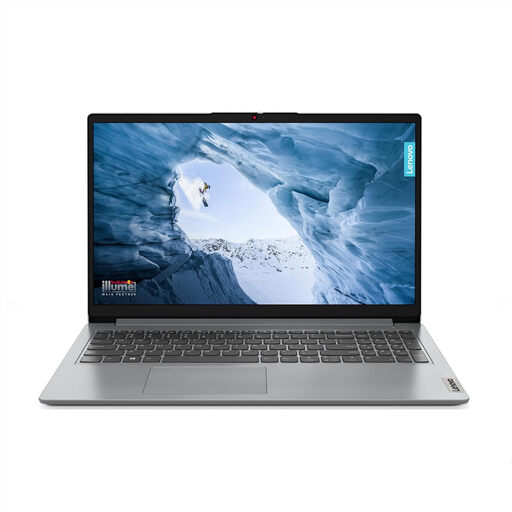
Lenovo IdeaPad 1, Ryzen 3 7320U, 8GB, 128GB SSD, Cloud Grey
Its 15-inch format is worth considering if you prefer a larger built-in screen for reading label drafts at the desk.
- AMD Ryzen 3 7320U, 8GB memory and 128GB SSD.
- Windows 11 Home in S Mode.
Confirm that the museum’s required applications can be used in S Mode, as well as checking its templates and peripherals.
View on Joybuy
 No image available
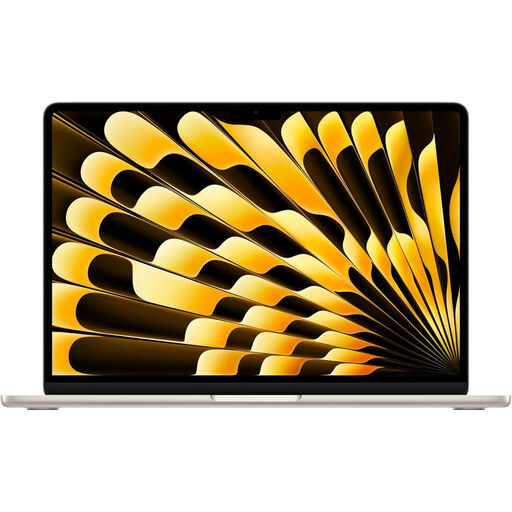
Apple 15-inch MacBook Air (2026), M5, 16GB, 512GB SSD, Starlight
Consider this larger-screen MacBook Air for desk-based label proofing if the museum’s documents and services work on macOS.
- 15-inch display, M5 chip with 10-core CPU and 10-core GPU, 16GB memory and 512GB SSD.
Check the required fonts, collection tools and peripherals with the museum’s IT or collections team.
View on Joybuy
 No image available
HP OmniBook X Flip 16-as0004na, Core Ultra 5 226V, 16GB, 512GB SSD
The 16-inch touchscreen may appeal if you want a larger built-in view for label copy and guidance at a fixed desk.
- 16-inch touchscreen, Intel Core Ultra 5 226V, 16GB memory and 512GB SSD.
- Windows 11 Home.
If you plan to use a separate monitor or wired peripherals, check the exact connections before buying.
View on Joybuy
Common questions
Can I use a laptop on its own for long writing sessions at a standing desk?
For prolonged laptop use, the Health and Safety Executive advises a separate keyboard and mouse so you can raise the screen on a riser, or a separate display. Check that the screen and input devices can each sit at a workable height on your desk.
How should I position the screen for standing-desk writing?
Adjust the screen and input devices independently rather than raising the laptop and continuing to type on its built-in keyboard. The Health and Safety Executive’s posture guidance recommends separate input devices when a laptop screen is elevated; adjust the finished arrangement to your height and working position.
Should I choose a smaller laptop or a larger screen for museum labels?
Choose according to where you do most of the writing: a compact laptop is worth considering when you carry it between museum spaces, while a larger built-in screen gives you more room to view drafts and references at a desk. If you prefer a smaller laptop for travel, check whether the exact model can connect to the external display you intend to use for proofing.


