Choose a pen-enabled detachable or convertible if you need to handwrite directly on reading-list PDFs; check the exact touchscreen, compatible pen and accessory bundle before buying. If you mainly highlight and type comments, a conventional laptop may suit you without a pen workflow. For longer sessions, make room for a workable desk setup as well as the device.
Who each approach suits
Handwritten PDF annotators
If you want to circle passages and write notes directly on a PDF, look for a touchscreen and a compatible active pen. Microsoft and Lenovo describe pen workflows for specific Surface and Yoga devices; confirm the combination on the model you choose.
Small-desk split-screen readers
If you keep a paper and your notes visible together, weigh reading area against the space the device occupies. Microsoft lists a 12-inch Surface Pro, while Lenovo lists 14-inch Yoga convertibles; try your usual page layout before deciding which size fits.
Keyboard-first researchers
If you mostly highlight and type comments, a conventional laptop is worth considering. Check that its operating system works with the PDF, citation and storage tools you rely on rather than choosing a pen-enabled design you may not use.
What matters when choosing
Compact detachable
Choose it when: direct handwriting and a compact device matter most. Microsoft describes writing with Slim Pen on the Surface Pro 12-inch (1st Edition) and attaching a keyboard for laptop use.
Trade-off: the 12-inch screen offers less room for side-by-side documents than a 14-inch screen; check the keyboard and pen in the chosen bundle.
14-inch convertible
Choose it when: you want an attached keyboard, direct screen annotation and more display area. Lenovo describes tablet, tent and laptop modes for its Yoga 7 2-in-1 line.
Trade-off: it needs more desk space than a 12-inch detachable, and pen inclusion differs between Yoga configurations.
Conventional laptop
Choose it when: highlighting and typed comments cover your annotation needs and your required software runs on the chosen operating system.
Trade-off: the conventional MacBook Air route described by Apple is not the direct pen-on-display workflow offered by the cited Windows 2-in-1 devices.
| Concern | What to check | Who this matters to |
|---|
| Handwritten mark-up |
Confirm touchscreen support, the compatible active pen and what the exact bundle includes. |
If I write in the margins of PDFs, pointer-based highlighting will not replace pen input for me; around 42% of consumers would put direct handwriting first. |
| Reading space |
Try your PDF and notes side by side, then check screen size against usable desk depth. |
Keeping a document and notes open together matters to me, but the device still has to fit my desk; roughly 33% of consumers would prioritise that balance. |
| Typed-note workflow |
Check your PDF, citation and cloud-storage applications against the chosen operating system. |
I mainly type comments and want familiar software to handle my reading list; about 25% of consumers would make that workflow their primary concern. |
Checks that are easy to miss
-
Assuming any stylus works on a touchscreen
Direct handwriting depends on a compatible pen, not touch input alone. Microsoft and Lenovo describe pens for particular device lines, and Lenovo calls the Yoga Pen optional for the cited Yoga 7 AMD model.
Match the exact laptop configuration to a manufacturer-listed pen and check whether it comes in the bundle.
A compatible active pen may need to be obtained separately.
-
Assuming a detachable includes the full setup
Microsoft presents the Surface Pro keyboard and Slim Pen as accessories or bundle components. Its comparison information also says that the listed 12-inch Surface Pro does not include a power supply.
Check the contents of the exact configuration and how you will charge it before choosing a detachable.
A keyboard, pen or suitable USB-C power supply may be needed to complete the intended setup.
-
Choosing the smallest screen without trying your layout
A 12-inch display takes less space than a 14-inch display, but leaves less screen area for a PDF beside notes. Size alone cannot tell you whether your preferred text zoom will feel workable.
Try your normal document layout on a similar-sized screen and measure the space available on your desk.
-
Expecting a compact laptop to solve desk discomfort
The Health and Safety Executive identifies poor display-screen-equipment use and workstation design as possible contributors to discomfort, fatigue and eye strain.
For extended sessions, consider screen position, seating and breaks rather than judging the setup by laptop size alone.
Relevant brands to consider
Microsoft Surface
A detachable Windows route for moving between direct PDF mark-up and keyboard use.
- Microsoft describes Slim Pen writing and drawing on the Surface Pro 12-inch (1st Edition), with laptop use through an attached Surface Pro keyboard.
- Check the selected bundle for keyboard, pen and charging accessories rather than assuming they are included.
Lenovo
A 14-inch Windows convertible route for readers who want a built-in keyboard and a fold-back touchscreen.
- Lenovo describes tablet, tent and laptop modes for the Yoga 7 2-in-1 line.
- Pen inclusion varies: Lenovo calls the Yoga Pen optional for the cited AMD model, while its Yoga 7i 83JQ00CEUK listing names a Lenovo Linear Pen.
Apple
A conventional macOS laptop route for typed comments and pointer-based highlighting.
- Apple lists a 13.6-inch display for the 13-inch MacBook Air and 16GB memory in listed configurations.
- The cited MacBook Air specifications do not describe a tablet-style, direct pen-on-display annotation workflow.
Joybuy products for these workflows
These options include touchscreen layouts and conventional laptops for reading-list work. Match pen requirements, software and device size to the way you annotate before choosing.
 No image available
ASUS Zenbook DUO UX8406CA-QL135W 14-inch Dual OLED Touch
Consider this dual-screen layout if you want touch input alongside space for documents and notes; check how it fits on your desk and confirm the pen and keyboard arrangement for the exact bundle.
- Intel Core Ultra 7 255H; 16 GB LPDDR5X RAM; 1 TB SSD.
- Confirm the display resolution for the selected configuration before purchase.
Joybuy
 No image available
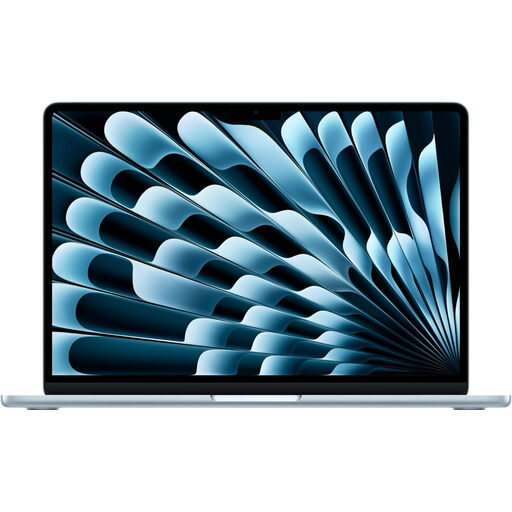
Apple 13-inch MacBook Air (2026), M5, 16GB, 1TB, Sky Blue
This conventional laptop fits a typed-comment and highlighting workflow rather than direct pen-on-screen writing; confirm that your PDF and citation applications suit your setup.
- M5 chip with 10-core CPU and 10-core GPU; 16GB memory; 1TB SSD.
Joybuy
 No image available
ASUS Vivobook 14 X1407QA-LY003W, Snapdragon X, Quiet Blue
Consider this 14-inch laptop for typed notes and pointer-based highlighting, not as a substitute for a confirmed pen-enabled screen. Check that your required study applications run on this configuration.
- Snapdragon X; 16GB RAM; 512GB SSD.
Joybuy
 No image available
Acer Chromebook Plus 514 CB514-5H, 14-inch, Iron
This Chromebook is a candidate for keyboard-first reading and notes if your required applications work on ChromeOS. If you need handwriting on PDFs, confirm touchscreen and compatible active-pen support for this exact model.
- WUXGA display (1920 × 1200); Intel Core 5 120U; 8GB RAM; 512GB SSD.
Joybuy
 No image available
HP OmniBook X Flip 16-as0004na, 16-inch Touchscreen
Choose the larger touchscreen only if its footprint works on your desk; confirm compatible active-pen support and pen inclusion if handwriting is essential.
- Intel Core Ultra 5 226V; 16GB RAM; 512GB SSD; Windows 11 Home.
Joybuy
Frequently asked questions
Do I need a pen to annotate a reading-list PDF?
No: you can highlight text and type comments with a keyboard and pointer. If you want to write directly on the displayed PDF, choose a touchscreen model with a confirmed compatible active pen; Microsoft and Lenovo describe such workflows for specific devices.
Does a 2-in-1 include its keyboard and pen?
Not necessarily. Microsoft presents Surface Pro keyboards and Slim Pen as accessories or bundle components, while Lenovo calls the Yoga Pen optional for the cited Yoga 7 AMD model. Check the contents of the exact configuration you intend to buy.
Is a compact laptop enough for a comfortable long reading session?
No: laptop size alone does not settle how the workstation feels in use. The Health and Safety Executive identifies poor display-screen-equipment use and workstation design as possible contributors to discomfort, fatigue and eye strain, so consider screen position, seating and breaks for extended desk sessions.


