Who is this setup for?
How often you use the desk, and whether the computer leaves it, changes which equipment deserves attention first.
People working at home every day
If computer work continues for long stretches, consider the whole workstation rather than the computer alone. The Health and Safety Executive identifies daily display-screen use for continuous periods of an hour or more in its home-working guidance and advises a separate keyboard and mouse when raising a laptop screen.
Hybrid workers carrying one computer
A laptop can move between workplaces while connecting to a more settled arrangement at home. The Office for National Statistics reported that 28% of working adults in Great Britain hybrid worked between 8 January and 30 March 2025; that figure describes working arrangements, not equipment preferences.
People who make frequent video calls
Check whether the existing camera, microphone and speakers meet the requirements of your calls before adding a webcam or headset. Connection type and compatibility with the meeting service matter for any extra device.
What should you choose and check?
Start with where the computer will be used, then plan the display and input devices. Check connections against the exact computer before choosing a dock.
Laptop-based desk
Choose it when: the same computer needs to travel between home and another workplace.
Plan for: a separate keyboard and mouse, plus a screen you can position appropriately for prolonged use, in line with Health and Safety Executive guidance.
Fixed desktop desk
Choose it when: the computer will remain at home and the model meets your software and connection requirements.
Trade-off: you give up the option of carrying the same computer between workplaces; check any planned internal upgrades against the particular desktop rather than assuming they are possible.
| Priority | What to check | Your needs |
|---|
| Computer base |
Confirm work-application and employer IT requirements. If considering a desktop for later upgrades, check the individual model’s design. |
I carry one computer between workplaces, or I can keep a computer at the home desk. If my current computer already runs the required applications, I may only need to improve what connects to it. |
| Screen and input |
For prolonged laptop use, the Health and Safety Executive advises a separate keyboard and mouse so the screen can be raised or a separate display used. Check how the screen can be positioned at your desk. |
I spend long periods at the desk and need a screen, keyboard and mouse I can arrange without relying on the laptop’s built-in position. |
| Display connections |
Check the computer’s supported video output and the monitor’s input, resolution and refresh rate. For video over USB-C, confirm a supported protocol such as DisplayPort Alt Mode; connector shape alone is not enough. |
I want the monitor I choose to work at the settings I need, whether it connects directly or through a dock. |
| Dock and charging |
Match the dock’s display configuration and power delivery to the exact laptop, cable and operating system. Lenovo documents functional limitations with some non-Lenovo hosts, so check the model-specific compatibility table. |
Repeatedly connecting a laptop at my desk should not mean discovering that a screen or charging function I need does not work. |
| Calls and peripherals |
Check the existing camera and audio first. If adding devices, confirm meeting-service compatibility, connection type and enough available ports. |
Video calls are part of my work, but I only want extra call equipment where my current setup falls short. |
Which brands offer relevant equipment?
These brand references help identify equipment and documentation to compare; the capabilities described apply to particular products, not every device bearing the brand.
Dell
Dell offers computers, displays and docks to consider for a connected desk setup.
- Dell UK specifies power delivery of up to 130W for Dell systems and 96W for non-Dell systems on the Pro Dock WD25TB4.
- Those figures describe the WD25TB4 under Dell’s stated host conditions; check the intended computer and display configuration.
Lenovo
Lenovo’s dock documentation is relevant when comparing a ThinkPad or another laptop with a docking setup.
- Lenovo publishes dock compatibility information for checking particular host computers.
- Lenovo Support documents functional limitations for some docks connected to non-Lenovo notebooks; a compatible connector does not establish identical functions.
HP
HP offers computers and USB-C docks relevant to fixed and laptop-based desks.
- HP describes the USB-C 100W G6 Dock with configurations of up to three external displays.
- That is HP’s specification for this dock, not a promise for every laptop or display arrangement; check the host’s video and charging capabilities.
Logitech
Logitech’s business range includes keyboards, mice, webcams and headsets for adding desk peripherals to an existing computer.
- Its range covers input devices and video-call equipment, so those needs can be considered separately from replacing a computer.
- Check the chosen model’s operating-system, connection and meeting-service compatibility.
Joybuy options for the desk
These options cover a portable or fixed display, a mini desktop computer, a laptop dock and a separate mouse. Choose a computer route and check what your existing equipment can do before deciding which additions are useful.
 No image available
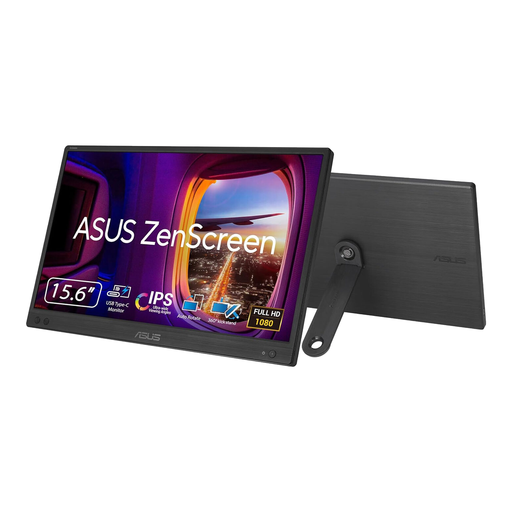
ASUS ZenScreen MB166CR FHD
Consider this portable external monitor if a second screen needs to move with your laptop. Confirm that the exact computer and cable support the video connection you intend to use, and check how the screen can be positioned at your desk.
View on Joybuy
 No image available
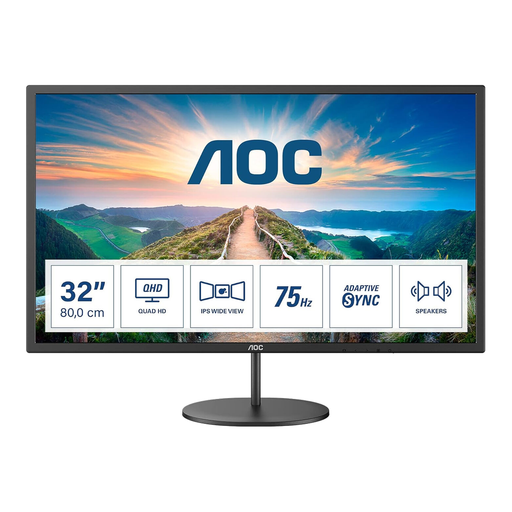
AOC Q32V4 31.5-inch 2K IPS monitor
This is a larger display option for a desk that stays in one place. Check that your computer supports the resolution and refresh rate you want, and confirm the stand or mounting adjustment you need for screen positioning.
View on Joybuy
 No image available
SOYO S4PLUS mini PC, Ryzen 7 H 255, 24GB RAM, 512GB SSD
This mini desktop is an option when the computer will remain at the desk. Its product name specifies 24GB RAM and a 512GB SSD; check your work software and employer IT requirements, the intended monitor configuration and which peripherals are supplied.
View on Joybuy
 No image available
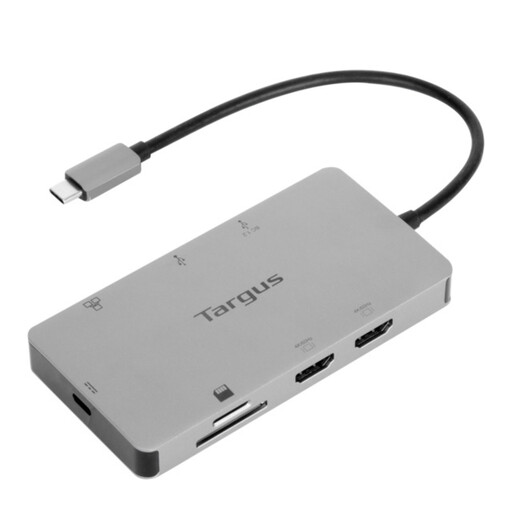
Targus USB-C Universal Dual HDMI 4K Dock, 100W pass-through
Consider this dock when a laptop repeatedly connects to desk displays and peripherals. Its name specifies dual HDMI and 100W power-delivery pass-through; confirm the host laptop’s video support, intended display configuration, charging requirement and adapter arrangement.
View on Joybuy
 No image available
V7 MW500BT Bluetooth vertical mouse, 2.4GHz dual-mode
This is a separate pointing device for a desk setup, not a keyboard-and-mouse bundle. The product name specifies six buttons and an adjustable sensor up to 1600 DPI; check connection compatibility, hand fit and whether you also need a separate keyboard.
View on Joybuy
Common questions
When does a home-working desk need more than a laptop alone?
For prolonged laptop use, the Health and Safety Executive advises a separate keyboard and mouse so the screen can be raised or a separate display used. Its home-working display-screen guidance identifies daily use for continuous periods of an hour or more; occasional or short periods of use call for a different assessment.
Will one USB-C cable run a monitor, dock and laptop charger?
Not necessarily: USB-C describes the connector, not every capability of the computer, cable and dock. Check video support, including DisplayPort Alt Mode where relevant, USB functions and charging requirements against the exact models.
What should I check before buying a dock for two monitors?
Check the laptop’s supported external-display count, resolutions and refresh rates alongside the dock’s requirements and host-compatibility table. Also confirm charging needs and operating-system functions; a dock’s advertised display count alone does not confirm your complete setup.
Can an employer need to provide equipment for a home workstation?
Yes, where an employee’s display-screen workstation assessment indicates that action such as providing equipment is needed, the Health and Safety Executive says the worker cannot be charged for it. Its guidance addresses permanent, long-term and hybrid home working; assess the workstation need rather than assuming every equipment purchase falls under that condition.
What should I check when buying electrical equipment through a marketplace?
Check the seller, product description, instructions, warnings and recall information, as advised by UK government online-marketplace safety guidance. Confirm separately that the equipment suits your computer and its power arrangement.


