What matters when choosing
Decide where the two texts will sit first: on the laptop screen or across a laptop and desk monitor. Then check memory, connections and keyboard layout on the exact configuration.
| Concern | What to check | Who this matters to |
|---|
| Side-by-side space |
Check panel size, aspect ratio and resolution. A 16-inch 1920 × 1200 configuration is one option for working on a single screen. |
When I adjust two texts together, I want to see enough of both pages to compare their layout without constantly switching windows. Around 31% of consumers put built-in screen space first. |
| Document multitasking |
Check configured RAM against the applications you keep open. Microsoft suggests 8 GB to 16 GB for multitasking. |
If I keep documents, PDFs and browser references open together, I need enough memory for that concurrent workload. Roughly 31% of consumers make multitasking their primary concern. |
| Desk-monitor setup |
Match the exact laptop's video output and any required adapter or dock to the monitor's input. |
At my desk, I want to separate the source and target texts across displays rather than fit both on the laptop. Around 23% of consumers prioritise an external-screen setup. |
| Portability and keyboard |
Confirm the exact model's dimensions, weight and keyboard layout; check specifically for a number pad if you use one. |
When I work away from a desk, carrying convenience or a familiar keyboard matters more to me than maximum built-in screen area. Approximately 15% of consumers put these practicalities first. |
Joybuy products for parallel-text work
These listings include 14-inch laptops to consider for work between locations and 16-inch models for a larger built-in screen. Choose according to where you will view both texts, and check the exact connections if a desk monitor is part of the plan.
 No image available
ASUS ProArt P16 H7606WW-SE006W, 16-inch 4K OLED
Consider this 16-inch model if parallel-text work is accompanied by creator tasks that use its specified hardware; those capabilities are not necessary for document formatting alone.
The named configuration has an OLED touchscreen, AMD Ryzen AI 9 HX 370, NVIDIA GeForce RTX 5080 16 GB, 64 GB RAM, a 2 TB SSD and Windows 11 Home.
Check the exact display connections if you also intend to use a monitor.
View on Joybuy
 No image available
ASUS Vivobook 14 X1407QA-LY003W, Snapdragon X
The 14-inch format is worth considering if you move between locations and can use a larger display for extended side-by-side work.
This Quiet Blue Copilot+ PC configuration names a Snapdragon X processor, 16 GB RAM and a 512 GB SSD.
Check that your required document software and any planned monitor connection work with this exact configuration.
View on Joybuy
 No image available
HP OmniBook Ultra Flip 14-fh0006na, 2-in-1
Consider this 14-inch convertible if you want a smaller laptop for document work and can arrange more screen space at a desk when needed.
The named Copilot+ configuration includes 16 GB RAM, a 1 TB SSD and Windows 11 Home.
Check the display connection for your intended monitor and whether the built-in screen suits your side-by-side layout.
View on Joybuy
 No image available
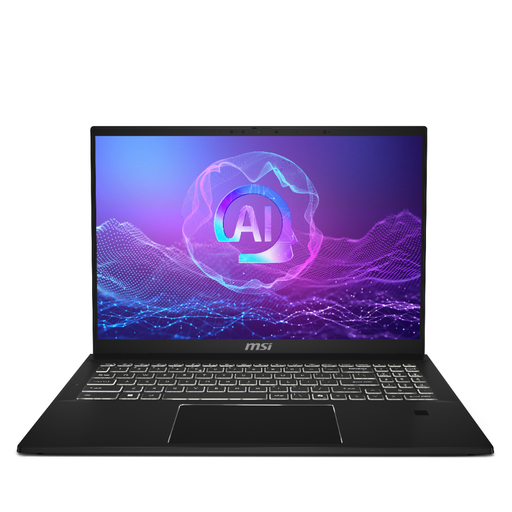
MSI Summit 16 AI Evo, Core Ultra 7 255H
The 16-inch screen makes this a model to consider when you expect to arrange documents on the laptop itself.
The named configuration specifies a QHD+ 165 Hz display, Intel Arc graphics, 32 GB LPDDR5 RAM and a 1 TB SSD. The refresh rate is not a requirement for text formatting.
Confirm the exact video outputs before planning an external-monitor setup.
View on Joybuy
 No image available
HP OmniBook X Flip 16-as0004na, 2-in-1
Consider this 16-inch model if you mainly format parallel texts on the laptop's built-in screen.
The named touchscreen configuration includes an Intel Core Ultra 5 226V, 16 GB RAM, a 512 GB SSD and Windows 11 Home.
Check its weight and exact video outputs if you will carry it frequently or connect a monitor.
View on Joybuy
Common questions
Can Word show two documents side by side?
Yes. Microsoft Support explains how to open both files and use Word's View Side by Side feature; Synchronous Scrolling can move them together. The screen size or monitor arrangement still affects how much of each page you can see comfortably.
Do I need 16 GB RAM to format parallel texts?
Not for basic document editing alone. If you regularly keep documents, PDFs and browser references open together, 16 GB is a configuration worth considering; Microsoft's laptop guidance gives an 8 GB to 16 GB range for multitasking.
What should I check before connecting a second monitor?
Check the exact laptop's video output, the monitor input and the cable or dock the connection requires. Microsoft Support explains how to arrange connected displays in Windows, but that software feature does not establish the connections available on a particular laptop.
What if an online laptop purchase goes wrong?
UK consumer protections apply to goods bought online as well as in person, according to GOV.UK. Keep your order confirmation, the exact product specification and your correspondence with the seller so you can explain the problem and seek advice appropriate to your circumstances.


