Mobile archive organiser
If you sort, search and import photos between a café, home and work, consider how the laptop feels to carry and whether its screen and connections suit your usual devices.


Choose a laptop that fits your existing photo-library workflow, then check whether its storage can hold your working library and keep a separate backup. For regular café use, weigh carrying comfort and screen space against drive connections and battery expectations; if the archive contains identifiable people, plan how to protect it before importing files.
If you sort, search and import photos between a café, home and work, consider how the laptop feels to carry and whether its screen and connections suit your usual devices.
As your library grows, decide where the active files will live and how you will back them up. Internal storage and an external drive serve different roles when that drive holds your working library.
If you work with identifiable customer, staff or client images away from a controlled workplace, include device encryption, a strong sign-in method and a way to restore files in your setup plan.
Start with the software and library you already use: Apple Photos and a Windows-based folder or Microsoft Photos workflow call for different compatibility checks. Then size the working storage, test how you will connect your devices and decide what you are comfortable carrying.
| Concern | What to check | Who this matters to |
|---|---|---|
| Storage and backups | Compare the current library and expected growth with the exact SSD capacity. Choose separate locations for the active library and its backup. | If my photo library is growing, I need space to work without making one drive my only copy. Around 33% of consumers put storage and backup planning first. |
| Comfortable café use | Check the selected configuration’s weight and screen at your usual viewing distance. Read battery claims alongside their stated test activity, not as a promise of working time. | When I move between seats and locations, I want a laptop I can carry and use comfortably without relying on a socket. Around 27% of consumers make portability and working comfort their primary concern. |
| Photo workflow and connections | Check your photo app, import path and the ports needed by your drives or card reader. Compare screen size and resolution using your usual photo grid. | I want to keep organising the library I already have and connect the devices I use to import it. Around 20% of consumers prioritise workflow and accessory fit. |
| Protection of identifiable images | Check the exact operating-system edition’s encryption options and whether you can restore a backup. Set up a strong, unique sign-in before importing images. | If I handle customer, staff or client photos in a public place, protecting those files matters before display or portability preferences. Around 20% of consumers place privacy and security first. |
A photo library may outgrow the internal SSD, and moving the active library to an external drive does not make that drive a backup.
Measure the library before ordering. Decide where the active files and separate backups will live, check copied files after a transfer and safely eject removable storage, as Microsoft Support advises.
Your setup may also need an external drive, another backup destination and adapters for existing accessories.
Apple Support specifies APFS or Mac OS Extended (Journaled) formatting for an externally stored Photos library. It advises against using a Time Machine backup drive, USB flash drive, SD card, network share or cloud-storage device for that library.
Check the drive’s format and capacity before moving the library, and keep a separate backup rather than moving your only copy.
If a drive needs reformatting, you may need somewhere else to put its existing files first.
A laptop containing identifiable images can be lost or stolen while travelling. The Information Commissioner’s Office advises enabling storage encryption on laptops that hold personal information.
Enable suitable full-disk encryption and a strong, unique sign-in method before importing those images. Keep a backup you can restore, and check your organisation’s requirements if the archive belongs to a business or client.
A macOS route if your archive already uses Apple Photos or another Mac-based workflow.
A compact Windows route for a Microsoft Photos workflow and existing USB-A accessories.
A business-oriented Windows route to consider when Windows 11 Pro and an anti-glare screen matter to the archive workflow.
These laptops offer different ways to work on a photo archive: a MacBook Air for a Mac-based library, smaller Windows options for mobile use and larger-screen Windows options if viewing space matters more to you. Check each configuration against your library size, software and existing accessories.
 No image available
Consider this 14-inch option if a smaller laptop suits your café routine. Its named configuration has a Snapdragon X processor, 16GB RAM and a 512GB SSD; compare that capacity with your library, and check that your photo software and accessories work with the processor before ordering.
 No image available
This MacBook Air is a route for an existing Mac-based photo library. The named variant has an M5 chip with a 10-core CPU and 10-core GPU, 24GB unified memory and a 1TB SSD. If you plan to move an Apple Photos library to an external drive, follow Apple Support’s drive-format guidance and keep a separate backup.
 No image available
Consider this Windows 11 Home 2-in-1 if you want a convertible laptop for sorting photos. Its named variant has 16GB RAM and a 1TB SSD. Confirm the exact ports before choosing it for a USB-A drive or card reader, and keep a backup separate from the working library.
 No image available
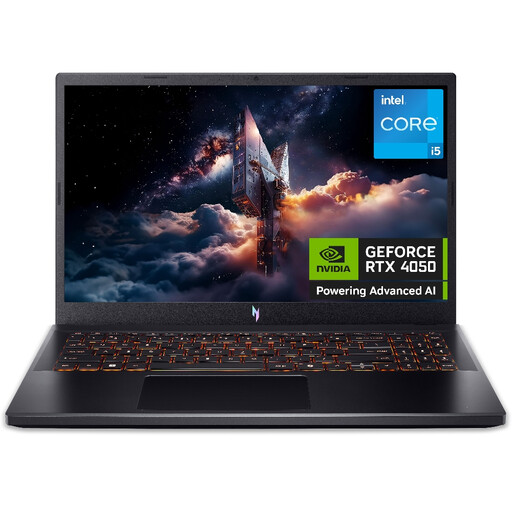
This larger Windows laptop may appeal if you prefer a 15.6-inch Full HD screen for viewing your archive. The named configuration includes 16GB RAM and a 512GB SSD; check the laptop’s carry weight, charging needs and exact display variant before choosing it for regular café visits.
 No image available
Choose the 16-inch format only if its larger viewing area is worth carrying to your usual café workspace. This Windows 11 Home configuration names a touchscreen, 16GB RAM and a 512GB SSD. Check its weight, drive connections and available working space against your own archive.
Choose capacity after measuring your current library and allowing room for growth and day-to-day work. A 512GB SSD is offered in some of the configurations discussed here, but whether it fits depends on your files; maintain a separate backup regardless of where the active library lives.
Yes, if the drive meets Apple Support’s requirements: it must use APFS or Mac OS Extended (Journaled) and must not be a Time Machine backup drive. Apple advises against placing the library on a USB flash drive, SD card, network share or cloud-storage device. Keep another copy as your backup.
Microsoft says its Photos app can browse, sort, search, import and organise media from devices and other locations. Before choosing a Windows laptop, check the import steps and connections for your particular phone, camera, drives and cloud accounts.
Enable suitable storage encryption if the laptop holds identifiable client images. The Information Commissioner’s Office advises encrypting laptops that store personal information; also use a strong sign-in and a restorable backup, and check your organisation’s current security requirements.
Not when the test activities differ. Apple’s cited MacBook Air figure is for wireless-web use, while Microsoft’s cited 13-inch Surface Laptop figure is for video playback. Neither establishes how long your photo-import and sorting sessions will last, so check testing relevant to your workload and plan where you could charge.