People organising photos between visits
If you import, sort and find client photos away from a desk, consider carrying weight, usable screen space, charging and connections for your card reader and drives.


For organising client photos between visits, start with a laptop you can comfortably carry that has at least 16GB of memory, a fast SSD and a display of at least 1920 × 1080 if Lightroom Classic is central to your work; these are Adobe's recommended hardware baselines, not a guarantee of performance with every catalogue. Consider a dedicated-graphics configuration if your work also involves demanding edits, but check its travel weight and the exact software you use. Plan archive storage and recoverable backups separately from the laptop's internal SSD.
If you import, sort and find client photos away from a desk, consider carrying weight, usable screen space, charging and connections for your card reader and drives.
If larger files or more editing are becoming part of the job, compare memory, SSD storage, display resolution and the requirements of your photo software. Adobe recommends 16GB or more memory, a fast SSD and at least a 1920 × 1080 display for Lightroom Classic.
When photos contain personal information, the laptop decision also includes access protection and recoverable backups. The UK Information Commissioner's Office identifies encryption as one possible security measure, while the National Cyber Security Centre advises keeping resilient backup copies.
Decide which photo software and peripherals must work during a visit, then balance carrying convenience against screen space and the editing work you actually do. Treat storage and backup as a separate decision from laptop performance.
| Concern | What to check | Who this matters to |
|---|---|---|
| Working between visits | Compare the configured weight, usable screen space and connections for your card reader and external drive. | If I regularly move between appointments, I need a laptop I can carry without giving up a workable setup for importing and finding photos. Around 42% of consumers put that mobility need first. |
| Catalogue and editing work | For Lightroom Classic, compare memory, SSD and display resolution with Adobe's recommended 16GB-or-more, fast-SSD and 1920 × 1080-or-better baseline; check graphics requirements for your editing features. | As my catalogue and editing workload grow, I want to avoid choosing solely by an application's minimum specification. That is the leading concern for roughly 33% of consumers. |
| Archive protection and capacity | Check space for the files you need while travelling, connections for archive drives, and how you will keep a separate, recoverable backup. | If client photos travel with me, I need enough working storage without leaving the only recoverable copy on the laptop. About 25% of consumers place archive protection and capacity first. |
Adobe lists 8GB of memory as a minimum for Lightroom Classic but recommends 16GB or more, a fast SSD and a display of at least 1920 × 1080. A minimum requirement is not the same as the recommended starting point for ongoing catalogue work.
Compare the recommended requirements with your file sizes, catalogue and editing tasks before paying for additional memory or graphics capability.
Lightroom Classic can keep photos on an external drive, but neither that drive nor the laptop SSD should be the archive's only recoverable copy. The National Cyber Security Centre warns that storage kept connected to a device can also be affected by an incident.
Plan where current files, older photos and separate backups will live, and check that you can restore the files you need.
Separate storage and checking that recovery works take equipment and time.
Port selection varies between laptop models and configurations. A connector on a card reader, drive or monitor may not match those on the laptop you choose.
List the devices you use during visits and check their connectors against the exact configuration before ordering.
A mismatched connector may mean carrying an adapter, dock or different card reader.
Where client images are personal information, the Information Commissioner's Office says security measures should reflect the processing risks and identifies encryption as one possible measure.
Assess device encryption, account access and backup protection as part of the setup before travelling with client images.
MacBook Air is a portable macOS route for archive administration and moderate photo work; MacBook Pro offers configurations for more demanding workflows.
ThinkPad X1 Carbon is a Windows business-laptop option for travel and catalogue work.
XPS 14 is a compact Windows option to assess for photo work on the move.
ProArt P16 is a creator-laptop route to consider when archive work also involves more demanding editing.
These laptops offer different combinations of screen size, memory and internal storage for organising photos while travelling. Match each configuration to your software, peripherals and working files; the laptop alone is not a backup plan.
 No image available
Consider this 14-inch model if a smaller screen format suits the way you work between visits.
Its listed configuration has a Snapdragon X processor, 16GB RAM and a 512GB SSD. Confirm that your photo applications and peripherals work with this processor before choosing it.
 No image available
The 15.6-inch screen format may suit someone who wants more room for viewing an archive while away from a desk.
The listed configuration has an Intel Core 5 120U processor, 24GB memory and a 1TB SSD. Check its connections against the drives and card reader you intend to carry.
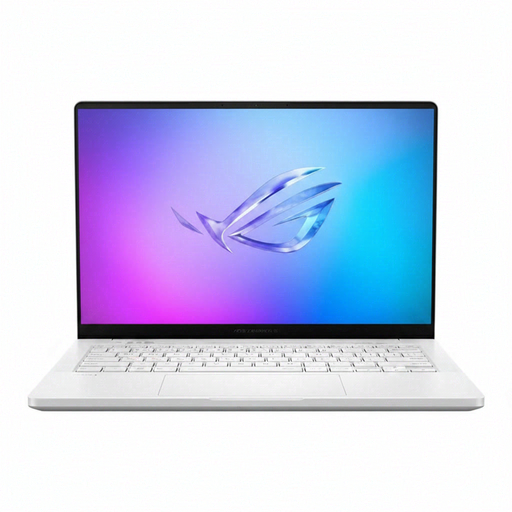 No image available
This is an option to assess if organising the archive is accompanied by editing that calls for a dedicated graphics processor.
The title lists an AMD Ryzen AI 9 HX 370, a 14-inch WQXGA+ display, 32GB memory, a 2TB SSD and NVIDIA GeForce RTX 5070 Ti graphics. Check the actual carrying weight, charger and ports before relying on it between visits.
 No image available
Consider its larger touchscreen format if you review and organise photos while away from your usual workspace.
The title lists a Snapdragon X Elite processor, 16GB RAM and a 256GB SSD. Check application compatibility and whether that internal capacity fits the catalogue and files you need during visits.
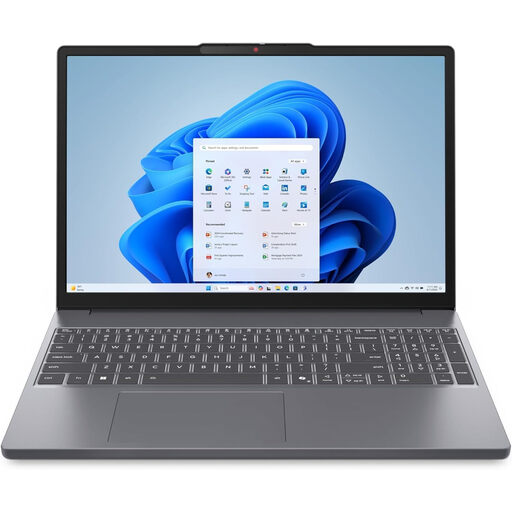 No image available
This 15.3-inch laptop is worth assessing if you want screen space for catalogue work alongside a travel setup.
The title lists a WUXGA display, AMD Ryzen 5 7535HS processor, 24GB DDR5 RAM, 512GB PCIe SSD and Windows 11 Home. Check its ports and charging arrangements against your equipment and visits.
Adobe lists 8GB as a minimum for Lightroom Classic, but recommends 16GB or more. For a laptop used regularly to organise client photos, compare the recommended level with your catalogue size, other open applications and editing tasks rather than choosing solely by the minimum.
Yes. Adobe says Lightroom Classic photos can be stored on an external drive. Check that the drive connects reliably during your workflow, leave internal space for the software and files you need on a visit, and keep a separate backup of the archive.
Keep recoverable copies beyond the laptop and any drive you routinely carry with it. The National Cyber Security Centre describes a 3-2-1 approach of at least three copies on two devices, with one offsite; check periodically that your copies can be restored.
If client photographs contain personal information, assess encryption as part of security measures appropriate to the risk. The UK Information Commissioner's Office identifies encryption as one possible measure; it does not replace account protection, controlled access and recoverable backups.