Small-desk photo organisers
You want to bring in phone or camera photos, organise them and create a shareable gallery without giving much of your desk to the laptop and its cables.


For a small desk, start with a compact laptop if your gallery work mainly involves importing, organising, light editing and publishing photos. Check its memory and storage against the size of your library, and make sure its ports can accommodate your display, drive and photo-import method. A larger screen or creator-focused laptop makes more sense when you need more workspace on the laptop itself or plan demanding editing; Adobe recommends at least 16 GB of RAM, a fast SSD and a display resolution of at least 1920 × 1080 for Lightroom Classic, not for every browser-based gallery.
You want to bring in phone or camera photos, organise them and create a shareable gallery without giving much of your desk to the laptop and its cables.
You edit photos before publishing and need to assess the display in the exact laptop configuration, rather than assuming screen size or an OLED label tells you enough about colour.
You expect larger catalogues or Lightroom Classic work, so memory, SSD capacity and a practical import and backup arrangement matter alongside the laptop’s footprint.
Decide how much editing you will do before choosing a screen size: a compact laptop preserves desk space, while a larger built-in display gives you more room to view photos and gallery previews without a monitor.
| Concern | What to check | Who this matters to |
|---|---|---|
| Editing headroom | Match installed memory and SSD capacity to your local library and applications. For Lightroom Classic, check the current Adobe requirements for the version you intend to use. | If my photo collection is growing and I edit locally, I need room for the catalogue and my editing applications. Around 31% of consumers put this workflow headroom first. |
| Display confidence | Check the exact configuration’s resolution and stated colour specifications. For colour-critical work, investigate calibration and the intended external-display setup. | When I review crops and colour before publishing, I need to know what the screen can show rather than choose by its label alone. Display confidence comes first for around 38% of consumers. |
| Desk footprint | Measure the available space and confirm the exact laptop’s ports and external-display support, including connections needed at the same time. | I have limited room for a laptop, drive and other equipment, so I need a setup that fits when everything is connected. Around 23% of consumers prioritise the compact setup. |
| Import and backup | Identify whether photos arrive by phone cable, camera card, cloud or external drive; check the matching connections and a workable backup arrangement. | If I regularly move photos from other devices, I need a straightforward way to bring them in and keep copies. Import and backup are the primary concern for around 8% of consumers. |
A larger display gives you more viewing space, but its size does not establish its resolution or colour characteristics. ASUS notes that ProArt P16 display specifications vary by configuration.
Compare the panel specifications for the exact variant. Treat a manufacturer’s colour-accuracy description as a claim to investigate, not proof that the display is calibrated.
For a USB phone import into Windows, Microsoft says the cable must transfer files and the phone must be unlocked.
Identify whether your photos come from a phone, camera card or drive, then check the cable and reader needed for that source.
Connections can differ between configurations. Microsoft lists a microSD slot on its specified 15-inch Surface Laptop configuration, while Apple lists two Thunderbolt 4/USB-C ports for the 13-inch MacBook Air.
Check the exact model and count the connections you need simultaneously for charging, storage, a card reader and a monitor.
A separate reader, display adapter or dock may add equipment to a small desk.
Adobe distinguishes its minimum Lightroom Classic requirements from its recommended specifications, including more memory and a fast SSD.
If Lightroom Classic is part of your workflow, compare the intended configuration with Adobe’s current requirements. A browser-only gallery does not, by itself, call for creator-focused hardware.
MacBook Air offers a compact macOS route if you want to use a laptop with external equipment when your desk setup needs it.
Surface Laptop offers Windows buyers several screen sizes to weigh against their available desk space.
Yoga Pro 7 Gen 10 is a Windows option to investigate if you want a 14.5-inch display for more involved photo work.
ProArt P16 is a route to examine when gallery work extends beyond organising and light editing into demanding creative tasks.
Spectre x360 16 is worth examining if built-in connections are more important to you than minimising the laptop’s footprint.
These choices span compact laptops for a tight desk and larger models for those who want more built-in viewing space or capacity for demanding local work. Match the screen size and listed configuration to your gallery workflow before choosing.
 No image available
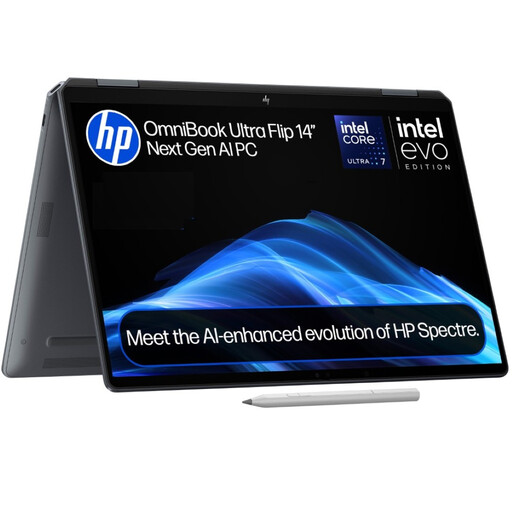
Consider this 2-in-1 if you want a flexible laptop for organising and editing a local photo collection. The name specifies 16 GB RAM and a 1 TB SSD. Confirm the display, graphics configuration and camera-card import arrangement for the work you plan to do.
 No image available
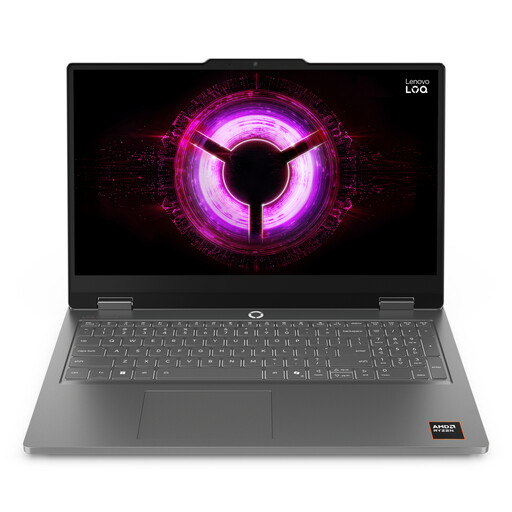
Consider this larger-screen option if viewing space on the laptop matters more than keeping its footprint small. Its name specifies a 15.6-inch FHD display, 16 GB RAM and a 1 TB SSD. Check the exact display for colour-sensitive work and whether your camera-card workflow needs a separate reader.
 No image available
The 14-inch model is an option when desk space takes priority and your photo library fits the stated 512 GB SSD. Its name also specifies 16 GB RAM and a Snapdragon X processor. Confirm that your intended gallery and editing software works with the selected configuration, and assess the display separately if colour-critical editing matters.
 No image available
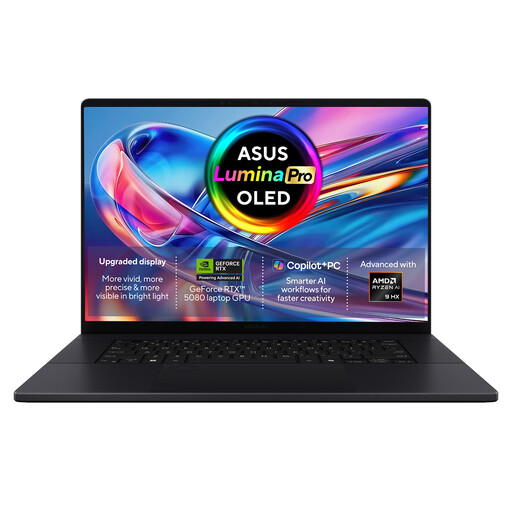
This is a larger-format choice to assess if your gallery work involves substantial local storage or demanding editing. Its name specifies a 16-inch 4K OLED touchscreen, 64 GB RAM, a 2 TB SSD and GeForce RTX 5080 graphics. Allow room for the laptop on your desk, and check colour requirements and camera-card compatibility for your exact workflow.
 No image available
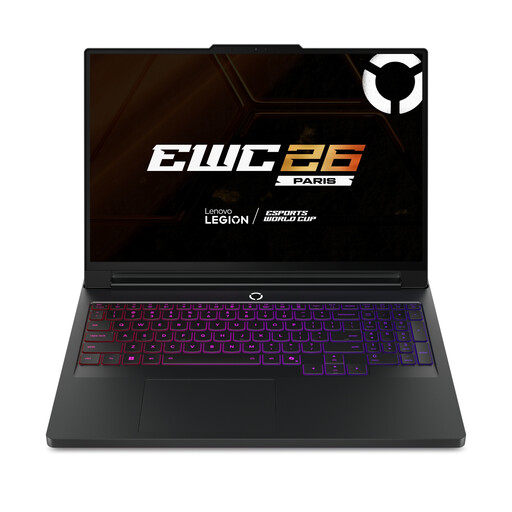
Consider this 16-inch model if a larger built-in viewing area and capacity for a growing local library outweigh desk-space concerns. Its name specifies 64 GB RAM, a 2 TB SSD and GeForce RTX 5090 graphics. Check its physical dimensions against your desk and assess the display and peripheral connections for photo work before deciding.
Not if you mainly organise photos and publish a gallery through a browser or a light photo app. Choose storage, a display and connections that suit those tasks; if you plan to use Lightroom Classic, check Adobe’s current requirements for your intended version, including its recommended memory, SSD and display specifications.
Microsoft advises using a USB cable that transfers files, unlocking the phone and importing from the connected device in Microsoft Photos. If iPhone originals are stored only in iCloud, check whether you need iCloud for Windows for your planned import method.
Yes, if the exact laptop configuration supports the connection required by your monitor or dock. Apple lists DisplayPort support through Thunderbolt 4/USB-C for MacBook Air, while Microsoft’s Surface Laptop connections vary by screen size; check the model and accessories you intend to connect.