Decide what counts as your two screens before choosing a laptop: two built-in displays, the laptop display plus a monitor, or two external monitors. If you need two external monitors, check the exact laptop configuration against their intended resolution and refresh rate; a dock does not increase the laptop’s supported display limit. Also check the software you use to review photographs, consult references and submit records.
Who needs this setup?
Desk-based plant-record classifier
If you keep photographs, species references, maps and record-entry forms open at a fixed desk, check the complete laptop-and-monitor arrangement before choosing a dock. iRecord provides plant-related recording forms, while Microsoft documents how to arrange connected displays in Windows.
Field-to-desk recorder
If you collect observations away from your desk and complete records later, consider how the laptop travels as well as how it reconnects to your screens. iRecord allows photographs to accompany records and says they can help with verification.
Existing macOS workflow user
If your recording and photo workflow already depends on macOS, check that your required applications run on the Mac you choose. Apple’s external-display specifications must also match its exact chip and your intended monitor arrangement.
What matters when choosing?
Start by counting the displays you intend to use at once, including any built into the laptop. Then check the connection path and your applications before weighing portability against desk use.
| Concern |
What to check |
Who this matters to |
| Reliable two-screen output |
Check the exact model’s simultaneous external-display limit at your monitors’ resolution and refresh rate. If using a dock, check its host-port requirements too. |
I need photographs and identification material visible alongside my records without finding that the desk setup cannot drive both screens; around 33% of consumers put display reliability first. |
| Portable photo and record work |
Assess carrying weight, screen visibility and keyboard comfort, then consider how easily the laptop reconnects at the desk. |
When observations begin away from my desk, I want to review photographs and finish records when I return; for around 27% of consumers, that field-to-desk routine is the primary concern. |
| Windows workflow compatibility |
Confirm that your recording, mapping and image-management applications run on the chosen Windows version; check display limits for that laptop configuration. |
If my work relies on Windows applications, keeping those tools available matters more than changing platforms; around 20% of consumers place Windows workflow compatibility first. |
| macOS continuity |
Check your applications and Apple’s external-display specification for the exact Mac model and chip, including the intended monitor settings. |
I want to keep using my macOS tools and files while adding the screens I need; for around 20% of consumers, continuity with that workflow comes first. |
Buying pitfalls
-
Assuming a dock guarantees two external monitors
A dock still depends on the laptop’s video-capable host port and its supported display limit. HP’s dock guidance, for example, specifies host-port video requirements.
Check the exact laptop, dock, monitor settings, cables and charging requirements together before ordering.
A dock and suitable cables add equipment to the desk setup.
-
Using “two screens” to mean different arrangements
A laptop screen plus one monitor is not the same requirement as two external monitors. Two integrated laptop displays are another arrangement again.
Write down which displays must work simultaneously and whether the laptop lid will be open or closed.
-
Choosing the internal screen before checking desk connections
An internal screen option does not establish external-monitor support. Microsoft’s Surface Laptop guidance shows that connection method can affect external resolution or refresh rate.
Confirm the desk display arrangement first, then compare the built-in screen and portability for work away from the desk.
-
Assuming photo uploads dictate a fixed laptop specification
iRecord supports photographs with records, but that task alone does not set a memory or storage capacity for your wider photo workflow.
Base storage choices on the volume of photographs you keep and how you back them up; check any separate photo or mapping software you use.
Laptop brands to consider
These ranges offer different starting points for checking a two-screen setup; the exact model and configuration still determine what you can connect.
Lenovo
ThinkPad T-series laptops are a Windows option for a portable desk-and-field workflow.
- Lenovo lists display options up to 2.8K OLED for the ThinkPad T14 Gen 5 and Intel vPro on eligible configurations.
- Check the ports and simultaneous external-display support on the particular configuration you are considering.
Dell
Latitude is a Windows range to consider if a compatible dock is part of a managed desk setup.
- Dell lists configurable memory for the Latitude 7450 and dual-display output for its Pro Thunderbolt 4 Smart Dock under the dock’s stated conditions.
- The dock’s display specification does not establish the laptop’s own supported display count; check both devices together.
Apple
MacBook Pro is relevant if your plant-observation applications and files fit an existing macOS workflow.
- Apple states that MacBook Pro models with the M5 Pro chip support up to three external displays simultaneously with the built-in display, subject to its resolution and refresh-rate conditions.
- Check the selected chip, display settings and application compatibility rather than applying the M5 Pro limit to every MacBook Pro.
Microsoft
Surface Laptop is a Windows option for buyers who want to compare official, model-specific external-display guidance.
- Microsoft publishes external-display guidance across Surface Laptop generations.
- Capabilities vary by model and connection method, which can also limit resolution or refresh rate.
Joybuy products for this setup
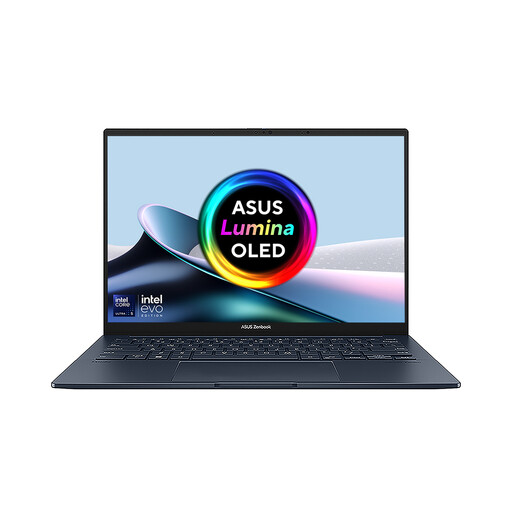
This dual-display laptop is a choice if you want two screens built into one device for photographs and reference or record-entry material. Its integrated screens do not establish support for two additional external monitors.
 No image available
ASUS Zenbook DUO UX8406CA-QL135W dual OLED touch laptop
Consider its two built-in displays if you want photographs and record-entry work visible without relying on an external monitor. The product name specifies 14-inch displays, an Intel Core Ultra 7 255H, 16 GB LPDDR5X memory and a 1 TB SSD.
Confirm the exact panel resolution before choosing it, and check its simultaneous external-display limits separately if you intend to connect two monitors. Check that your required plant-recording and photo applications run on this Windows configuration.
Joybuy
Frequently asked questions
Do two USB-C ports mean a laptop can run two external monitors?
No. Check the exact laptop’s supported display count, the video capability of the ports and the intended resolution and refresh rate. Microsoft notes that connection method can limit the resolution or refresh rate available on Surface Laptops.
Can a dock increase a laptop’s supported number of displays?
No. A dock can simplify connections, but it does not raise the laptop’s own display limit. Apple says a hub does not increase a Mac’s maximum supported display count, while HP specifies host-port requirements for full dock video capability.
Are photographs useful when submitting plant observations through iRecord?
Yes. iRecord says a photograph can help verify a record, and its recording guidance includes plant-related forms. Check the service’s current upload guidance when preparing your images.


