Spoken-word podcast editors
If your projects centre on dialogue cuts, fades, music beds and routine exports, check that your chosen editor runs on the laptop and that its memory and SSD capacity suit the applications you keep open while editing.


For routine spoken-word podcast editing, start with a laptop that supports your editor and audio interface, then look for 16GB of memory where your software and workload warrant it, enough SSD space for active projects, and connections that fit your setup. Consider 32GB of memory and more storage for longer multitrack sessions, demanding plug-ins or video-linked work; choose that headroom for the work you expect to do, rather than assuming every audio timeline needs it.
If your projects centre on dialogue cuts, fades, music beds and routine exports, check that your chosen editor runs on the laptop and that its memory and SSD capacity suit the applications you keep open while editing.
Longer sessions, processing chains and other applications running alongside your editor make processor and memory choices more consequential. Ableton identifies the CPU as responsible for audio processing in Live; requirements for your own editor and plug-ins may differ.
If you take the laptop away from your desk but reconnect an audio interface, external SSD and monitor, check how those devices will connect simultaneously. The laptop’s own display support still matters when using a dock.
Check your editor, plug-ins and audio interface against the operating system first. Then choose memory, storage and connections for your usual projects and the devices you use together.
| Concern | Buying checks | Who this matters to |
|---|---|---|
| Routine timeline editing | Check the editor’s recommended memory and processor requirements, not just its minimum. For ordinary spoken-word work, consider 16GB of memory where the software and your other open applications warrant it. | For dialogue edits and routine exports, I need my editor and everyday applications to work together without choosing capacity solely from the minimum requirement; around 40% of consumers put routine timeline editing first. |
| Multitrack and plug-in headroom | Match memory and SSD capacity to the sessions and media you expect to keep active. Check whether the exact laptop’s memory can be upgraded before relying on that option. | When I use long multitrack sessions or processing chains, I want capacity for that workload rather than buying only for simple cuts; roughly 30% of consumers prioritise this headroom. |
| Ports and external displays | Count the interface, drive, monitor, charger and other devices you need at once. Verify the exact model’s ports, external-display limits and dock compatibility. | I carry my laptop between locations but reconnect an interface, storage and a monitor at my desk; around 20% of consumers make those connections their primary concern. |
| Software and driver compatibility | Confirm your editor release, plug-ins and audio-interface driver support the proposed operating-system version. Check any processor-platform requirements that apply to those tools. | My existing editor, plug-ins and interface need to work on the new laptop before its other features matter to me; roughly 10% of consumers put compatibility first. |
Adobe lists 8GB of RAM for Audition and 16GB for HD media. A minimum requirement does not describe how your editor will fit alongside plug-ins and other applications, while some thin-laptop configurations use soldered or memory-on-package memory.
Check the recommendation for your exact editor and project type, then confirm whether the laptop’s memory is upgradeable before settling on a configuration.
A laptop can have suitable memory and storage yet need more connections than it has available when charging, a display, an audio interface and an external drive are used together. A dock does not change the laptop’s stated display limits.
List the devices you will connect simultaneously and check the exact model’s ports, display support and compatibility with any dock or interface.
Your setup may also require a compatible dock, adapter or cable.
Support can differ by editor version, plug-in and audio-interface driver. An application being available on macOS or Windows does not establish that every part of an existing workflow will run on a particular laptop.
Check the precise software releases and interface driver against the operating-system version you plan to use before choosing a macOS or Windows configuration.
The 13-inch MacBook Air with M4 is a macOS option for editors whose software and peripherals support that platform. Apple lists 16GB of unified memory, configurable to 24GB or 32GB.
Lenovo’s UK ThinkPad X1 Carbon Gen 13 configurations include a 16GB-memory, 512GB-SSD option and a 64GB-memory, 1TB-SSD option. The configuration matters more to this decision than the product-line name alone.
The Zenbook S 14 UX5406 is a Windows laptop line whose ASUS specifications include configurations with 32GB of LPDDR5X memory and a 1TB PCIe 4.0 SSD.
These laptop configurations cover routine podcast editing, portable 2-in-1 use and projects that call for more memory. Match the listed hardware to your editor, audio interface and usual connections before choosing.
 No image available
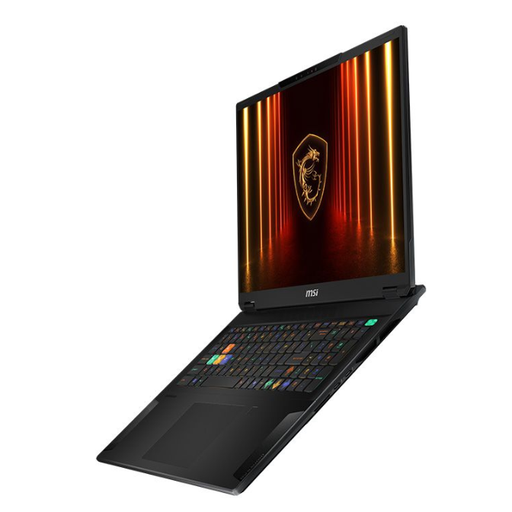
Consider this configuration if your sessions call for more memory and storage and you usually edit at a desk. The named variant has an 18-inch display, Intel Core Ultra 9 processor, 32GB of RAM and a 2TB SSD; its RTX 4070 does not, by itself, establish an audio-editing advantage. Check that its size suits any travel you expect and that your editor and interface support the operating system you will use.
 No image available
This is a configuration to consider for routine timelines with other applications open. Its named specifications include a 15.6-inch display, Intel Core 5 120U processor, 24GB of memory and a 1TB SSD. If you expect your memory needs to grow, confirm whether this exact configuration can be upgraded; also check your editor and audio-interface compatibility.
 No image available
If a convertible laptop fits the way you move between editing locations, this 2-in-1 is worth checking against your workflow. The named configuration has 16GB of RAM, a 1TB SSD and Windows 11 Home. Confirm that your editor, plug-ins and audio-interface driver support that operating system; check the exact graphics configuration separately if your work also depends on GPU capability.
 No image available
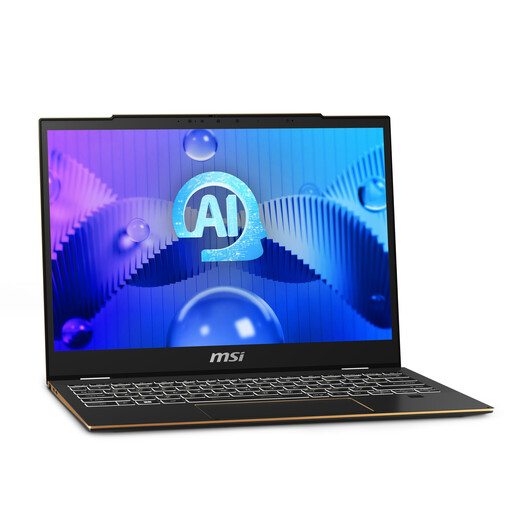
This configuration is worth considering if you want 32GB of memory for larger sessions in a convertible laptop. Its named specifications include an Intel Core Ultra 7 155H processor and a 1TB SSD. Confirm the exact display size and port layout before planning your workspace, and check editor and interface compatibility with Windows 11 Pro.
 No image available
Consider this variant only if your projects and other applications warrant its substantial stated memory and storage. Its named specifications include a 16-inch display, Intel Core Ultra 9 processor, 64GB of RAM, a 2TB SSD and Windows 11 Home; the RTX 5090 is not a reason on its own to choose it for audio editing. Check its weight, the connections needed for your desk and compatibility with your editor and audio interface.
It may meet a software minimum, but check your editor and the other applications you use before choosing it for regular work. Adobe lists 8GB of RAM for Audition and 16GB for HD media; those requirements do not establish a universal memory target for every podcast editor.
Not automatically: a compatible 16GB configuration is a practical starting point to assess for simpler spoken-word timelines. Consider 32GB if you expect longer multitrack sessions, demanding processing, video-linked projects or several creative applications running together, and check the requirements of your actual software.
Yes, if the exact laptop supports your display arrangement and has compatible connections for the interface, directly or through a suitable dock. Apple lists two Thunderbolt 4 ports on the M4 MacBook Air and support for up to two external displays alongside its built-in screen; count the other devices you need connected at the same time.
For a faulty laptop bought in the UK, the Consumer Rights Act 2015 provides remedies. GOV.UK explains that repair or replacement can apply when a fault is discovered more than 30 days after purchase or delivery; keep your purchase details and contact the seller, as the applicable remedy depends on the circumstances.