Choose the screen arrangement before the laptop: two screens could mean two built-in displays, the laptop plus one monitor, or two external monitors. For portrait retouching, check the colour specifications of the display you will use to judge images, then confirm the exact laptop’s memory, storage and connections; a dock’s display specification alone cannot establish that the whole setup will work.
Who needs which setup?
Colour-critical portrait retouchers
If skin tones and local colour adjustments drive your decisions, prioritise the specifications and calibration of the display on which you judge the finished image. A laptop panel’s specifications do not establish the capabilities of a separate monitor.
Dual-screen studio editors
If you keep the image on one screen and tools, references or a library on another, decide whether the laptop display counts as one of those screens. For two external monitors through a dock, check the laptop’s display-output protocol as well as the dock.
Mobile photographers with substantial editing workloads
If you edit away from your desk and work with large RAW files or layered Photoshop documents, balance the laptop’s screen and portability against its configured memory and storage. Adobe recommends at least 16 GB of RAM for Photoshop; that recommendation does not establish a laptop’s colour capability or monitor support.
What matters when choosing?
Start by sketching the screens you intend to use. A laptop with two built-in displays avoids the need for a second screen, whereas a laptop-and-monitor desk or a two-external-monitor desk calls for different connection checks.
| Concern |
What to check |
Who this matters to |
| Two-screen connections |
Confirm whether you need one or two external monitors, then check the exact laptop’s outputs and any dock’s protocol, resolution and refresh-rate requirements. |
If I am building a desk with two external monitors, I need both to work at my chosen resolution rather than assuming a USB-C socket is enough; around 31% of consumers put connection compatibility first. |
| Portrait colour |
Compare the exact editing display’s colour-space coverage and calibration information; plan how it will be calibrated for your workflow. |
When I adjust skin tones, I need a dependable display for judging colour rather than relying on resolution alone; roughly 31% of consumers make colour judgement their primary concern. |
| Editing capacity |
Use Adobe’s recommended 16 GB or more of RAM for Photoshop as a starting point; assess SSD capacity and GPU requirements against your files and display resolution. |
Large RAW files and layered edits make memory and working storage especially important to me; around 25% of consumers prioritise editing capacity. |
| Desk and travel balance |
Compare the configured memory, storage, screen and connections with the laptop’s size and weight, rather than relying on a product family’s maximum specifications. |
I edit on location as well as at a desk, so I need a laptop I can carry without choosing more hardware than my workflow calls for; roughly 13% of consumers put that balance first. |
Mistakes to avoid
-
Assuming USB-C means two external monitors will work
Lenovo says its USB-C Dual Display Travel Dock’s operation depends on compatible USB-C Alt-Mode, DisplayLink or Thunderbolt support from the laptop. The dock’s stated two-4K-display capability does not establish what every connected laptop can drive.
Check the laptop configuration, dock protocol, monitor inputs and required resolution and refresh rate together before ordering.
An incompatible connection may call for different cables, adapters or a dock.
-
Judging portrait colour by the laptop category
A workstation name is not a panel specification: Lenovo lists a ThinkPad P16v configuration with a 45% NTSC display. Lenovo’s stated colour and calibration figures for its ThinkVision P32p-30, meanwhile, apply to that monitor model, not to monitors generally.
Check the exact laptop panel or external monitor you will use for colour decisions, including its gamut and calibration information.
A separate colour-capable monitor and a calibration workflow may still be needed for your intended setup.
-
Buying to Photoshop’s minimum requirements alone
Adobe lists 8 GB of RAM as a minimum but recommends 16 GB or more for Photoshop. Its recommended storage and GPU guidance also matters when planning a substantial editing workflow or higher-resolution displays.
Start with the recommended requirements, then assess additional capacity against your file sizes, editing tools and planned screens.
Brands to consider
ASUS
The ProArt creator-laptop range is relevant if you edit portraits both at a desk and on the laptop’s own screen.
- ASUS lists a 16-inch 4K OLED display and configurations with up to 64 GB of memory for its ProArt P16 H7606 range.
- ASUS’s colour-coverage and validation claims apply to specified ProArt Lumina OLED models. Check the exact panel and external-display support of the configuration you choose.
HP
ZBook mobile workstations are worth examining if portrait editing is part of a broader Windows-based creative workload.
- HP lists higher-memory and larger-storage options on specified ZBook lines, which may be relevant when selecting a particular configuration.
- A family’s maximum is not the specification of every model. Check the configured screen, memory, storage and display outputs separately.
Lenovo
Lenovo’s docks, monitors and ThinkPad workstations offer components to assess for a desk-based retouching setup.
- Lenovo lists two 4K displays at 60 Hz for its USB-C Dual Display Travel Dock, subject to a compatible laptop connection.
- Display quality varies by configuration: Lenovo lists a ThinkPad P16v entry configuration with a 45% NTSC panel. Check the actual screen rather than relying on the workstation name.
Apple
MacBook Pro is a route to consider if your editing applications, peripherals and file workflow suit macOS.
- Apple offers MacBook Pro configurations that differ in chip, unified memory and SSD capacity.
- Select the exact configuration and check Apple’s published external-display limits against your planned screens and connections.
Joybuy laptops to consider
These laptops include a model with two built-in displays and models to assess for editing with an external screen. If your plan calls for external monitors, confirm each exact laptop’s supported display arrangement before choosing a dock or cables.
 No image available
ASUS Zenbook DUO UX8406CA-QL135W, dual 14-inch OLED touchscreens
Consider this model if you want two work areas built into the laptop rather than adding a monitor. Its listed configuration has an Intel Core Ultra 7 255H, 16 GB of RAM and a 1 TB SSD.
Confirm the exact panel resolution before ordering, as the supplied specifications describe it inconsistently. If you also need external monitors, check the supported display arrangement separately.
View on Joybuy
 No image available
ASUS ProArt P16 H7606WW-SE006W, 16-inch 4K OLED
Consider this configuration if your portrait work calls for substantial memory and storage alongside a laptop display. It lists 64 GB of RAM, a 2 TB SSD and an NVIDIA GeForce RTX 5080 Laptop GPU with 16 GB of graphics memory.
Check the exact panel’s colour and calibration specifications, and confirm how many external displays this configuration can drive at your required resolutions.
View on Joybuy
 No image available
Lenovo Legion Pro 7 16IAX10H, 83F5000UUK
This configuration is relevant if large files and GPU-assisted applications are central to your workload. It lists 64 GB of RAM, a 2 TB SSD and an NVIDIA GeForce RTX 5090.
Check the built-in display’s colour and calibration specifications for portrait work, as well as the external-display limits for your intended desk setup.
View on Joybuy
 No image available
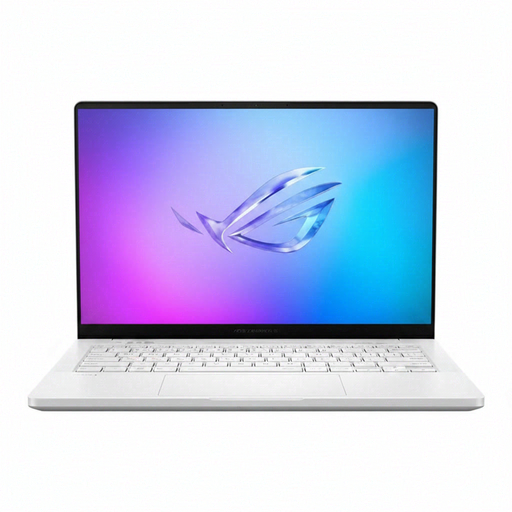
ASUS ROG Zephyrus G14 GA403WR-QS088W, 14-inch WQXGA+
Consider this configuration if you want a 14-inch laptop with memory and storage for substantial editing files. Its title specifies 32 GB of RAM, a 2 TB SSD and an NVIDIA GeForce RTX 5070 Ti Laptop GPU.
Before relying on its built-in screen for portrait colour decisions, check its gamut and calibration information. Confirm the outputs needed for your external-screen arrangement.
View on Joybuy
 No image available
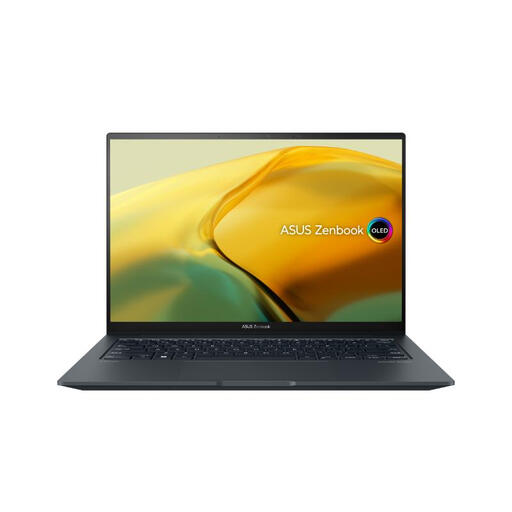
ASUS ZenBook UX3404VC-M3130W, 14.5-inch OLED touchscreen
This model is an option to assess if you want a laptop-based editing workspace with Adobe’s recommended Photoshop memory level. It lists 16 GB of RAM, a 1 TB SSD and an NVIDIA GeForce RTX 3050.
Check its display colour specifications before using the built-in screen for critical portrait decisions, and confirm its connections before planning an external monitor.
View on Joybuy
Common questions
How much memory should a portrait-retouching laptop have?
Adobe recommends 16 GB or more of RAM for Photoshop, rather than its 8 GB minimum. Also check SSD capacity for your files and working storage; meeting the application recommendation does not establish colour accuracy or support for two external monitors.
Can any USB-C laptop run two external monitors through a dock?
No: a USB-C connector alone does not establish the required display support. Lenovo says its USB-C Dual Display Travel Dock depends on compatible USB-C Alt-Mode, DisplayLink or Thunderbolt support, so check the exact laptop, dock and monitor combination.
Should I retouch portraits on the laptop or external display?
Use the display whose colour capability you can assess and calibrate for your workflow. For instance, Lenovo lists 100% sRGB, 95% DCI-P3 and an average Delta E below 2 for its ThinkVision P32p-30; those figures apply to that particular monitor, not to every external display.
What else might a two-screen desk need?
Your arrangement may call for an external monitor, suitable cables, a compatible dock or calibration equipment. Decide whether the laptop’s own display counts as one screen, then check the connections and what is included with each item before ordering.


