Choose a portable monitor if you need a second screen in both places, or a dock if you repeatedly connect to equipment that stays at one desk. If neither problem comes up regularly, a laptop, suitable charger and small set of peripherals may be easier to carry. Before adding a screen or dock, check your exact laptop model’s video outputs, display limits and charging requirements.
Who needs a setup that travels?
The useful addition depends on what is missing when you arrive at each workspace—not simply on how often you commute.
Workers moving between home and a workplace
If you carry your equipment regularly, consider how much you must pack and how many connections you remake at each stop. A laptop and appropriately rated charger may be enough when the desks already have the equipment you use.
People who need a second screen in either location
A portable monitor addresses a shortage of screen space away from a fixed desk. Check your laptop’s supported external displays and video connection before choosing the monitor’s size or other panel features.
Shared-desk workers reconnecting several devices
A dock is worth considering when a monitor, keyboard, mouse or wired network stays at the destination desk. Its usefulness depends on the laptop’s port functions, display support and charging needs, as well as the dock’s connections.
Which setup should you build?
Identify the task that slows you down at each location, then check the connection and power requirements before adding equipment to your bag.
Laptop-first kit
Choose it when: You move between different desks and seldom need to bring your own screen or wired connections.
Trade-off: There is less to carry, but the kit does not add screen space or bring several desk connections together.
Portable monitor
Choose it when: A second screen is useful in both places and you cannot count on one being provided.
Trade-off: You carry the display and its required accessories, and your laptop must support the intended video connection.
Desk dock
Choose it when: You repeatedly reconnect to a monitor and other equipment that remains at one desk.
Trade-off: Fewer separate desk connections still depend on compatible laptop video, data and power functions.
| Priority |
What to check |
Your needs |
| Carrying and setup |
List what must travel with you and what stays at each desk. Check the stated weight and required cables or power accessories for anything you plan to carry. |
I move between home and a workplace, so I want to pack only the equipment I will actually use in both places. |
| Second-screen connection |
Check the exact laptop’s external-display limit, video-capable ports and the monitor’s cable and power requirements. Apple Support says display support varies by Mac model; Microsoft Support says Surface capability depends on the model and cables or adapters. |
A second screen would help where I work, but I need to know that my laptop can drive the intended monitor. |
| Desk connections |
Match the dock’s display outputs and peripheral ports to the desk equipment. Confirm the laptop port supports the dock’s required functions; a USB-C connector alone does not establish video support. |
At a desk with a monitor and peripherals already in place, I would rather reconnect those devices without plugging each one into my laptop. |
| Charging |
Compare the laptop maker’s recommended input wattage with the power delivered by the charger, powered display or dock. For a USB-C-chargeable Mac, Apple Support recommends at least the minimum wattage of its recommended adapter. |
If one connection will also charge my laptop, I need it to provide suitable power while I work. |
| Work-device software |
For DisplayLink equipment, check operating-system support and whether workplace policy permits its software. Synaptics says DisplayLink Manager on macOS requires Screen Recording permission. |
My work laptop may restrict software or permissions, so I want to settle that before choosing a DisplayLink display route. |
What should you check before buying?
-
Assuming every USB-C port does the same job
A cable may fit while the intended video output or charging arrangement does not work. Apple Support and Microsoft Support both tie external-display capability to the specific computer model.
Look up your exact laptop’s supported displays, port functions and charging specification, then compare them with the monitor or dock requirements.
-
Reading a dock’s maximum wattage as a charging guarantee
The power a dock advertises is not, by itself, a promise that it will meet your laptop’s charging requirement. Apple Support advises matching a USB-C-chargeable Mac with at least its recommended adapter wattage.
Check the power the dock delivers to the connected laptop against your model’s recommended input; also check any power-adapter requirement for the dock.
-
Overlooking DisplayLink software rules
A DisplayLink dock or adapter may depend on software that an employer-managed laptop does not permit. Synaptics says its macOS DisplayLink Manager also requires Screen Recording permission.
Confirm operating-system support and ask your IT team about installation and permissions before choosing this route.
Which brands and technologies matter?
These references illustrate compatibility questions for particular product lines; a brand name alone does not establish that a dock or display will work with your laptop.
Lenovo
The ThinkPad Universal USB-C Dock is a reference point for a Windows-oriented desk connection.
- Lenovo describes the dock as compatible with most USB-C laptops running Windows 10 and above.
- Check your particular laptop’s video functions and charging needs rather than relying on that broad compatibility description.
HP
The USB-C Dock G5 line calls for a close look at host operating-system and port requirements.
- HP provides Windows and Mac software downloads for the USB-C Dock G5.
- HP Support says certain Alt Mode features are unsupported and that it does not provide Ethernet and audio drivers on Mac PCs.
Apple
The exact Mac model matters when selecting an external display, USB-C charger or dock.
- Apple Support says a USB-C-chargeable Mac can charge from a USB-C power adapter or display that supports USB Power Delivery.
- Apple Support says external-display support varies by Mac model and recommends at least the Mac’s minimum recommended adapter wattage for charging.
Microsoft Surface
Surface display and dock choices depend on the device model and the connections used.
- Microsoft Support describes the Surface USB4 Dock as connecting monitors, Ethernet and other desk accessories.
- Microsoft specifies up to 65W power passthrough for that dock; compare this and the display arrangement with your exact Surface model.
DisplayLink
DisplayLink is a display-connectivity technology found in some docks, adapters and monitors, rather than a substitute for checking the host setup.
- Synaptics lists DisplayLink products for several operating-system platforms.
- The appropriate software and permissions are necessary; Synaptics says DisplayLink Manager on macOS requires Screen Recording permission.
Joybuy options for working in two places
These options cover portable second screens, a desk dock, a compact keyboard and a USB-C charger. Choose the type of equipment that solves your recurring setup problem, then check its fit with your laptop.
 No image available
ASUS ZenScreen MB166CR FHD
Consider this portable monitor if you need to bring a second screen between work locations. Before buying, check that your laptop supports the video connection required by the MB166CR.
View on Joybuy
 No image available
Targus USB-C Universal Dual HDMI 4K Dock, 100W Power Delivery Pass-Thru
This dock is an option when you repeatedly connect a laptop to equipment at a desk. Its title specifies dual HDMI 4K connections and 100W Power Delivery pass-through; check your laptop’s display and charging requirements, and confirm the required power adapter and package contents.
View on Joybuy
 No image available
UPERFECT 14-inch 60Hz Touchscreen Portable Monitor
This portable second-screen option has a stated 180° adjustable stand, 100% sRGB specification and VESA compatibility. If touch input matters to your work, check the connection and power requirements for your laptop before relying on a one-cable arrangement.
View on Joybuy
 No image available
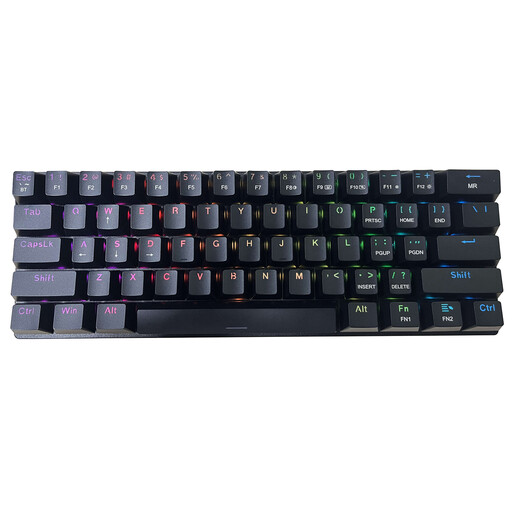
ET 60% Tri-Mode 61-key Mechanical Keyboard, US layout
A compact keyboard may suit a setup where you carry your own typing equipment. The title specifies a QWERTY US layout and clicky blue switches; confirm that the layout suits you and check the package contents if you expect a mouse.
View on Joybuy
 No image available
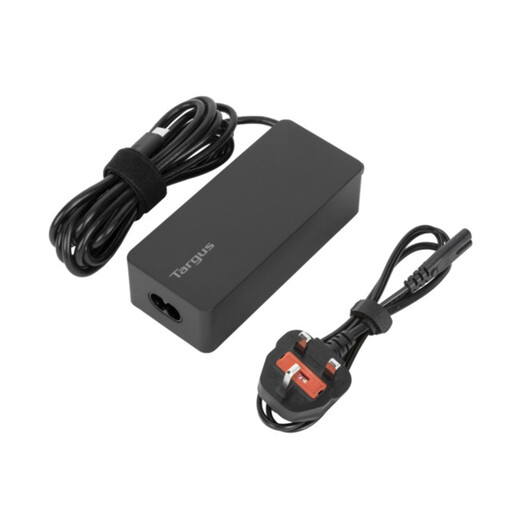
Targus 65W USB Type-C Charger
A charger is worth considering if power is the item you need to carry or keep at another work location. Check whether your exact laptop accepts USB-C charging and whether this 65W charger meets its recommended input requirement.
View on Joybuy
Questions about portable work setups
Will any USB-C laptop work with a USB-C dock or portable monitor?
No: the connector alone does not establish video output, charging or the intended display arrangement. Check the exact laptop’s port and external-display specifications against the accessory requirements. Apple Support says Mac display support varies by model, while Microsoft Support says Surface display capability depends on the device model and cables or adapters.
Can a dock take the place of my laptop charger?
Only if the dock delivers suitable power for your laptop through a supported connection. Compare its delivered USB Power Delivery wattage with your model’s recommended input, and check how the dock itself is powered. Apple Support recommends at least the minimum wattage of the recommended adapter for a USB-C-chargeable Mac.
When should I carry a portable monitor rather than use a dock?
Carry a portable monitor when the recurring need is a second screen and you cannot rely on one at either workplace. A dock addresses a different problem: reconnecting equipment that remains at a desk. For either choice, first check the laptop’s supported displays and video connection.
Can I use a DisplayLink dock without installing software?
Do not assume so. Synaptics provides DisplayLink software for supported operating systems and says DisplayLink Manager on macOS requires Screen Recording permission. If you use an employer-managed laptop, confirm that the required installation and permissions are allowed before buying.


