For editing a research poster beside a bright window, compare the exact display panel’s stated brightness and reflection treatment before choosing a laptop by processor or screen size. A high-brightness MacBook Pro configuration is worth considering if your tools work on macOS; a specified anti-glare Windows configuration makes more sense when your research workflow depends on Windows. A larger screen gives you more physical room to inspect the layout, but you still need to check its daylight suitability and carrying weight.
Who is this for?
Daylight-window poster editors
If you work close to a bright window, you need to inspect text, figures and alignment controls despite surrounding light and reflections. Compare the stated brightness and surface treatment of the particular panel you intend to buy, then consider where the window will sit relative to your screen.
Adobe layout and illustration users
If you build posters in InDesign or similar desktop software, memory and application compatibility matter alongside the display. Adobe lists 8GB RAM as the minimum and 16GB as recommended for current InDesign versions; check the requirements for your own application and version.
Portable campus and lab workers
If you move between home, campus and labs, balance screen space against carrying weight and the connections your equipment needs. Lenovo lists a researched ThinkPad X1 Carbon configuration with a 14-inch anti-glare display and a weight under 1kg; those specifications apply to that configuration, not every ThinkPad.
What matters when choosing?
Decide whether your required software makes macOS or Windows the practical starting point, then compare exact display configurations for the bright-window setting. Screen space, memory and carrying weight determine which compromises remain comfortable for your poster workflow.
High-brightness MacBook Pro
Consider it when: Your required tools work on macOS and daylight readability is the main obstacle. Apple specifies up to 1,000 nits of SDR brightness in bright light for its current MacBook Pro display.
Accept the trade-off: Check the exact model and configuration against your software, plug-ins and storage needs; a compact screen may also feel crowded when several poster panels are open.
Anti-glare Windows laptop
Consider it when: Your university or lab tools require Windows. Lenovo lists one ThinkPad X1 Carbon configuration with a 14-inch, 500-nit anti-glare IPS panel.
Accept the trade-off: A portable 14-inch panel leaves less physical room for a detailed poster than a larger screen; check the display specifications of the configuration you actually order.
| Concern |
What to check |
Who this matters to |
| Daylight readability |
Check the exact panel’s stated brightness and anti-glare or anti-reflective treatment. Consider the window’s position as well as the specification. |
If I edit beside a bright window, I need to read small labels and judge alignment without reflections obscuring the page. Around 33% of consumers would put daylight readability first. |
| Layout and colour review |
Compare physical screen size, native resolution and stated colour coverage. Check whether an external monitor will be part of your workflow. |
When I arrange dense figures and text, I want enough visible canvas to review the layout without constant zooming. Around 27% of consumers would make layout and colour-review space their primary concern. |
| Software and memory |
Check your application version, operating-system and processor requirements, plus memory. Adobe recommends 16GB RAM for current InDesign versions. |
If my poster depends on a particular app or university plug-in, it has to run on the laptop I choose. Roughly 27% of consumers would prioritise software compatibility and working memory. |
| Portability |
Compare listed weight with screen size, and check the connections needed for your monitor and other equipment. |
For frequent trips between home, campus and the lab, I would rather carry a smaller laptop and use a larger screen where one is available. About 13% of consumers would put portability first. |
Buying pitfalls
-
Assuming every version of a laptop has the same screen
Brightness, colour coverage and surface finish can vary within a model family. Dell, for example, lists distinct display options for the cited XPS 13 9315.
Before ordering, match the exact configuration to its listed brightness, resolution, colour coverage and anti-glare or anti-reflective treatment.
-
Choosing memory solely by a software minimum
Adobe lists 8GB RAM as the minimum for current InDesign versions but recommends 16GB. A minimum requirement is therefore not the same as the recommended specification for that application.
If InDesign is central to your poster work, start your comparison at Adobe’s recommended 16GB and check the operating-system and processor requirements for the version you use.
-
Expecting the print to match a bright screen automatically
A display’s stated colour coverage does not establish how a particular printer, paper, colour profile or PDF export will reproduce your poster.
Ask your print provider which file settings and colour profile to use, review an exported PDF and consider a test print if colour is critical.
A test print adds a separate proofing step before the final print.
-
Assuming every retailer bundle includes a power adapter
The cited Joybuy listing for a MacBook Pro 14-inch M5 with 16GB memory and 512GB storage says its USB-C cable is included, while a compatible power adapter is sold separately if needed. That detail should not be applied to other configurations.
Check the box contents and required adapter for the exact laptop listing you choose.
Relevant brands to consider
Apple
MacBook Pro is a macOS route to consider when a specified high-brightness display is important and your poster applications work on macOS.
- Apple lists a 14.2-inch, 3024 × 1964 display option and up to 1,000 nits of SDR brightness in bright light for its current MacBook Pro specifications.
- Confirm compatibility with research software, institutional plug-ins and your intended external-display setup before choosing a configuration.
Lenovo
The specified ThinkPad X1 Carbon configuration illustrates a portable Windows option with an anti-glare display.
- Lenovo lists a 14-inch, 1920 × 1200 IPS anti-glare touchscreen with 500 nits and 100% sRGB coverage for the cited configuration.
- A 14-inch panel offers less physical layout space than a larger laptop screen; check the panel and other specifications for the particular configuration.
Dell
Dell XPS specifications are useful for comparing compact Windows display options, provided the individual panel is identified.
- Dell lists 500-nit, 1920 × 1200 display options with anti-glare or anti-reflective treatment for the cited XPS 13 9315.
- Dell marks that cited model unavailable. Use its panel details as a comparison point, not as the specification of a different XPS model.
Joybuy laptop choices
These laptops offer different starting points for the same poster-editing task: compact or larger-screen MacBook Pro configurations, Windows laptops with varying screen sizes, and a high-resolution Windows layout workspace. For work beside a bright window, confirm the exact panel’s brightness and reflection treatment before deciding.
 No image available
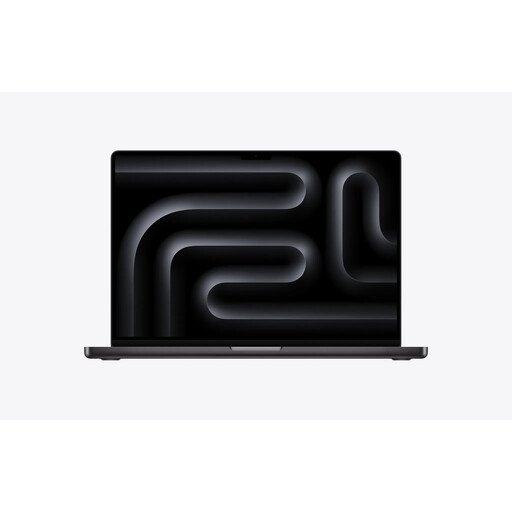
Apple MacBook Pro 16.2-inch M5 Max, 48GB/2TB, Space Black
Consider this larger-screen macOS configuration if you want room to arrange poster elements and your required applications work on macOS.
The listed variant has an 18-core CPU, 40-core GPU, 48GB memory and 2TB storage. Check its exact display specification for your bright-window position and confirm what charging equipment is included.
View on Joybuy
 No image available
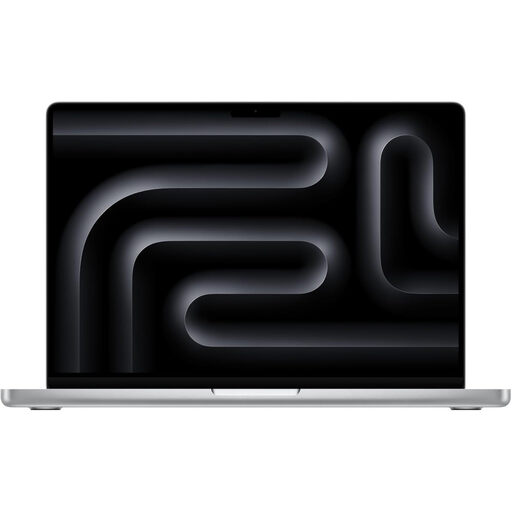
Apple MacBook Pro 14.2-inch M5 Pro, 24GB/2TB, Silver
This more compact MacBook Pro configuration may suit poster work that moves between desks, provided your applications and plug-ins support macOS.
The listed variant has an 18-core CPU, 20-core GPU, 24GB memory and 2TB storage. Confirm the exact panel details for daylight use and check the included charging equipment.
View on Joybuy
 No image available
Lenovo LOQ Essential 15ARP11, 15.6-inch FHD, 16GB/1TB
Consider this 15.6-inch option if you want more physical screen space for a poster layout and can accommodate a larger laptop.
Its title specifies a 144Hz FHD display, AMD Ryzen 7 170 processor, GeForce RTX 5050 graphics, 16GB RAM and a 1TB SSD. Check the exact panel’s daylight characteristics and whether its carrying weight suits your routine.
View on Joybuy
 No image available
ASUS Vivobook 14 X1407QA-LY003W, Snapdragon X, 16GB/512GB
This 14-inch Windows option is worth examining if you want a compact poster-editing setup.
The named configuration has a Snapdragon X processor, 16GB RAM and a 512GB SSD. Check daylight and colour specifications for its exact display, and confirm that your applications, plug-ins and institutional tools support this processor.
View on Joybuy
 No image available
ASUS ProArt P16 H7606WW-SE006W, 16-inch 4K OLED, 64GB/2TB
Consider this Windows configuration if a large, detailed canvas is more important to your poster workflow than a compact format.
Its title specifies an OLED touchscreen, AMD Ryzen AI 9 HX 370 processor, GeForce RTX 5080 16GB graphics, 64GB RAM, a 2TB SSD and Windows 11 Home. Check brightness, reflection treatment and colour requirements for your intended workspace.
View on Joybuy
Frequently asked questions
How much RAM should I look for when editing a poster in InDesign?
Adobe recommends 16GB RAM for current InDesign versions, while listing 8GB as the minimum. Use the recommendation as a starting point, then check the requirements of your InDesign version and any other applications you need open alongside it.
Will an anti-glare screen be easy to use beside a bright window?
Anti-glare treatment alone cannot establish how readable a laptop will be in your position by the window. Compare the exact panel’s stated brightness and surface finish, and account for the window’s direction, screen angle and surrounding light.
What should I do with an old laptop when replacing it?
Check the retailer’s current take-back arrangement or your local authority’s accepted collection route rather than putting the laptop in general household waste. GOV.UK explains that UK waste electrical and electronic equipment regulations support the recovery, reuse and recycling of electrical equipment.


