Small-desk slide creators
If your laptop must share a shallow desk with notes, a mouse or printed material, compare its physical footprint as well as the space available on its screen for editing.


For a shallow desk, start with a compact 13- or 14-inch-class laptop, then decide whether editing space, connection to presentation-room displays or continuity with your existing apps matters most. Built-in HDMI can simplify connections to compatible displays, while a USB-C-only laptop may need a suitable cable or adapter; check the exact configuration and your PowerPoint workflow before buying.
If your laptop must share a shallow desk with notes, a mouse or printed material, compare its physical footprint as well as the space available on its screen for editing.
If colleagues or classroom computers need to open your decks, check the intended PowerPoint workflow and test files that use non-standard fonts or older formats. Microsoft Support notes that these can affect how a presentation appears to its recipient.
If you regularly use unfamiliar monitors or projectors, the available video ports and a compatible cable or adapter may matter as much as the laptop's size.
Check whether the laptop fits your desk and editing routine before deciding how you will share the finished file and connect it at the venue.
| Concern | What to check | Who this matters to |
|---|---|---|
| Desk footprint | Compare the exact laptop's width and depth with your available desk space, rather than relying on screen size alone. | I need room beside the laptop for notes and a mouse, even if that means accepting a smaller built-in screen. Around 40% of consumers put desk space first. |
| Slide editing and sharing | Check that your presentation app works on the chosen configuration and that its screen suits your editing layout. Test fonts and older file formats before sharing. | When I revise slides and send editable decks to others, I need a workable editing view and files that open as intended. For around 40% of consumers, that workflow is the primary concern. |
| Venue connections | Match the laptop's video port and any cable or adapter to the displays you expect to use; test the complete connection beforehand. | If I present in unfamiliar rooms, I want to know that my laptop will connect to the display without a last-minute cable search. Connection needs come first for around 20% of consumers. |
Physical connections differ: Lenovo lists HDMI on the ThinkPad X13 Gen 6, whereas Apple lists Thunderbolt 4 USB-C ports on the current 13-inch MacBook Air. A USB-C port is not an HDMI socket.
Check the connector on the displays you use, then test the appropriate cable or adapter before presentation day.
You may need to carry a compatible video cable or adapter.
Screen diagonal does not tell you the chassis dimensions or what comes with a particular configuration. Dell says a charger is not included with the XPS 13 DX13260 configuration shown on its UK page.
Check the exact model's dimensions, ports, memory and in-box contents before ordering.
Microsoft Support explains that missing fonts can change a recipient's layout and that older PowerPoint formats can reduce functionality or fidelity.
Open a test copy on the likely recipient platform where possible. Embed eligible fonts when needed, and use PowerPoint's Compatibility Checker for older formats.
The current 13-inch MacBook Air is worth considering if you prefer macOS and can plan around USB-C display connections. Apple lists a 13.6-inch display and two Thunderbolt 4 USB-C ports for the model line.
The ThinkPad X13 Gen 6 is a 13.3-inch option to examine if physical connections for desk accessories and presentation displays are a priority.
The XPS 13 DX13260 is another compact Windows option. Dell describes it as its thinnest and lightest XPS laptop; compare the exact configuration's dimensions with your desk.
These 13- and 14-inch-class laptops offer different approaches to slide work on a small desk. Match the exact model to your presentation app, available desk space and display connections.
 No image available
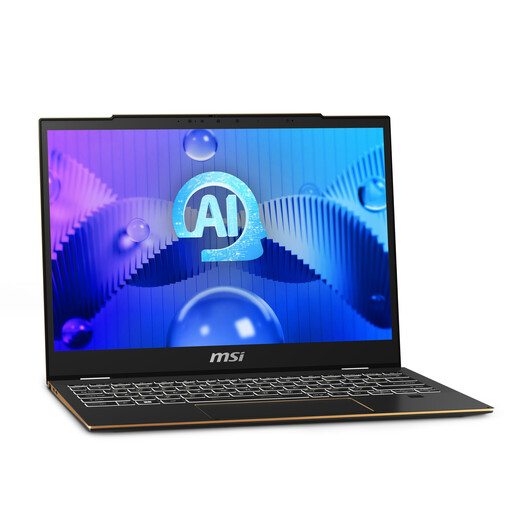
Consider this 14-inch model if you want room to edit slides while keeping to a compact-laptop format; compare its chassis dimensions with your desk.
Snapdragon X processor, 16GB RAM, 512GB SSD and Quiet Blue finish.
If you use particular presentation software or venue displays, confirm compatibility and the exact port selection before buying.
 No image available
Its 13-inch-class format is relevant if your slide-editing space must fit on a shallow desk, but check the exact chassis dimensions.
FHD+ 60 Hz touch display, Intel Arc graphics, 32GB LPDDR5 RAM and 1TB SSD. The supplied product details give differing 13.3- and 13.4-inch display sizes, so confirm the configuration.
Check the exact ports and display compatibility for your presentation setup.
 No image available
Consider this Chromebook if your slide workflow uses Google Slides; check how you will open and share any PowerPoint files you need to handle.
14-inch WUXGA display with 1920 × 1200 resolution, Intel Core i3-1315U processor, 8GB RAM and 256GB SSD.
For a venue display, check the connector and cable needed for this model before presenting.
 No image available
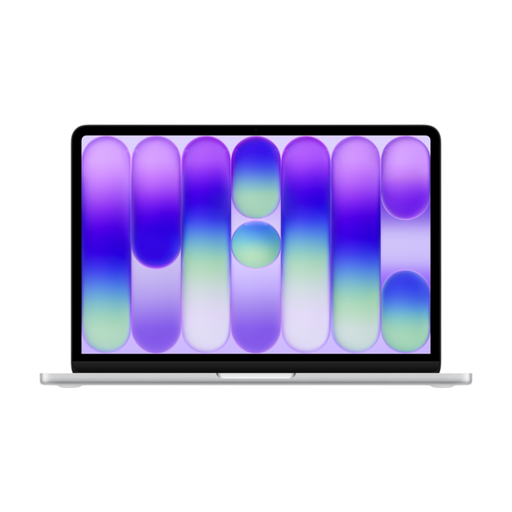
This model suits a compact macOS slide workflow if your intended apps and presentation-room connections fit that setup.
M5 chip with 10-core CPU and 10-core GPU, 24GB memory, 1TB SSD and Midnight finish.
Apple lists Thunderbolt 4 USB-C rather than HDMI for the current 13-inch MacBook Air. Check the required display cable or adapter and compare the exact laptop dimensions with your desk.
 No image available
This 13-inch model is relevant to compact slide preparation, provided your intended presentation apps work with the exact configuration.
A18 Pro chip with 6-core CPU and 5-core GPU, 8GB memory, 512GB SSD, Touch ID and Silver finish.
Before choosing it for venue presentations, check its display connections; compare its chassis dimensions with the space on your desk.
Not necessarily: start by checking the requirements for the Microsoft 365 version you intend to use, then consider your multitasking, media and storage needs. For Microsoft 365 home use, Microsoft Support lists Windows 11 or one of the three most recent macOS versions, 4GB RAM and minimum display resolutions of 1280 × 768 on Windows or 1280 × 800 on Mac.
Test the file on the recipient's likely setup and embed eligible non-standard fonts where appropriate. Microsoft Support says font embedding can help preserve layout when a recipient lacks those fonts; for older PowerPoint formats, its Compatibility Checker can flag features that may lose fidelity.
Choose according to the connectors on the displays you actually use. Lenovo lists built-in HDMI on the ThinkPad X13 Gen 6, while Apple lists Thunderbolt 4 USB-C display connections on the current 13-inch MacBook Air; with either laptop, test the complete connection before the event.
No: Dell says the XPS 13 DX13260 configuration shown on its UK page does not include a charger. Check the exact listing's in-box contents and required charger specification before ordering.