What matters when choosing?
Start with the team’s presentation files and software, then check the room’s display connection. Screen size, carrying weight and touch input matter most once those requirements are clear.
| Concern |
What to check |
Who this matters to |
| Shared editing and file compatibility |
Check whether the team needs desktop PowerPoint, whether decks are stored in OneDrive or SharePoint, and whether any files use macros or protection. |
If I co-edit decks that use particular PowerPoint features, I need to know I can open and change the actual files, not just view them. Around 33% of consumers put that compatibility need first. |
| Carrying and working space |
Compare the configured laptop’s weight and screen size; check battery-test conditions against the way you work. |
Moving between desks and rooms makes carrying comfort important, but I still need enough screen space to arrange slides. For around 27% of consumers, that balance is the primary concern. |
| Meeting-room connections |
Identify the projector, monitor or dock inputs, then check the laptop’s video output and the cable or adapter required. |
When I present in shared rooms, I need my laptop to connect to the equipment already there. Room connectivity comes first for around 27% of consumers. |
| Touch and pen input |
Check the exact configuration for a touch display and pen support, and confirm whether a pen is included. |
Sketching layouts or annotating slides is part of my preparation, so I want input that suits that work. Around 13% of consumers prioritise touch or pen use. |
Relevant laptop ranges
These ranges illustrate different approaches to slide work; specifications belong to the cited models and configurations, not every laptop from each brand.
Apple
MacBook Air is a macOS option if the team’s presentation software and files work on macOS.
- Apple’s UK specification for the M5 MacBook Air lists 16GB unified-memory configurations, two Thunderbolt 4/USB-C ports and support for up to two external displays.
- Check the connection needed for HDMI-only projectors, USB-A presentation accessories or an existing dock.
Lenovo
ThinkPad X1 Carbon Gen 13 is a 14-inch Windows business-laptop range worth considering when carrying weight matters.
- Lenovo UK describes the range as under 1 kg and lists configurations with 16GB or 32GB memory.
- Display and other specifications vary by configuration; check the selected model rather than applying one listing to the whole range.
Microsoft Surface
The cited Surface Laptop for Business 13-inch offers a Windows laptop route where both USB-C display output and USB-A connectivity may be useful.
- Microsoft’s specification lists two USB-C ports with DisplayPort 1.4a support, USB-A 3.1 and a weight of 1.22 kg for this business model.
- Check the exact Surface model and the room’s connection requirements; these port details do not apply to every Surface laptop.
Dell
Latitude 7350 2-in-1 configurations are relevant when marking up or sketching slides is a regular task.
- Dell UK lists selected configurations with a 13.3-inch QHD+ touch display and pen support.
- Check the selected configuration and whether the pen and required display connection meet your needs.
Joybuy laptops for slide preparation
These laptops offer Windows and macOS choices for preparing slides, including a 2-in-1 option for people considering touch-led work. Compare each one with your team’s file requirements and the displays in your shared rooms.
 No image available
ASUS Vivobook 15 X1504VA, Core 5 120U, 24GB, 1TB SSD
Consider this model if you want a 15.6-inch laptop for arranging slides and source material on its own screen.
- Intel Core 5 120U, 24GB memory and 1TB SSD; Cool Silver finish.
- Check its video connection against the projector or dock in your meeting room.
Joybuy
 No image available
ASUS Vivobook 14 X1407QA-LY003W, Snapdragon X, 16GB, 512GB SSD
This 14-inch option may suit slide preparation across shared desks and meeting rooms, provided your required software works with the selected system.
- Snapdragon X, 16GB memory and 512GB SSD; Quiet Blue finish.
- Confirm the room’s display inputs and the cables needed before relying on it for a presentation.
Joybuy
 No image available
HP OmniBook Ultra Flip 14-fh0006na 2-in-1, 16GB, 1TB SSD
Consider the 2-in-1 format if changing how you view or work on slides would be useful; check the exact touch and pen arrangement if annotation is the reason for choosing it.
- 16GB memory, 1TB SSD and Windows 11 Home.
- Confirm its port configuration and the connection your meeting-room display needs.
Joybuy
 No image available
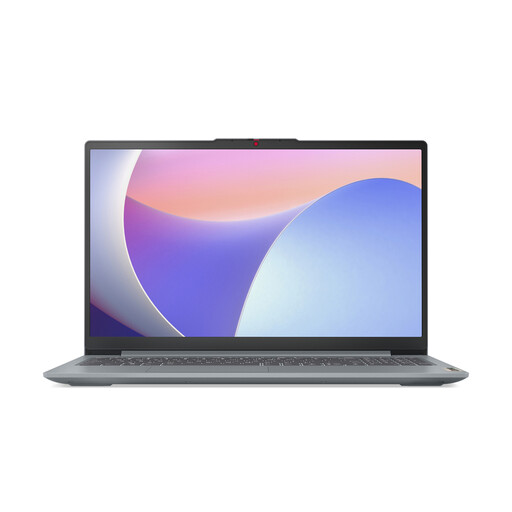
Lenovo IdeaPad Slim 3 15IAH8 83ER00G4UK, Core i5, 8GB, 512GB SSD
The 15.6-inch format may suit people who do much of their slide editing on the laptop screen. Consider whether its memory and expected unplugged runtime suit your workload.
- Intel Core i5, 8GB memory and 512GB SSD.
- Check the exact room-display connection before presenting away from your desk.
Joybuy
 No image available
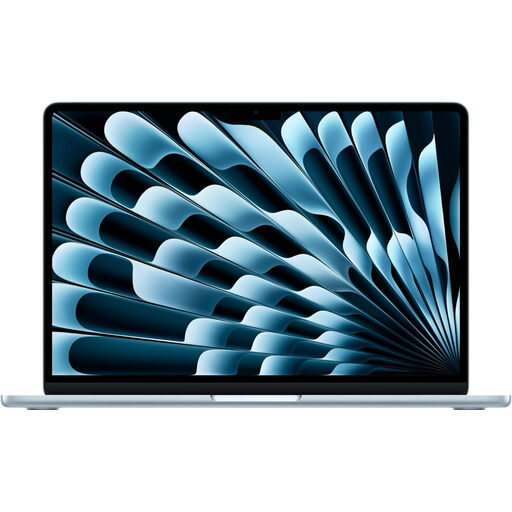
Apple MacBook Air 13-inch (2026), M5, 16GB, 1TB SSD, Sky Blue
This macOS option is worth considering if your team’s presentation files and workplace software are compatible with it.
- 13-inch M5 model with 16GB unified memory and 1TB SSD.
- Apple’s UK M5 MacBook Air specification lists two Thunderbolt 4/USB-C ports. Check the adapter needed for your room and confirm the exact processor configuration before buying.
Joybuy
Common questions
Do colleagues need the same type of laptop to edit a PowerPoint deck together?
Not necessarily: Microsoft says colleagues can work concurrently when a presentation is saved to OneDrive or SharePoint. Each person still needs an editing environment that supports the features used in the team’s files.
Can PowerPoint for the web replace the desktop program for slide work?
It can suit straightforward browser-based creation and co-editing, but it cannot handle every desktop workflow. Microsoft says macro-enabled presentations can be viewed but not edited in the web version, while password-protected, digitally signed and Information Rights Management-protected presentations require the desktop program.
How do I check whether a laptop will work with the meeting-room display?
Identify the display inputs and any dock first, then compare them with the exact laptop’s video-output specification and the cable or adapter you plan to use. A port count on its own cannot establish compatibility with a particular room.
What should I do with an old laptop when replacing it?
Use an appropriate electrical-waste collection or take-back route rather than putting the laptop in household rubbish. GOV.UK describes household waste recycling centres and retailer take-back arrangements for electrical products; check which collection option applies to your replacement.


