Students editing between classes
If you edit catalogue or social product images at a small desk and carry your laptop to classes, balance its size against the memory, storage and screen space your applications need.


For product-photo editing at a small desk, start with a laptop that suits your editing software, has at least 16GB of memory and uses a fast internal SSD; Adobe recommends 16GB or more and a fast internal SSD for Photoshop desktop. If accurate colour judgements matter, check the exact display specification and plan for colour management. A larger laptop with discrete graphics makes more sense when large layered files or other demanding creative work justify the extra space and equipment.
If you edit catalogue or social product images at a small desk and carry your laptop to classes, balance its size against the memory, storage and screen space your applications need.
If product colours, finishes and backgrounds must be judged consistently before publication, look for a clearly specified display and a workable approach to colour profiles and calibration.
If large layered Photoshop files, frequent exports or other creative applications are routine, give more attention to memory and storage before choosing the smallest chassis. Check whether your particular tools would also benefit from discrete graphics.
Confirm that your applications and plug-ins work on the operating system and processor you choose, then weigh editing demands against display quality, desk space and the way you store photos.
| Concern | What to check | Who this matters to |
|---|---|---|
| Editing and multitasking | Check the exact memory configuration and internal SSD. Adobe recommends 16GB or more and a fast internal SSD for Photoshop desktop. | If I keep editing software and other applications open while working through layered images, I want enough memory for that workload. Around 31% of consumers put editing responsiveness first. |
| Confidence in colour | Look for stated gamut coverage for the exact display, then consider colour profiles and calibration for your workflow. | When product finishes must look consistent in listings, I need a screen I can assess beyond how vivid it appears. Roughly 31% of consumers make colour confidence their primary concern. |
| Desk fit and portability | Compare the screen area you need for editing controls with the space available on your desk and in your bag; count the ports your accessories require. | If the same laptop has to fit a narrow desk and travel to classes, I may accept a smaller editing canvas. About 23% of consumers prioritise that balance of space and portability. |
| Photo storage and connections | Plan where originals, working files and backups will live, and check connections for your card reader, external storage and any monitor. | When I keep a photo library locally and connect several accessories, capacity and usable ports can shape my choice. Around 15% of consumers put storage and connections first. |
Adobe lists 8GB as a minimum for Photoshop desktop but recommends 16GB or more. Meeting a minimum does not settle whether the laptop suits your layered files and multitasking.
Use 16GB as a starting point for this task, and assess more memory if large files or several demanding applications are part of your regular workflow.
A panel’s gamut or validation claim does not establish how colours will appear throughout your own workflow. Apple also notes that ambient light, viewing position and display age can affect colour judgements.
Check the exact panel, use suitable colour profiles and consider calibration when product colour matters commercially.
That workflow may also call for calibration equipment or an external display.
Applications, working files and temporary editing data share space with your photo library. Adobe recommends a fast internal SSD for Photoshop installation.
Decide where originals, exports and backups will live before choosing capacity, and check how any external storage will connect.
An external SSD or backup arrangement also adds equipment and setup to a small desk.
A larger creator laptop may suit demanding files and additional creative applications, but a discrete GPU alone is not a reason to choose it for occasional basic photo corrections.
Check your applications, file sizes and GPU-assisted tools before accepting the larger setup.
MacBook Air is a route for students whose editing applications, plug-ins, file sharing and peripherals suit macOS. Apple’s UK specifications list 13.6-inch and 15.3-inch display options, P3 colour and configurations with 16GB unified memory.
Selected ASUS Zenbook OLED and ProArt laptops are worth examining if you want Windows models with explicitly stated display specifications. ASUS lists 100% DCI-P3 coverage and Pantone validation for particular configurations.
Lenovo’s UK Yoga Pro 7i Gen 11 15-inch configuration illustrates a larger Windows route: Lenovo lists 32GB memory, a 1TB SSD, RTX 5060 Laptop graphics and a 15.3-inch OLED display with 100% DCI-P3 coverage.
These listings include compact Mac and Windows laptops, a dual-screen model and larger creator configurations. Match the operating system to your software first, then choose the screen, memory and storage for the photos you actually edit.
 No image available
Consider this configuration if you want two screens for editing at a compact desk. Its title specifies dual 14-inch OLED touch displays, an Intel Core Ultra 7 255H, 16GB memory and a 1TB SSD. Check the exact display resolution and your colour-management needs before buying.
 No image available
This 14-inch option is worth considering for a compact study setup if your editing applications and plug-ins work with its Snapdragon X configuration. The title specifies 16GB memory and a 512GB SSD. Check the exact display’s colour specifications if product-colour judgements are central to your work.
 No image available
Consider this larger configuration for demanding layered files or additional creative applications, rather than occasional basic edits. Its title specifies a 16-inch 4K OLED touchscreen, AMD Ryzen AI 9 HX 370, RTX 5080 16GB graphics, 64GB memory and a 2TB SSD. Check its exact gamut and calibration requirements before relying on the display for colour-sensitive decisions.
 No image available
This compact Mac option suits a student-room workflow if your applications, plug-ins and peripherals work with macOS. The title specifies an M5 chip with a 10-core CPU and 10-core GPU, 24GB memory and a 1TB SSD. Check your colour-management workflow and the connections required for photo import and storage.
 No image available
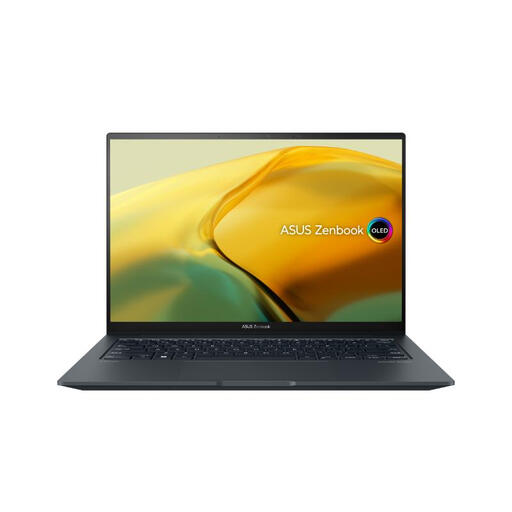
Consider this Windows configuration if you want a 14.5-inch touchscreen and local storage for working files. Its title specifies an OLED display, Intel Core i9, RTX 3050 graphics, 16GB memory and a 1TB SSD. Check the exact panel’s gamut and calibration needs, along with the ports required for your accessories.
For many Photoshop desktop workflows, 16GB is a sensible starting point: Adobe recommends 16GB or more. Consider additional memory if you regularly work on very large layered files, run several demanding applications together or make frequent batch exports.
Not every product listing requires OLED or a wide-gamut display, but an explicit display specification helps when colour judgement is important. OLED, P3 or DCI-P3 labelling alone does not establish how colours will appear across your workflow; check colour profiles, viewing conditions and calibration needs.
Allow room beyond the editing application for working files, originals, exports and backups. Adobe recommends a fast internal SSD for Photoshop installation; if you keep a photo library locally, assess its size and decide whether you will also use external storage before choosing an SSD capacity.
Use an appropriate electrical-waste collection route rather than putting the laptop in ordinary household rubbish. GOV.UK advises recycling electrical products and batteries and warns that lithium-ion batteries can create a fire risk if discarded in rubbish; check available retailer or local-authority collection arrangements.