What to check before buying
Start with the school’s software requirements and the standing-desk arrangement, then decide how much portability or handwritten annotation matters to your feedback work.
| Concern |
What to check |
Who this matters to |
| Standing-desk setup |
Check that a separate keyboard and mouse can connect and that the raised screen can sit securely within your desk space. For daily display-screen work lasting an hour or more continuously, ask your employer about a workstation assessment under Health and Safety Executive guidance. |
If I write comments for long stretches, I need to raise the screen without raising my typing position with it; around 42% of consumers put the workstation arrangement first. |
| Typing and school compatibility |
Confirm the required operating system, school applications, authentication, printing and device management with school IT. Check the exact keyboard layout and consider 16GB memory if you routinely keep several work applications open. |
When feedback depends on school-managed tools, I need a comfortable way to type and a device those tools will run on; around 33% of consumers place typing and compatibility first. |
| Mobility and annotation |
Compare the exact configuration’s weight and display, and confirm its ports if you use a monitor. For handwritten marking, check active-pen compatibility and what the selected bundle includes. |
Moving between teaching spaces, or marking work by hand, changes which form factor I can use comfortably; around 25% of consumers prioritise mobility or annotation. |
Joybuy laptops for this task
These options include conventional Windows laptops, touch-enabled Windows designs and a MacBook Air for writing pupil feedback. Whichever format you consider, confirm school compatibility and plan separate input devices if you will raise the screen for prolonged standing work.
 No image available
ASUS Vivobook 14 X1407QA-LY003W, Snapdragon X, 16GB, 512GB SSD, Quiet Blue
A conventional laptop option for typed feedback if your school confirms its required software and peripherals work with the exact model.
The named configuration has a Snapdragon X processor, 16GB RAM and a 512GB SSD. Check its keyboard layout and how you will connect separate input devices at the standing desk.
Joybuy
 No image available
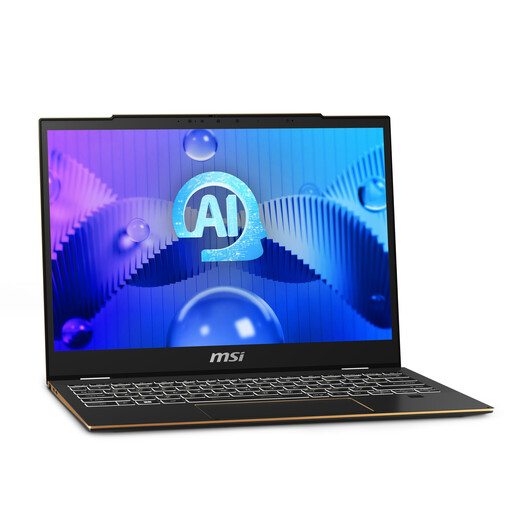
MSI Summit E13 AI Evo, Core Ultra 7 155H, 32GB, 1TB SSD
Consider this touch laptop if you want touch input alongside typed feedback, subject to confirmation that it fits your school’s workflow.
Its named configuration has a 13-inch FHD+ 60Hz touch display, Intel Core Ultra 7 155H processor, 32GB RAM and a 1TB SSD. Confirm the exact screen size and any pen requirements before buying.
Joybuy
 No image available
ASUS Zenbook DUO UX8406CA-QL135W, Core Ultra 7 255H, 16GB, 1TB SSD
The dual-screen design may be worth considering if you want more than one touch display in your feedback workspace, provided it suits the way you type.
The named configuration has dual 14-inch OLED touch displays, an Intel Core Ultra 7 255H processor, 16GB RAM and a 1TB SSD. Confirm the exact screen resolution before purchase.
Joybuy
 No image available
HP OmniBook Ultra Flip 14-fh0006na, 16GB, 1TB SSD
This 2-in-1 is an option if you want a laptop format that can also change position for other parts of your workflow.
The named configuration has 16GB RAM, a 1TB SSD and Windows 11 Home. If you intend to mark work with a pen, confirm compatibility with the exact configuration; also check school software requirements.
Joybuy
 No image available
Apple 13-inch MacBook Air M5, 24GB, 1TB SSD, Midnight
This is a macOS option only if your school confirms that its feedback tools, printing and device management work with it.
The named configuration has an M5 chip with a 10-core CPU and 10-core GPU, 24GB memory and a 1TB SSD. If carrying weight is decisive, check the exact configuration’s weight before buying.
Joybuy
Frequently asked questions
Can I type on the laptop while its screen is raised?
For prolonged use, use a separate keyboard and mouse when raising the laptop screen. The Health and Safety Executive advises this arrangement so the screen can be elevated without leaving the built-in keyboard at the same height.
Should I choose Windows or macOS for school feedback?
Choose the operating system your school supports for its required feedback platform and managed tools. Ask school IT to confirm applications, authentication, printing and device-management requirements for the exact laptop before purchase.
Do I need a touchscreen or pen to write pupil feedback?
No, not if your feedback is mainly typed. Consider touch and pen support when handwritten annotation is part of the task, and check both compatibility and what accessories the selected configuration includes.
Do I also need an external monitor?
Not necessarily: a securely raised laptop screen with separate input devices may suit your workspace. An external monitor is another option for a fixed desk, but check its connection requirements and the complete workstation arrangement before deciding.
Does a workstation assessment matter if I write feedback at home?
It can. The Health and Safety Executive says display-screen-equipment rules can apply to permanent or long-term home workers and to people who routinely split work between home and their workplace. Where workers use display-screen equipment daily as part of normal work for continuous periods of an hour or more, the employer must carry out a workstation assessment; the duty does not prescribe a particular laptop.


