A Windows laptop is the cautious starting point if your school requires Windows applications or its device rules are still unclear, but Windows alone does not guarantee compatibility. A MacBook can suit an approved macOS workflow; a Chromebook needs a school-approved browser workflow and cannot install the Windows or Mac desktop versions of Microsoft 365. Check device approval, applications, account access and pupil-data handling with school IT before buying.
Who needs which kind of laptop?
Teachers using school Windows systems
If feedback depends on locally installed applications, managed access or Windows-only tools, ask school IT which devices it permits before considering another operating system. Department for Education guidance calls for schools to assess staff device needs and technical requirements.
Feedback writers moving between locations
Moving between classrooms, home and meetings makes keyboard comfort, document space, carrying weight and access to charging worth checking together. Treat manufacturers’ battery ratings as a point of comparison, not a promise of how long a feedback session will last.
Teachers working mainly in the browser
A Chromebook is an option if the school approves the device and the entire feedback workflow works in its web apps and approved storage. Microsoft says desktop Microsoft 365 cannot be installed on a Chromebook; Google says its Microsoft 365 file-editing setup requires OneDrive.
What matters when choosing?
Start with the operating system your school permits and the applications your feedback work requires. Then choose the writing setup that suits where you work.
Windows laptop
Consider it when: Your school requires Windows-only software, desktop Microsoft 365 or a managed Windows device.
Keep in mind: School approval and individual application support still need checking, especially on a Windows laptop with a Snapdragon processor.
MacBook
Consider it when: The school approves macOS and your required applications and services work on it.
Keep in mind: A Microsoft 365 workflow does not, by itself, confirm support for school-specific software or device management.
Chromebook
Consider it when: The school approves ChromeOS and comments, files and its feedback portal all work in the browser.
Keep in mind: Microsoft says a Chromebook cannot install the Windows or Mac desktop versions of Microsoft 365.
| Concern |
What to check |
Who this matters to |
| School software and access |
Ask school IT which operating systems and personal devices it permits, and whether desktop apps or device management are required. |
If I cannot open a required feedback tool or use my school account, the laptop cannot do the job. Around 42% of consumers put school-software and access compatibility first. |
| Writing comfort and mobility |
Check the exact keyboard layout and screen; consider carrying weight and where you can charge. |
When I write comments in several locations, I need a keyboard and display I can work with comfortably. For around 33% of consumers, writing comfort and mobility are the primary concern. |
| Browser-based workflow |
Try a school feedback file with your school account, including commenting, storage and the required portal. |
If my approved work happens in web apps, I would rather keep the workflow straightforward than rely on desktop software. A simple cloud workflow comes first for around 25% of consumers. |
Mistakes to avoid
-
Assuming any laptop can use school feedback systems
An otherwise suitable laptop may not meet the school’s application, account or device-management requirements. Department for Education guidance says schools should assess staff device needs and technical requirements.
Ask school IT about permitted devices, operating systems, remote access, printing and required applications before ordering.
-
Expecting desktop Office on a Chromebook
Microsoft says the Windows and Mac desktop versions of Microsoft 365 cannot be installed on a Chromebook. Its web apps offer a different workflow, and Google says its Microsoft 365 file-editing setup requires OneDrive.
Use your school account to try the actual feedback documents, comments and portal in the browser before choosing ChromeOS.
-
Treating a battery rating as feedback-session runtime
Manufacturers’ battery figures reflect their stated test conditions; your mix of documents, browser tabs and calls may differ.
Compare ratings on their stated terms, and consider where and how you will charge during the working day.
-
Moving pupil files into a personal account
Pupil feedback can contain personal data. Department for Education guidance says the school or multi-academy trust is normally the data controller for the personal data it collects, stores and uses.
Use the school-approved account, storage location and security process rather than moving files to a personal cloud account.
Relevant brands to consider
Lenovo
Lenovo offers both Windows ThinkPad models and Chromebook Plus models relevant to document-based work.
- Lenovo lists Windows 11 Pro, 16 GB memory and a 512 GB SSD for its ThinkPad E14 Gen 7 configuration 21SX0046UK.
- A Lenovo Chromebook Plus still needs school approval and a feedback workflow that works on ChromeOS.
Apple
MacBook Air is worth considering when the school approves macOS and its required feedback tools work on it.
- Apple lists 16 GB unified memory for the cited MacBook Air configuration.
- Check school-specific applications, printers, secure access and management before choosing a MacBook.
Microsoft
Surface Laptop is a Windows option for teachers considering a portable machine.
- Microsoft lists a weight of 1,225 g for the cited 13-inch Surface Laptop.
- A Windows device still needs to meet the school’s software and access requirements.
HP
HP offers Chromebooks and Chromebook Plus models for workflows the school has approved for ChromeOS.
- HP lists an 8 GB memory option for its Chromebook Plus x360 14.
- That specification does not establish whether a particular school’s feedback tools or desktop Office requirements will work on ChromeOS.
Windows laptops for feedback writing
These Windows laptops offer different screen sizes and writing setups for pupil feedback. Before choosing one, confirm that your school permits the device and that its required applications work on the exact model; Windows laptops with Snapdragon processors warrant a specific compatibility check.
 Image unavailable
ASUS Vivobook 14 X1407QA-LY003W, Snapdragon X, 16GB RAM, 512GB SSD, Quiet Blue
The 14-inch format is an option for writing feedback in more than one location. Its Snapdragon X processor makes it important to confirm support for your school’s required applications before buying.
16GB RAM; 512GB SSD.
View on Joybuy
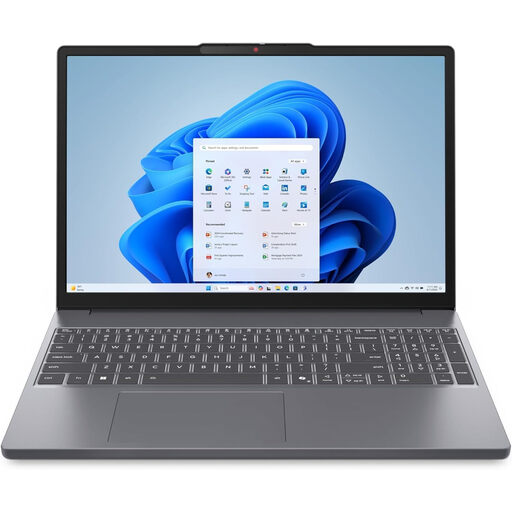 Image unavailable
Lenovo IdeaPad Slim 3 83K7009MUK, 15.3-inch, Ryzen 5 7535HS, 24GB RAM, 512GB SSD
Consider its 15.3-inch format if you prefer more physical screen space for documents at a desk. Check that the exact keyboard layout suits your typing and that the school permits your device.
24GB DDR5 RAM; 512GB PCIe SSD; Windows 11 Home.
View on Joybuy
 Image unavailable
ASUS Zenbook DUO UX8406CA-QL135W, dual 14-inch OLED touchscreens, 16 GB RAM, 1 TB SSD
Its dual-screen layout is worth considering if you want separate display areas for feedback and reference material; that extra screen is not necessary for writing comments. Check that the detachable keyboard arrangement suits you.
Intel Core Ultra 7 255H; 16 GB LPDDR5X RAM; 1 TB SSD.
View on Joybuy
 Image unavailable
HP OmniBook X Flip 16-as0004na, 16-inch touchscreen, Core Ultra 5 226V, 16GB RAM, 512GB SSD
The 16-inch touchscreen gives you a larger display format to consider for document work. If you will carry it regularly, check its weight and whether the keyboard layout meets your needs.
2-in-1 design; 16GB RAM; 512GB SSD; Windows 11 Home.
View on Joybuy
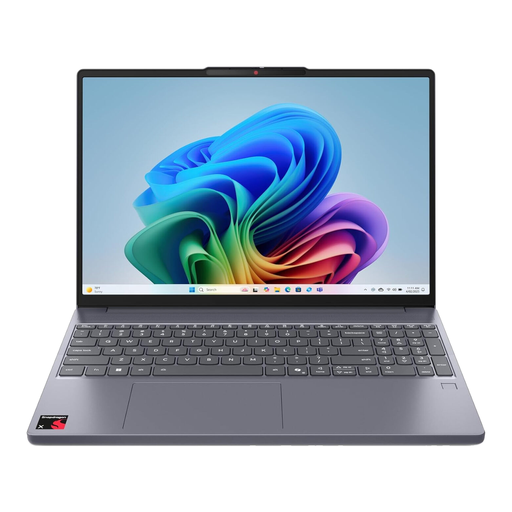 Image unavailable
Lenovo IdeaPad Slim 3 15Q8X10 83N30029UK, 15.3-inch, Snapdragon, 16GB RAM, 256GB SSD
The 15.3-inch display is an option if you want more space for documents. This Snapdragon model uses Windows on ARM, so check each required school application with school IT or its software provider before buying.
16GB RAM; 256GB SSD.
View on Joybuy
Common questions
Can I use a laptop I bought myself to write pupil feedback?
Only if your school permits that device and its intended use. Check its rules for accounts, approved storage and security before handling pupil information; Department for Education guidance says the school or multi-academy trust is normally the data controller for the personal data it collects, stores and uses.
Can a Chromebook run desktop Microsoft Word?
No: Microsoft says a Chromebook cannot install the Windows or Mac desktop versions of Microsoft 365. Microsoft 365 web apps are an alternative if they cover your school’s feedback workflow; Google says its Chromebook setup for opening and editing Microsoft 365 files requires OneDrive.
Do Microsoft 365 minimum requirements tell me which laptop to buy?
No: application minimums do not establish how comfortable a laptop will be for sustained feedback writing or whether school software will work. Microsoft lists 4 GB RAM and 4 GB available disk space for Microsoft 365 on Windows under its business, education and government requirements; assess the complete school workflow as well as those minimums.
Is a MacBook suitable if my school uses Microsoft 365?
It can be, provided your school approves macOS and every required application and access method works on it. Ask school IT about any Windows-only tools, device management, printing and secure access before choosing a MacBook.


