For regular reading-list editing beside a bright window, start with a display explicitly described as anti-glare, anti-reflective or low-reflection, then check its ordinary brightness rather than relying on an OLED label or HDR peak figure. The researched configurations make 16GB memory and 512GB storage useful comparison points for browser, PDF and document work, not universal requirements. Even with a suitable screen, positioning it away from direct window reflections may matter more than buying a brighter panel.
Who needs to consider this?
Window-side text editors
If you inspect citations, PDFs and documents at a daylight-facing desk, reflections can affect your choice before extra resolution or graphics capability does. The Health and Safety Executive advises arranging the desk and screen to avoid glare and bright reflections.
Portable academic organisers
If your reading lists travel between home, campus, the library and meetings, weigh the screen against carrying weight, memory and storage for your browser tabs, PDFs and documents.
People with an established software workflow
If you depend on particular macOS or Windows applications, check the operating system first, then compare screen finish and connections within compatible laptops. Neither operating system determines how a display handles window reflections.
What matters when choosing?
For a window-side desk, establish whether you can control reflections before deciding how much screen brightness, workspace or portability you need. Compare the exact configuration you intend to buy: display finishes and other specifications can differ within one laptop family.
| Concern |
What to check |
Who this matters to |
| Reflections and daylight |
Check the exact panel for anti-glare or low-reflection treatment and its ordinary, rather than HDR peak, brightness. Consider its angle to the window. |
If daylight is reflected in the screen, small citations become harder to inspect; around 46% of consumers put reflection control first. |
| Extended text work |
Compare screen size and document space, then check the fitted memory and storage against the applications and files you keep open. |
When I move repeatedly between a reading list, PDFs and browser tabs, I need a screen and configuration that suit a long editing session. Roughly 36% of consumers prioritise this text-work comfort. |
| Portability and software fit |
Check carrying weight, ports and the installed operating system; confirm that any required citation or institutional software will run on it. |
For work across different locations, I need to carry the laptop and keep using my required software; about 18% of consumers place that workflow fit first. |
Common buying mistakes
-
Choosing by OLED or HDR labels alone
Display technology does not tell you how reflective the surface is. ASUS lists anti-glare, low-reflection OLED options for the Zenbook S 14 UX5406 line, while Lenovo describes the researched Yoga Slim 7i OLED configuration as glare. HDR peak brightness also answers a different question from ordinary brightness during document work.
Read the display specifications for the exact variant, including its finish and ordinary brightness, before choosing it for a window-side desk.
-
Buying a brighter screen without changing the desk setup
A bright window can still appear as a reflection on the screen. The Health and Safety Executive advises positioning desks and screens to avoid glare and using curtains or blinds where needed.
Try adjusting the screen angle or window covering before deciding whether a different display is necessary.
-
Assuming every variant has the same specifications
ASUS lists differing display and memory options within the Zenbook S 14 UX5406 line, and HP notes that configurations can vary by country or region. A family name alone cannot identify the panel or capacity you are buying.
Match the exact model and configuration against the manufacturer's specifications. Check the panel, memory, storage, keyboard layout, charger inclusion and warranty on the product listing.
-
Treating an older specification page as a current listing
Dell describes anti-glare and anti-reflective display options on its XPS 13 9345 page, but also marks that product as no longer available.
Use an older model to identify features worth checking, then confirm the specifications and availability of the exact laptop you intend to order.
Relevant brands to consider
These examples show why the precise display variant matters more than the brand name. The specifications below describe particular lines or configurations, not every laptop from each brand.
ASUS
The Zenbook S 14 UX5406 line is worth examining if you want a compact Windows laptop with an explicitly specified anti-glare or low-reflection OLED option.
- ASUS lists 14-inch OLED variants with anti-glare and low-reflection treatment, alongside stated ordinary and HDR peak brightness figures.
- Panel resolution, touch support, brightness and memory vary between UX5406 variants; check the configuration rather than relying on the line name.
Apple
MacBook Air is relevant if your reading-list applications and files fit an existing macOS workflow.
- Apple lists a 13.6-inch Liquid Retina IPS display with 500 nits brightness and 16GB unified memory in its UK technical specifications.
- Those specifications do not describe the panel as anti-glare or low-reflection. Assess reflections where possible and plan how to control window light.
Lenovo
The researched Yoga Slim 7i Aura Edition Gen 10 configuration gives frequent travellers a display-and-weight trade-off to consider.
- Lenovo lists a 1.19kg weight, 16GB memory, a 512GB SSD and a 14-inch OLED display for that configuration.
- Lenovo describes its display as glare, so the OLED label should not be taken as evidence of low reflections beside an exposed window.
Dell
XPS 13 9345 specifications illustrate how different screen finishes can appear within a Windows laptop line.
- Dell lists both an anti-glare non-touch option and an anti-reflective touch option for the XPS 13 9345.
- Dell marks that product page as no longer available; its options do not establish the specifications or availability of another model.
Joybuy laptop choices
These laptops offer configurations to consider for reading-list and document work near a bright window. Compare the precise screen finish and brightness with your room conditions; the Chromebook also calls for a separate check of software compatibility.
 No image available
ASUS Vivobook 14 X1407QA-LY003W Copilot+ PC, Quiet Blue
For a compact Windows option beside a window, confirm that the stated anti-glare finish and ordinary brightness suit your desk before ordering.
Snapdragon X; 16GB RAM; 512GB SSD. Check compatibility with any citation software you rely on.
View on Joybuy
 No image available
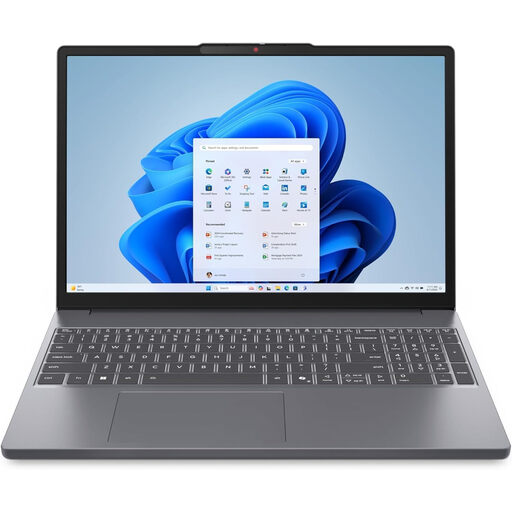
Lenovo IdeaPad Slim 3 83K7009MUK, 15.3-inch WUXGA, Grey
Consider the larger screen for viewing documents, but check the stated anti-glare treatment and ordinary brightness of this configuration against your window-side setup.
AMD Ryzen 5 7535HS; 24GB DDR5 RAM; 512GB PCIe SSD; Windows 11 Home.
View on Joybuy
 No image available
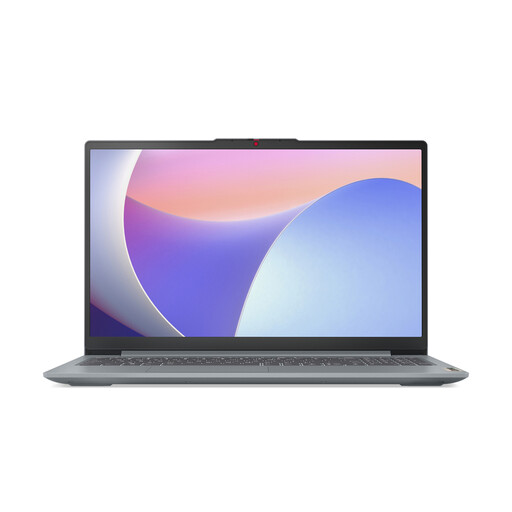
Lenovo IdeaPad Slim 3 15IAH8, 83ER00G4UK
For reading lists on a larger screen, confirm the stated anti-glare finish and ordinary brightness. If you often work away from a socket, check the listing's battery-life figure against your plans.
15.6-inch display; Intel Core i5; 8GB RAM; 512GB SSD. Consider whether 8GB suits the number of applications you use together.
View on Joybuy
 No image available
ASUS Vivobook 15 X1504VA, Cool Silver
If you keep substantial documents locally, compare this storage capacity with your needs. For the bright-window desk, check the stated matte, anti-glare finish and ordinary brightness of the exact panel.
15.6-inch display; Intel Core 5 120U; 24GB RAM; 1TB SSD.
View on Joybuy
 No image available
Lenovo IdeaPad Slim 3 Chromebook 14IAN8, 83BN001EUK, Grey
For browser-based reading-list work, check whether your required citation manager and other specialist tools run on this Chromebook. Confirm its stated anti-glare finish and ordinary brightness for your desk.
14-inch display; Intel Core i3 N305; 8GB RAM; 256GB eMMC storage.
View on Joybuy
Frequently asked questions
Will a brighter laptop screen solve reflections from a window?
No, brightness alone will not remove a reflected window. The Health and Safety Executive advises arranging the desk and screen to avoid glare or bright reflections and adjusting curtains or blinds where needed. Check screen finish as well as ordinary brightness, and try changing the screen angle.
Is OLED automatically suitable for reading-list work beside a window?
No. OLED identifies the display technology, not its surface finish. ASUS lists anti-glare and low-reflection OLED options for the Zenbook S 14 UX5406 line, whereas Lenovo describes the researched Yoga Slim 7i OLED configuration as glare. Check the precise panel and its ordinary brightness.
How much memory and storage should I compare for PDFs and browser tabs?
Use 16GB memory and 512GB storage as comparison points, not fixed minimums. Researched Apple and Lenovo configurations include those capacities, but your choice depends on how many applications you keep open and how much material you store locally. Check the capacities of the exact variant rather than its family name.
Can I assume a charger comes with the laptop?
No; check what the exact product listing includes. HP explicitly states that a charger is not included with its cited OmniBook Ultra configuration. Confirm the supplied accessories and charging requirements before ordering any laptop.


