Quiet-study recorders
If you record fixtures where you study, check how much noise the exact laptop makes during a full session, not just while it is idle. A quiet design still has to support your recording source and settings.


Choose a recording laptop by identifying where the fixture video comes from: recording a browser or app calls for compatible software and video encoding, while an external HDMI feed will usually need a compatible capture device. In a quiet study, check noise during a sustained recording on the exact model before weighing up storage, ports and additional processing power.
If you record fixtures where you study, check how much noise the exact laptop makes during a full session, not just while it is idle. A quiet design still has to support your recording source and settings.
If the video comes from a camera, decoder or console, establish how it will enter the laptop before choosing a model. Lenovo UK notes that a laptop connector alone does not establish HDMI-input capability; a compatible capture device may be needed.
If you keep full recordings or edit clips afterwards, allow for file storage and test the planned recording workload. OBS Project cautions that a compatible computer is not necessarily capable of recording at every chosen setting.
Identify the video source first, then check the recording setup and its noise over a full session. The concerns below distinguish consumers by the need they put first when choosing a laptop for recording fixtures in a quiet study.
| Concern | Buying checks | Who this matters to |
|---|---|---|
| Low-disruption operation | Check exact-model cooling and noise during sustained recording; count the ports available once accessories are connected. | If I record beside my study work, audible cooling could be distracting even if the laptop handles the video. Around 42% of consumers put low-disruption operation first. |
| Source and port compatibility | Identify whether the source is a browser, app, USB camera or HDMI device; for HDMI, check the capture device against the laptop, software, resolution and frame rate. | When my fixture arrives from an external device, I need a way to bring its video into the recording app rather than merely connect a display. For around 33% of consumers, source capture is the primary concern. |
| Encoding and storage | Check the supported hardware encoder and storage capacity against your intended settings and the length of footage you plan to keep. | If I save full fixtures or edit clips later, I need enough room for the files and a laptop that can sustain my chosen settings. Recording headroom and storage come first for around 25% of consumers. |
A laptop video connector may be intended for output. Lenovo UK explains that USB-C functions depend on the device design and that ingesting an external HDMI feed typically calls for dedicated capture hardware.
Note the source device and its output resolution and frame rate, then check the complete path through the capture device, laptop port and recording software.
An external-feed setup may also require a compatible USB capture device and cable, with a hub if the available ports cannot accommodate the planned connections.
OBS Project says recording demands change with the encoder, resolution, frame rate and scene complexity. Being able to open OBS does not establish that the laptop can handle your fixture settings.
Run the OBS Auto-Configuration Wizard and make a trial recording with the intended source and settings before relying on the setup for a fixture.
Apple described the M4 MacBook Air as fanless, but that description should not be treated as proof of the cooling design or recording performance of a different generation. Actively cooled laptops also need to be judged under the intended workload.
Check cooling information and acoustic testing for the exact configuration, then assess noise during a sustained recording while a return remains possible.
In the UK, section 70 of the Copyright, Designs and Patents Act 1988 addresses recording a broadcast in domestic premises for private and domestic use solely to view or listen at a more convenient time. It does not provide blanket permission to distribute sports footage.
Keep that condition distinct from any plan to upload or share a recording, and check the relevant broadcaster or service terms before using footage beyond private domestic viewing.
MacBook Air is worth considering for a portable macOS recording setup if the intended app and capture hardware support macOS.
The Zenbook 14 UX3480 illustrates a compact Windows configuration for consumers planning to connect recording accessories and storage.
The configurable Pro Max 16 is a Windows workstation reference if recording is followed by substantial editing or other demanding work.
These laptops offer different macOS and Windows configurations for recording fixtures. Choose among them only after checking your video source, software and capture-device compatibility; their listed specifications alone do not establish quiet operation throughout a fixture.
 No image available
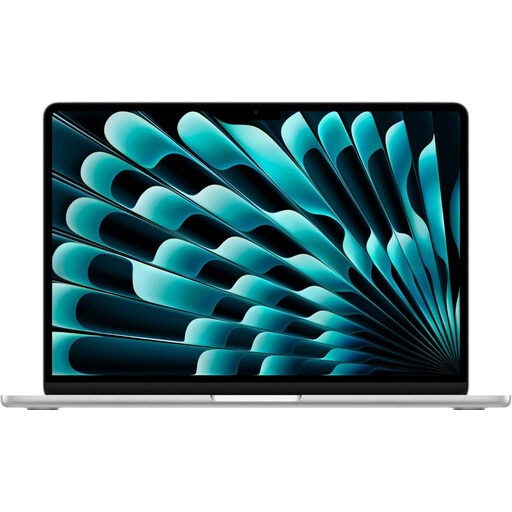
Consider this macOS configuration if your recording app and any capture device support it and you want to keep longer fixtures locally.
The listed configuration has 16GB memory and a 1TB SSD. Its product description calls it fanless; confirm the exact model's cooling design and assess its behaviour during sustained recording.
 No image available
Consider this Windows laptop if your recording setup or later editing calls for the listed discrete graphics, rather than assuming they are needed for a single feed.
The title lists 16GB memory, a 1TB SSD and GeForce RTX 5050 graphics. Check noise during sustained recording and confirm capture-device compatibility; an HDMI connector does not by itself establish video input.
 No image available
Consider this 14-inch Windows-on-ARM laptop only after confirming that the recording app and any capture-device software work with its platform.
The listed configuration has 16GB memory and a 512GB SSD. Check the exact model's noise during a full recording and plan storage if you intend to retain lengthy footage.
 No image available
Consider this portable Windows configuration if you want local storage for longer fixtures and its connections suit your source.
The title lists 16GB memory, a 1TB SSD and Windows 11 Home. Confirm the precise display configuration if it affects your choice, as well as capture compatibility and noise during sustained recording.
 No image available
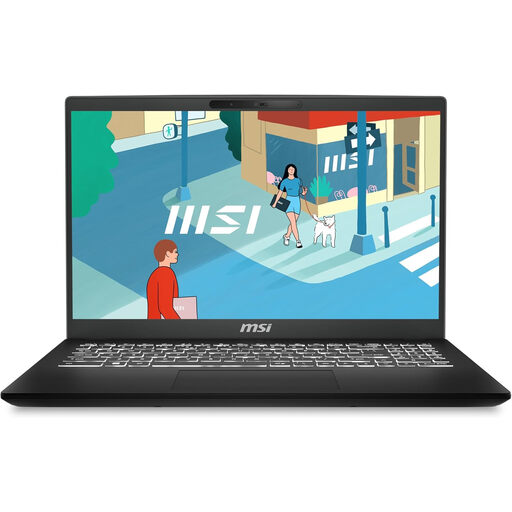
Consider this laptop for a study-based setup if its final configuration supports your recording software and source.
The listing describes 16GB memory and a 512GB SSD. Confirm the processor and operating system before purchase, then check capture-device compatibility and noise at your planned recording settings.
No: the presence of an HDMI connector does not establish that it accepts video input. For an external feed, identify the source output and check a compatible capture device, laptop connection and recording app together; Lenovo UK notes that direct HDMI ingestion commonly needs dedicated capture hardware.
Make a trial recording using the actual source, intended resolution and frame rate, and check the result for dropped frames alongside storage use, heat and audible cooling. OBS Project recommends its Auto-Configuration Wizard to find settings a system can handle, while cautioning that basic compatibility does not guarantee recording capability.
Section 70 of the UK Copyright, Designs and Patents Act 1988 provides a narrow exception for recording a broadcast in domestic premises for private and domestic use solely to view or listen at a more convenient time. That condition does not establish permission to share or commercially use the recording; check the relevant service terms before any use beyond private domestic viewing.
Choose the operating system supported by your intended capture device and other recording or editing software. OBS Project lists support for Windows 10 and 11 and macOS 13.0 or newer, but operating-system support alone does not establish that a particular accessory or recording workload will work.