Choose a laptop around the software and rehearsal projects you use: confirm your DAW, plug-ins and audio-interface drivers first, then match memory and storage to your track and sample needs. For prolonged work at a standing desk, plan how to elevate the screen, use separate input devices and connect your peripherals at the same time; a faster processor alone will not resolve those setup questions.
Who is this for?
People building plug-in-heavy rehearsal tracks
If your projects use multiple tracks, instruments or effects, assess memory, storage and processing capacity against your actual sessions. Ableton notes that larger, plug-in-heavy projects can need more capable hardware for consistent low-latency work.
People keeping an existing Windows audio setup
If you rely on a particular DAW release, plug-ins or audio-interface driver, confirm support for the new laptop’s Windows version before moving a rehearsal project. Ableton recommends checking third-party software and drivers when changing operating systems.
People arranging tracks at a standing desk
If you spend extended sessions organising tracks and files at the desk, consider screen position, separate input devices and the connections needed for your interface, storage and any external display. The Health and Safety Executive advises using a separate keyboard and mouse when elevating a laptop screen.
What matters when choosing?
Start with software compatibility and the demands of your largest project, then plan the complete desk setup. A smaller machine may be easier to carry, while a desk with several connected devices calls for a closer look at ports and docks.
| Concern | What to check | Who this matters to |
|---|
| Project headroom |
Compare your busiest project with the proposed memory and storage. For Ableton Live, its guidance recommends 16GB or more RAM for more demanding use. |
When my sessions contain many tracks and plug-ins, I need room to work beyond the software’s minimum requirements; around 33% of consumers put project headroom first. |
| Software and interface compatibility |
Confirm the exact DAW and plug-in versions, operating system and audio-interface driver. On Windows, check ASIO driver support if your workflow requires it. |
I need my existing interface and essential plug-ins to work when I move a rehearsal project; compatibility is the first concern for roughly 25% of consumers. |
| Desk setup and connections |
Check screen elevation, separate keyboard and mouse, and whether the interface, display and storage can connect simultaneously. |
If I work at the standing desk for long sessions, I need the screen and controls positioned sensibly without running out of connections; about 25% of consumers prioritise the workstation setup. |
| Portability |
Check the exact configuration’s weight and charger, then count the connections needed when you set it up again. |
When I carry the laptop between locations, I want a manageable kit that still works with my rehearsal devices; carrying and setup needs come first for around 17% of consumers. |
Purchasing pitfalls
-
Assuming a DAW’s minimum requirements cover your busiest project
Minimum requirements can be enough to run the software without describing how a larger session with multiple tracks and plug-ins will behave. Ableton distinguishes its minimum requirements from guidance for more demanding, low-latency projects.
Compare the laptop with your largest current project and planned sample storage; use guidance for your own DAW rather than applying Ableton’s figures to every application.
-
Choosing a slim laptop before counting connections
An audio interface, external display and drive may all need connections during the same session. Ableton advises connecting an audio interface directly where possible.
List what will be connected simultaneously, then check the exact laptop’s ports, charging arrangement and compatibility with any dock you plan to use.
-
Elevating the screen but relying on the built-in controls
Raising a laptop screen also moves its keyboard and trackpad. For prolonged laptop work, the Health and Safety Executive recommends separate input devices so the screen can be elevated.
Plan the riser or monitor position together with a separate keyboard and mouse or other pointing device.
-
Changing operating systems just before a rehearsal deadline
A capable new laptop will not resolve an unsupported plug-in or interface driver. Ableton advises checking third-party software and hardware drivers before an operating-system change.
Confirm support for the target system, back up important projects and test the working setup before depending on it for a time-critical session.
Relevant brands to consider
Apple
MacBook Air is a macOS option if your DAW, plug-ins and audio hardware support the Apple silicon configuration you choose.
- Apple’s UK MacBook Air specifications list two Thunderbolt 4/USB-C ports, MagSafe and a 3.5 mm headphone jack.
- Check whether two data ports cover your interface, display and storage together, or whether your setup needs a compatible dock. Verify third-party software and driver support separately.
Lenovo
The ThinkPad X1 Carbon Gen 13 Aura Edition is a Windows route for someone who regularly carries a laptop and wants an anti-glare 14-inch display.
- Lenovo describes the referenced X1 Carbon Gen 13 Aura Edition as weighing less than 1kg; its cited UK configuration lists 16GB memory and a 512GB SSD.
- Check the selected configuration’s memory, storage, ports and warranty rather than assuming every X1 Carbon listing is identical.
ASUS
The Zenbook S 14 UX5406 is a compact Windows line to examine if you want to compare different memory and storage configurations.
- ASUS lists UX5406 variants with 16GB or 32GB memory and 512GB or 1TB SSD storage.
- Confirm the display, memory, storage and connections on the exact UX5406 variant before deciding whether it fits your audio setup.
Joybuy laptop choices
These Windows laptops offer different memory, storage and screen configurations for preparing rehearsal tracks. Check your DAW, plug-ins and audio-interface drivers against the particular model before choosing; the Snapdragon-based option needs particular attention to software compatibility.
 No image available
ASUS Vivobook 14 X1407QA-LY003W, Snapdragon X, 16GB/512GB, Quiet Blue
Consider this 14-inch Windows laptop if your DAW, plug-ins and interface drivers support its Snapdragon X configuration. Its stated 16GB RAM and 512GB SSD are starting points for comparison with your project needs; check the connections required for your standing-desk setup.
View on Joybuy
 No image available
Lenovo LOQ Essential 15ARP11, Ryzen 7 170, 16GB/1TB, RTX 5050
Its stated 16GB RAM and 1TB SSD are worth comparing with your rehearsal projects and stored audio. The 15.6-inch display is a consideration for desk use; confirm that your Windows audio software and interface driver work with this configuration.
View on Joybuy
 No image available
ASUS ProArt P16 H7606WW-SE006W, 64GB/2TB, RTX 5080 16GB
Compare its stated 64GB RAM and 2TB SSD with the demands of your largest projects rather than assuming every track-preparation task needs that capacity. It has a 16-inch 4K OLED touchscreen; confirm software, driver and peripheral compatibility before committing to this Windows 11 Home configuration.
View on Joybuy
 No image available
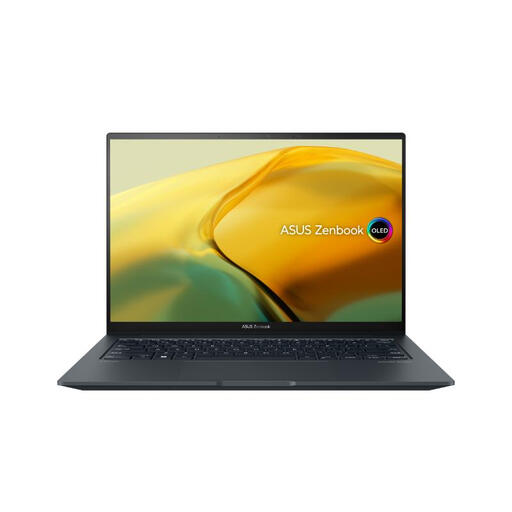
ASUS ZenBook UX3404VC-M3130W, 14.5-inch OLED, 16GB/1TB
The stated 16GB RAM and 1TB SSD give you figures to compare with your rehearsal files and DAW requirements. If you plan to attach an interface, display and external storage, check this Intel Core i9 configuration’s ports and confirm support for your Windows audio software and drivers.
View on Joybuy
 No image available
Lenovo Legion Pro 7 16IAX10H, 83F5000UUK, 64GB/2TB, RTX 5090
Its stated 64GB RAM and 2TB SSD may be relevant if your project and file-storage needs call for those capacities; they do not establish DAW performance on their own. Check your software and drivers, and confirm how the 16-inch Windows 11 Home laptop will connect to your desk equipment.
View on Joybuy
Frequently asked questions
Do I need 16GB RAM to prepare rehearsal tracks?
Not for every simple playback or file-management task. Ableton lists 8GB as the minimum for Live and recommends 16GB or more for a more capable setup; compare that guidance with your DAW and the size of your actual projects.
Do I need a riser or external display at a standing desk?
For prolonged laptop work, elevating the screen with a riser or similar support and using a separate keyboard and mouse follows Health and Safety Executive guidance. An external display is another setup option, provided the laptop and planned connections support it.
Is an external audio interface necessary for rehearsal tracks?
Not for every basic playback task. If your preparation involves connecting microphones, instruments or monitor speakers, check whether an interface meets those connection needs; Ableton advises a direct computer connection where possible and Windows users should confirm the appropriate driver.
What should I check before moving a Windows rehearsal project?
Confirm the DAW’s supported Windows version and compatibility of every essential plug-in and audio-interface driver before moving a time-critical project. Ableton specifically advises checking third-party software and hardware drivers when updating the operating system.


