For poster editing in Photoshop or InDesign, start with 16GB of memory, an SSD and a display of at least 1920 × 1080: Adobe recommends 16GB for both applications. Consider a larger, colour-focused screen if you review artwork closely, or more memory and discrete graphics if poster work sits alongside demanding creative tasks. Neither screen specification removes the need to follow your print provider’s PDF and colour instructions.
Who is this for?
Text-and-layout poster editors
If you mainly revise text, charts, references and page layout in Photoshop or InDesign, prioritise a configuration that meets Adobe’s recommended memory and display specifications before paying for graphics capability intended for other workloads.
Print-conscious visual reviewers
If you inspect figures, image placement and colour-sensitive artwork before submitting a print PDF, pay close attention to the exact screen configuration and how you will review the poster at your desk. Confirm the print provider’s output instructions separately.
Heavy creative-workflow users
If poster production also involves large layered assets or demanding video, 3D or graphics-led work, consider additional memory, storage and discrete graphics according to the applications you actually use.
What matters when choosing?
Choose for your editing workload first, then decide how much built-in screen space you need for reviewing the poster. Treat graphics specifications beyond your software’s requirements as a separate decision.
| Concern |
What to check |
Who this matters to |
| Smooth editing |
For Photoshop or InDesign, check for 16GB of memory and an SSD; Adobe recommends 16GB for both applications. |
If I mainly arrange figures, revise text and make moderate image edits, I want the applications and poster assets to fit my everyday workflow. Around 44% of consumers put this baseline editing need first. |
| Screen review before printing |
Check for at least 1920 × 1080 resolution, then verify the exact panel’s colour specifications if they matter to your work. Follow the print provider’s PDF and colour instructions. |
When I inspect photographs and fine layout details before sending a poster to print, I need enough screen detail to review them closely. This visual-review need comes first for around 33% of consumers. |
| Capacity for heavier work |
Consider more memory, storage and discrete graphics if your file sizes, concurrent applications or other creative tasks call for them; check the exact configuration. |
If I also work with large layered assets or demanding creative software, I need capacity beyond ordinary poster layout. Around 23% of consumers prioritise that wider workload. |
Buying pitfalls
-
Choosing 8GB because it meets a minimum requirement
Adobe lists 8GB as a minimum for Photoshop and InDesign but recommends 16GB for both. A minimum specification is not the same as the recommended starting point for a new editing laptop.
Choose 16GB for a typical Photoshop or InDesign poster workflow. Consider more memory if your files and concurrent applications justify it.
-
Expecting a wide-gamut screen to settle print colour
A laptop panel helps you review artwork on screen, but the final output also depends on the PDF and colour workflow. Adobe distinguishes PDFs intended for printing from those intended for digital viewing.
Ask your print provider which PDF settings and colour instructions to use, then inspect the exported file and arrange a proof where practical.
-
Comparing laptop ranges instead of exact configurations
Memory, storage, graphics and displays can differ within the same product family. The ports on a particular model also affect how you connect a monitor and other desk equipment.
Check the full model and configuration against your software, screen and peripheral needs before ordering.
A desk setup may require a compatible adapter or dock if the laptop lacks the connections you need.
-
Putting off basic checks after delivery
Checking essential functions early helps you identify a fault or a mismatch with the software and peripherals your poster workflow requires.
Test the screen, keyboard, charging, Wi-Fi and required external connections, and keep your order records.
Relevant brands to consider
Apple
MacBook Air is a macOS option for poster editors who want a compact laptop and plan to use their existing software at home.
- Apple lists 16GB of unified memory, a 2560 × 1664 P3 display and support for up to two external displays in its UK 13-inch MacBook Air specifications.
- The built-in screen is 13 inches, and its two Thunderbolt 4/USB-C ports may mean using an adapter or dock for some peripherals. Check that your required applications and plug-ins work on macOS.
ASUS
ProArt is ASUS’s creator-oriented laptop line for buyers assessing display specifications and, on selected models, discrete graphics.
- ASUS states that ProArt laptop displays offer 100% DCI-P3 coverage and describes ProArt P16 configurations with up to RTX 50-series laptop graphics.
- Display and graphics specifications depend on the exact model. Confirm the configuration and your print workflow rather than treating a display-gamut claim as a guarantee of printed colour.
Lenovo
Yoga Pro is a Windows laptop line worth examining if a larger, higher-resolution screen and configurable graphics are relevant to your work.
- Lenovo UK lists one Yoga Pro 7i Gen 11 configuration with a 15.3-inch 2560 × 1600 OLED display, 100% DCI-P3 coverage, 32GB of memory, a 1TB SSD and an RTX 5060 Laptop GPU.
- Those are specifications for that configuration, not for every Yoga Pro laptop. Check the precise model and whether its additional graphics capability serves work beyond poster layout.
Joybuy laptops for poster editing
These laptops include configurations for everyday poster layout and others with more memory or discrete graphics for wider creative workloads. Compare each exact model with your software, screen and desk-connection needs.
 No image available
Lenovo LOQ Essential 15ARP11, Ryzen 7 170, 16GB, 1TB SSD, RTX 5050
Consider this 15.6-inch model for poster editing that also calls for discrete graphics. Its listed 16GB of memory and FHD display align with Adobe’s recommended memory and resolution for Photoshop and InDesign; the title also specifies a 144Hz screen. If colour-sensitive review matters, check the exact panel’s colour specifications before choosing it.
View on Joybuy
 No image available
Lenovo Legion Pro 7 16IAX10H, 83F5000UUK, 64GB, 2TB SSD, RTX 5090
This 16-inch configuration is worth considering if poster editing forms part of a substantially heavier creative workload. It lists 64GB of memory, a 2TB SSD and RTX 5090 graphics; those specifications are not requirements for ordinary poster layout. Check the display’s colour specifications if close visual review is a priority.
View on Joybuy
 No image available
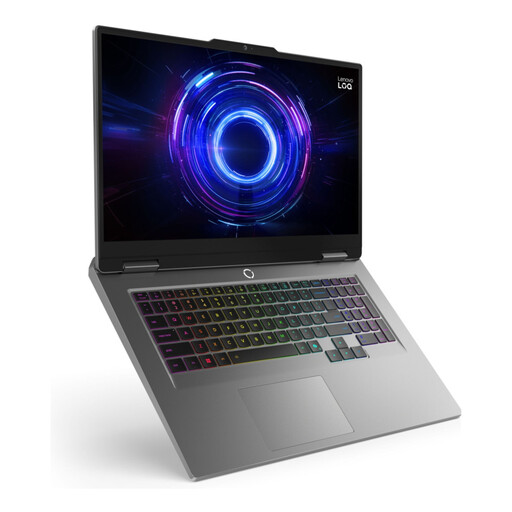
LOQ 17IRX10, i7-13650H, 24GB, 1TB, W11H
Consider this configuration if your poster workflow calls for more memory than Adobe’s 16GB recommendation. The product name specifies 24GB and 1TB; check the exact screen and connections against the space and peripherals you need at your desk.
View on Joybuy
 No image available
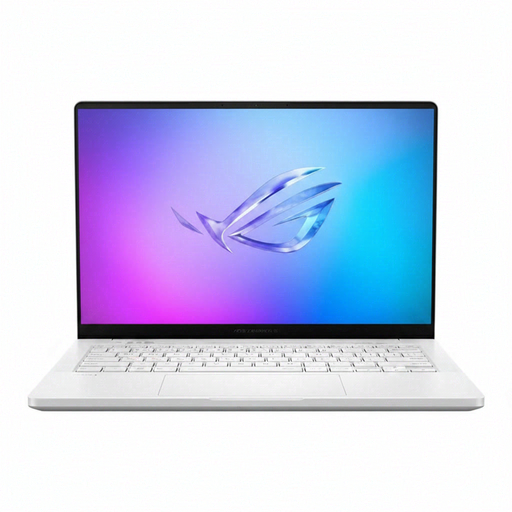
ASUS ROG Zephyrus G14 GA403WR-QS088W, 32GB, 2TB SSD, RTX 5070 Ti
This 14-inch laptop combines 32GB of memory and RTX 5070 Ti graphics for consumers whose work extends beyond poster layout. Its named configuration has a WQXGA+ display, but check whether a 14-inch workspace, the panel’s colour specifications and the available connections suit your home-office setup.
View on Joybuy
 No image available
HP OmniBook X Flip 16-as0004na, 16-inch touchscreen, 16GB, 512GB SSD
Consider this 16-inch two-in-one for everyday poster editing if a touchscreen also suits the way you work. Its named configuration includes 16GB of memory and a 512GB SSD. Check the exact display’s resolution and colour specifications, along with the connections needed for your desk equipment.
View on Joybuy
Frequently asked questions
Is 8GB of memory enough to edit a research poster?
It meets Adobe’s stated minimum for Photoshop and InDesign, but Adobe recommends 16GB for both. For a new laptop used with poster assets and other applications open, start with 16GB unless you know your workflow is particularly light.
Do I need a discrete GPU for poster editing?
Not solely to arrange a conventional poster and export a PDF. Consider discrete graphics if you also use demanding graphics-led applications, video or 3D software; check those applications’ own requirements rather than choosing by GPU name alone.
Will a colour-focused laptop screen show exactly how my poster will print?
No. A colour-focused display can help with on-screen review, but printed output also depends on the PDF and colour workflow. Adobe distinguishes print PDFs from digital-viewing PDFs, so follow your print provider’s instructions and proof the file where possible.
What if a laptop bought online arrives faulty or misdescribed?
Keep your order records and contact the seller promptly about the problem. GOV.UK says a refund must be offered for goods that are faulty or not as described; this is distinct from a retailer’s policy for changing your mind about a working laptop.


