What to check before buying
Choose the screen layout first, then confirm the connection route your laptop supports. Add a dock when its extra connections or charging address a genuine desk need.
| Concern |
What to check when buying |
Who this matters to |
| Usable screen space |
Check the monitor’s native resolution and the laptop’s supported external-display count against your intended layout. |
If I need more room for documents and calls, I want a screen layout my laptop can actually drive; around 36% of consumers put usable screen space first. |
| Connection compatibility |
Identify the laptop’s video-capable ports, operating system and any software required by the adapter. |
When the laptop’s ports or software permissions are uncertain, I want to confirm the display path before choosing an accessory; around 29% of consumers prioritise connection and operating-system compatibility. |
| Charging and peripherals |
List the connections you want at the desk, then compare the exact dock’s ports and stated power delivery with the laptop’s requirements. |
If I reconnect several devices during the working day, I want to know which peripherals and charging can use one desk connection; around 21% of consumers prioritise consolidating those connections. |
| Screen positioning |
Check the monitor’s VESA pattern and weight against the mount’s attachment method and capacity. |
When desk space or screen height is my main concern, I want a mount that fits the monitor and desk; around 14% of consumers prioritise positioning and desk footprint. |
Relevant brands to consider
These examples relate to specific product lines and models; a brand’s inclusion is not a statement about every product it makes.
Dell
The P2725QE illustrates a monitor-and-hub approach for a fixed desk where display, peripheral connections and compatible laptop charging are being considered together.
- Dell specifies a 27-inch, 3840 × 2160 panel and 90 W power delivery for this model.
- Those specifications do not confirm that every laptop supports the desired video mode or can charge through the monitor.
Samsung
The S40GD LS27D400GAUXXU is an example of a 27-inch Full HD monitor with adjustable positioning.
- Samsung lists an IPS panel, ergonomic adjustments and a refresh rate adjustable up to 100 Hz for this variant.
- Its stated default refresh rate is 60 Hz; these features do not establish USB-C charging support for a laptop.
Lenovo
The ThinkPad Universal USB-C Dock 40AY0090UK illustrates a dock-led setup for repeatedly connecting displays and peripherals.
- Lenovo describes more than 11 ports and charging up to 100 W for this dock.
- Lenovo directs buyers to check system compatibility and display-output configurations for the particular setup.
StarTech.com
The USB32HDPRO illustrates a USB-A DisplayLink adapter route when a conventional video-capable USB-C connection is unsuitable.
- StarTech specifies USB-A input and HDMI output up to 1920 × 1200 for this adapter.
- It is a display adapter, not a laptop charger; check the operating system and required software before choosing it.
Ergotron
Monitor arms address screen placement after choosing a display and its connection route.
- For its LX arm, Ergotron specifies VESA 75 × 75 mm or 100 × 100 mm and a 3.2–11.3 kg capacity.
- That particular model is discontinued. Check the specifications and availability of any different arm independently.
Joybuy monitor options
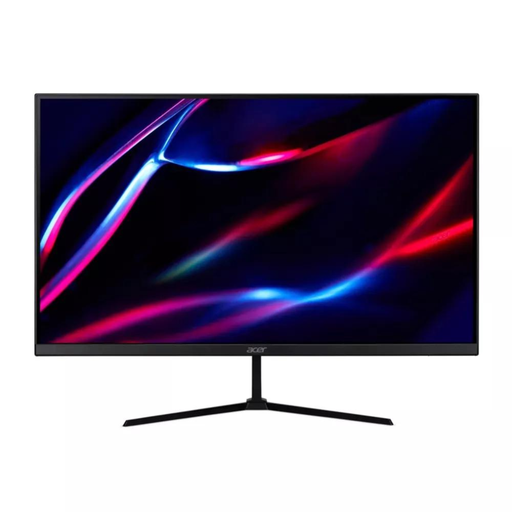
These Joybuy products are external monitors for adding screen space to a laptop. Before choosing, check each model’s inputs against your laptop’s display support and any charging requirement.
 No image available
27-inch QHD IPS Monitor
Consider this monitor if you want an additional screen and your laptop supports its intended display connection.
27-inch QHD IPS display; 180 Hz refresh rate; 2 × HDMI and DisplayPort inputs; audio out. The listed bundle includes one HDMI cable and one DisplayPort cable.
View on Joybuy
 No image available
CRUA 49-inch Curved Ultrawide Monitor
Consider this wide-screen option if its dimensions and inputs suit your desk and the laptop supports the intended display setup.
49-inch, 32:9 VA display with 5120 × 1440 resolution and 165 Hz refresh rate; 2 × HDMI 2.1 and 2 × DisplayPort 1.4; VESA 75 × 75 mm mounting; height-adjustable stand.
The product warning says to move this wide, heavy monitor with at least two people and place it on a desk rated to support it.
View on Joybuy
 No image available
BenQ MA270UP 27-inch 4K UHD USB-C Monitor
Consider this monitor if you want a 4K external screen and are checking whether your laptop supports USB-C video, data and charging together.
27-inch 4K UHD display; USB-C with up to 90 W power delivery; USB-A ports and HDMI. The one-cable video and charging arrangement depends on the laptop supporting the relevant connection functions.
View on Joybuy
 No image available
LG 27UP650K 27-inch 4K IPS Monitor
Consider this monitor if you want a 4K screen with an adjustable stand and your laptop supports the chosen video connection.
4K IPS display; 60 Hz refresh rate; HDMI and DisplayPort inputs; stand adjusts for height, tilt and pivot.
View on Joybuy
 No image available
MSI MD272UPSW 27-inch 4K UHD Smart Monitor
Consider this option if you want a 4K external screen and are also assessing its USB-C charging and multi-device features for your setup.
27-inch 4K UHD display; USB-C with 65 W power delivery and HDMI; four-way adjustable stand; Google TV. USB-C video and charging depend on the laptop supporting the relevant functions.
View on Joybuy
Frequently asked questions
Will a dock let any laptop run two external monitors?
No: a dock does not guarantee that every laptop can run two external displays. Check the exact laptop’s supported display count and video protocol against the dock’s display configuration. Apple UK’s M5 MacBook Air specifications, for example, describe support for up to two external displays; that model-specific detail does not establish the limit for other computers.
What if my laptop has USB-A but no suitable USB-C video port?
A compatible USB-A DisplayLink adapter may provide another display route. Check its output limit, operating-system software and whether your workplace permits installation, and plan laptop charging separately.
How should I position a screen for extended home working?
The Health and Safety Executive describes a standard setup with the top of the screen around eye level and roughly an arm’s length away, with the screen and keyboard positioned to avoid twisting. Check that your monitor stand, arm or laptop setup can achieve a suitable position for you.
What if a monitor or dock bought online is faulty or unsuitable?
UK government guidance distinguishes remedies for faulty goods from the cancellation right for eligible distance purchases. For an eligible item, it says to tell the seller within 14 days of receiving it and return it within a further 14 days. Check the seller’s terms for any voluntary return arrangements; those do not replace applicable statutory rights.
Are electrical-equipment rules identical throughout the UK?
No. UK government guidance describes different arrangements for Great Britain and Northern Ireland when electrical equipment is placed on the market. In Great Britain, CE marking continues to be recognised for relevant goods within the stated regime; this does not establish that an individual monitor or adapter complies. Check the requirements applicable to the destination and the specific product.


