Start by checking how many independent displays your exact laptop supports, along with its video outputs and your intended screen settings. A direct connection can suit one compatible display; a dock can bring screen and peripheral connections together, but cannot override the laptop or operating system’s display limits. DisplayLink is a separate, software-dependent option when native video outputs are not enough.
Who might benefit from adding a laptop screen?
People who work with two screens at home
If you need separate space for documents, calls or reference material, check how many independent external displays your exact laptop supports. Apple Support notes that the number a Mac can use depends on its model and the connected displays’ resolution and refresh rate.
Laptop users with a permanent desk
A fixed monitor can provide a dedicated screen for work or study, and a hub monitor may reduce separate connections if its video and charging features suit your laptop. Dell’s P2425E is one model-specific example; its specifications do not apply to every Dell monitor or laptop.
People who put away or move their workspace
A portable monitor may fit a desk that is temporary or shared. Lenovo’s ThinkVision M14t Gen 2 illustrates this type of setup; check the laptop’s compatible video output and the screen’s connection and power requirements.
What should you check before buying a screen or dock?
Check your laptop’s display support before choosing accessories: the right route depends on how many independent screens you need and whether you value a fixed display, easier reconnection, a software-based workaround or portability.
| Concern |
What to check when buying |
Who this matters to |
| Two independent screens |
Confirm the exact laptop’s external-display limit, operating system, ports and support for your intended resolution and refresh rate. Check that the setup extends rather than mirrors the desktop. |
If I need two separate work areas, I would check the laptop’s limit before choosing a dock or cables. Consumers whose main priority is independent multi-screen support account for around 31%. |
| A fixed home-desk screen |
Check screen size and resolution, stand adjustment, desk fit, video inputs and any USB-C charging output. |
For sustained work or study at one desk, I would prioritise a screen I can position comfortably. Consumers who put a fixed display first account for around 25%. |
| Reconnecting desk devices |
Check the dock’s video and peripheral connections, host compatibility, charging requirements and whether a separate charger is included. |
If I regularly reconnect a screen and peripherals, I would look for a compatible arrangement that suits my desk setup. Consumers who prioritise simpler reconnection account for around 19%. |
| USB graphics workaround |
Check the exact device’s operating-system and driver support, whether software installation is permitted, and whether the dock charges the laptop. |
If my laptop lacks a suitable native video connection, I would check whether a software-based USB display option works with it. Consumers whose main concern is this workaround account for around 13%. |
| A screen that moves |
Check the portable display’s size, weight, video input, power arrangement and included cable for the exact model. |
When I need to put the screen away or move it with my laptop, portability matters more than a permanent desk arrangement. Consumers who prioritise a movable screen account for around 12%. |
Pitfalls to avoid when adding a laptop display
-
Counting dock sockets instead of supported displays
Two display outputs on a dock do not prove that a laptop can drive two independent external screens. Apple Support explains that Mac display support depends on the exact model and connected display settings; Dell documents an MST extended-desktop limitation for the cited dock arrangements on macOS.
Check the laptop’s display limit, operating system and the dock’s connection method before choosing screens or cables.
-
Assuming every USB port carries video
A USB-C connector does not by itself confirm video support. USB display devices that use DisplayLink rely on software rather than turning an ordinary USB port into native video output.
Check the host port’s documented capability and whether the accessory uses native video or DisplayLink. DisplayLink Manager on macOS requires Screen Recording permission, according to DisplayLink Support.
A USB graphics setup may require a driver and the necessary permissions before it can work.
-
Assuming a hub includes laptop charging
Charging support and included accessories vary by model. Anker says its 565 hub requires a charger for pass-through charging and that a charger is not included; Plugable says its UD-6950H does not charge the host laptop.
Check the accessory’s stated charging output and your laptop’s requirements before relying on a one-cable setup.
You may need to keep the laptop’s original charger connected or provide a separate compatible charger.
-
Choosing a permanent screen without checking the work position
A screen that fits the connection setup may still be awkward to position at the desk where you plan to use it.
Check the desk fit and screen adjustment as well as connectivity. If you are an employee covered by the relevant DSE requirements, follow your employer’s workstation assessment process for identified equipment needs.
Relevant brands to consider
Dell
Dell’s P2425E illustrates a fixed monitor with a USB-C hub; the cited Dell dock guidance also describes a macOS MST extended-desktop limitation for particular arrangements.
- Dell lists the P2425E at 1920 × 1200 with up to 90 W power delivery.
- These specifications apply to the P2425E, not every Dell monitor or laptop. Check the exact host and dock combination.
Lenovo
The ThinkVision M14t Gen 2 is an example of a portable USB-C display for a workspace that needs to move.
- For part 63FDUAT6WL, Lenovo lists a 14-inch, 2240 × 1400 display, two USB-C connections and a supplied USB-C cable.
- Check that the laptop supports the required video output and that the screen size suits your workspace.
Anker
The Anker 565 is an example of a compact USB-C hub with native-video outputs.
- Anker describes dual-display output for model A8388, with the stated resolution depending on whether the host supports DP 1.4 or DP 1.2.
- Anker says a charger is required for pass-through charging and is not included. These details concern the 565, not every Anker hub.
Plugable
The UD-6950H illustrates a DisplayLink docking route for a compatible USB-A or USB-C host.
- Plugable describes this model as a USB graphics option for web and productivity software.
- Plugable says it requires a DisplayLink driver, does not charge the host and is not recommended for gaming, video playback or 2D/3D graphics tools. The manufacturer identifies this model as discontinued.
StarTech.com
The USB32HDES illustrates a single-screen USB-A display adapter rather than a full desk dock.
- StarTech.com specifies up to 1920 × 1200 at 60 Hz for this adapter.
- StarTech.com states that this exact model supports Windows, not macOS, ChromeOS or Linux, and requires administrator rights to install its driver.
Joybuy product choices for adding a laptop screen
These Joybuy listings cover fixed monitors, portable displays and a USB-C dock for adding a laptop screen. Check each product’s listed connections against your laptop’s supported video output and display limits.
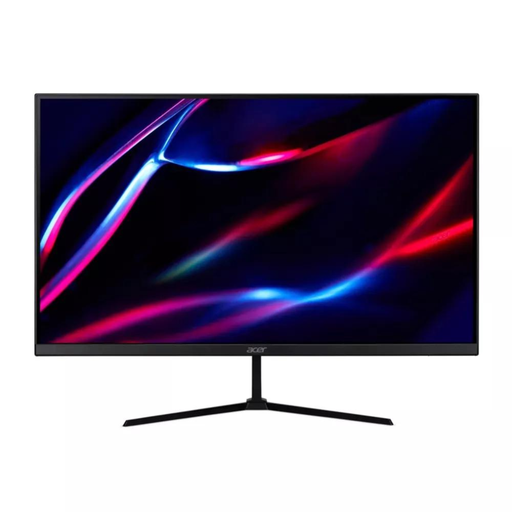 No image available
27-inch QHD IPS monitor
A fixed-screen option for a laptop workspace; check that your laptop’s video output matches the monitor’s inputs.
27-inch QHD IPS display; 180 Hz; 1 ms/0.5 ms (GTG, Min.); 350 nits; 2× HDMI and DisplayPort; HDR400 and FreeSync Premium.
View on Joybuy
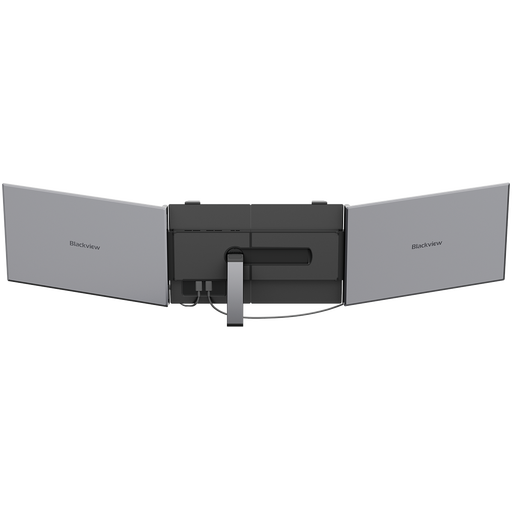 No image available
Blackview DCM8 portable screen extender
A portable display option if you need extra screen space that can move with your laptop. Confirm that the laptop supports the required video output and power arrangement.
15.3-inch IPS display; 1920 × 1200; 60 Hz; 1.2 kg. The product description states that one USB-C cable carries video and power for the display.
View on Joybuy
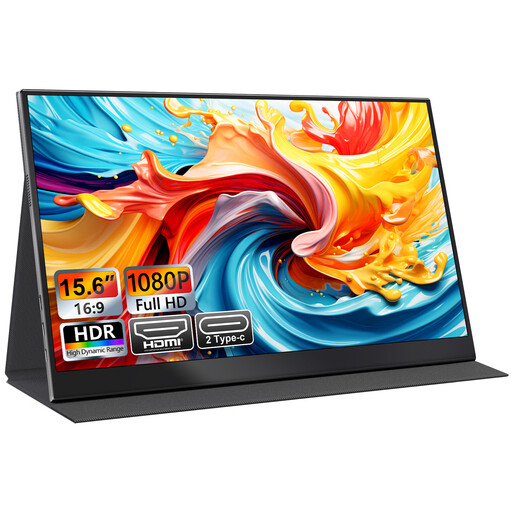 No image available
UFYQL M156F04 portable monitor
A portable external-screen option with USB-C and HDMI connections listed in the product name; check which connection suits your laptop.
15.6-inch FHD 1080p IPS display; USB-C and HDMI; smart-cover stand; VESA mountable.
View on Joybuy
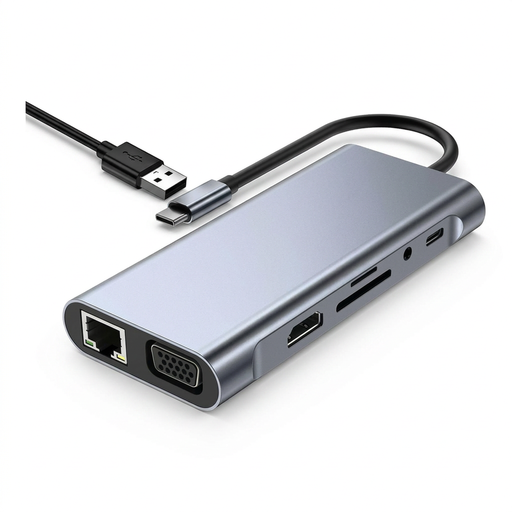 No image available
TW11A 11-in-1 USB-C docking station
A desk-connection option for a compatible USB-C host. Check the laptop’s video support and the dock’s connection combination before relying on it for a particular display setup.
Listed connections include HDMI, VGA, USB 3.0, USB-C PD, RJ45 Ethernet, SD and TF card readers, and 3.5 mm AUX. The listed host connection is USB-C.
View on Joybuy
 No image available
MAG 274QP QD-OLED X24 gaming monitor
A fixed gaming-monitor option that can serve as an external display; check the laptop’s video outputs and supported display settings.
27-inch QD-OLED; 2560 × 1440; 240 Hz; 0.03 ms; HDMI and DisplayPort inputs are listed in the product description.
View on Joybuy
Frequently asked questions
How do I check whether my laptop can extend to two external screens?
Look up the exact laptop model’s video ports and external-display support, including the number of screens supported at your intended settings. Apple Support directs Mac users to their model’s display-support specifications; in Windows, select Extend and configure the screens in Display settings.
Does a USB-C socket guarantee that a monitor or dock will work?
No. Check the laptop’s documented video capability and the accessory’s required protocol. Apple Support says a USB-C or Thunderbolt display adapter for a Mac must support DisplayPort Alt Mode or a specified Thunderbolt mode. Check charging requirements separately.
What should I try if a connected screen is dark or has a lower resolution?
Check the laptop’s supported screen count and resolution or refresh rate. Apple Support also advises trying a direct connection to the Mac instead of a hub or dock when troubleshooting an external display.
Does an employer always have to provide extra home-working display equipment?
Not every home worker or student is covered by the same requirements. For workers to whom Great Britain’s DSE requirements apply, the Health and Safety Executive says the employer assesses the home workstation and that workers cannot be charged for DSE equipment the assessment identifies as necessary.


