Regular home-desk laptop users
You use a monitor, keyboard and mouse at a fixed desk but need to take the same computer elsewhere. The connection should be straightforward to restore when you return.


Choose the laptop by checking its support for your external displays, video-capable ports and charging needs before choosing how it connects to the desk. A direct display connection can suit one monitor; a compatible USB-C or Thunderbolt dock can make daily reconnection easier. For a laptop without a suitable native display connection, a DisplayLink dock may be an option for office work, but it requires compatible software and a suitable USB connection.
You use a monitor, keyboard and mouse at a fixed desk but need to take the same computer elsewhere. The connection should be straightforward to restore when you return.
You need two independent external displays for office work. Check the laptop’s graphics and display-output support alongside the dock configuration rather than counting sockets alone.
If your laptop lacks a suitable native video connection, a DisplayLink device may provide another display path. Its operating-system, driver and USB requirements need checking first.
For a laptop replacing a home desktop, start with the displays and peripherals you intend to keep, then check the laptop’s documented outputs before selecting a cable, adapter or dock. The following connection routes solve different desk-setup problems.
Choose it when: You normally connect one external monitor and the laptop has a documented output that suits its input.
Trade-off: You may need separate connections for charging and peripherals. Microsoft Support notes that an HDMI splitter duplicates a signal rather than creating two independent desktops.
Choose it when: You reconnect several desk devices regularly and the laptop’s host port supports the video, data and charging functions you need.
Trade-off: A USB-C connector alone does not establish display or charging support; the laptop, dock and cable must support the intended configuration.
Choose it when: A supported older laptop needs an additional display path for ordinary desk productivity but lacks a suitable native video connection.
Trade-off: Synaptics describes DisplayLink as software that encodes display frames for the connected device. Check driver, operating-system, USB and workplace-software compatibility rather than treating it as native video output.
| Concern | What to check | Who this matters to |
|---|---|---|
| Dependable daily reconnection | Check the laptop’s display output and charging requirements against the proposed dock or adapter. | I need my monitor and input devices ready when I return to my desk, without finding that the laptop needs another charging connection. Around 36% of consumers put dependable daily reconnection first. |
| Two independent displays | Compare the exact laptop’s external-display support with the dock’s simultaneous display modes at your required resolution and refresh rate. | With work spread across two monitors, duplicated pictures will not give me the extended desktop I need. Independent display support is the primary concern for around 29% of consumers. |
| Easy departure and return | Decide whether one direct display connection is enough or whether a compatible dock would reduce the connections you handle. | When I take the laptop away regularly, I want leaving and settling back at the desk to involve fewer steps. Around 21% of consumers prioritise that portability-and-reconnection need. |
| Older-laptop compatibility | For a DisplayLink device, check operating-system and driver support, the required USB connection and the intended display arrangement. | My older laptop has limited native display options, so I need a connection method that works with its existing ports. That compatibility constraint comes first for around 14% of consumers. |
USB-C describes the connector, not every function it supports. Microsoft Support notes that a USB-C video adapter needs a host port configured for video output and that cables do not all support the same features.
Check the specification for the laptop’s particular port, then match the cable and dock to the video, data and charging functions required.
Several video sockets on a dock do not override the laptop’s graphics-adapter limit. The supported number of displays can also depend on the connection and display settings.
Compare the exact laptop model’s documented external-display capability with the dock’s stated simultaneous modes before choosing a two-monitor setup.
Microsoft Support explains that a display splitter duplicates one signal rather than providing two independent desktop displays.
If you need separate workspaces on two monitors, choose a laptop and connection method explicitly specified to support independent external displays.
DisplayLink uses host software to encode display frames for a USB-connected device. Its suitability depends on the computer, software and intended workload.
Check DisplayLink’s operating-system and system requirements, graphics and USB drivers, and any workplace restrictions before relying on it for a regular desk setup.
Allow time to install and maintain the required software, particularly on a computer managed by an employer.
These brands offer relevant dock ranges, but compatibility and display modes depend on the particular dock and laptop, not the brand name alone.
Lenovo’s UK range includes docks aimed at travel and fixed ThinkPad-oriented or broader laptop desk setups.
Dell publishes host-dependent specifications for docks such as the WD25TB4 Thunderbolt model.
HP’s USB-C 100W G6 Dock is a desk-connection option for laptops with the required USB-C or Thunderbolt functions.
These choices include a portable laptop and USB-C desk connections for one or more monitors. Match any adapter or dock to your laptop’s documented display support and the devices already at your desk.
 No image available
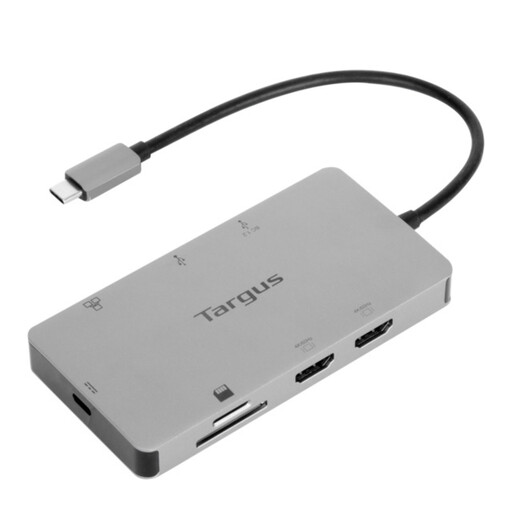
Consider this for a desk with two HDMI monitors if your laptop supports the required display configuration. The product name specifies dual HDMI 4K connections and 100W power-delivery pass-through; confirm the laptop’s charging needs and whether the required power adapter is included.
 No image available
This 14-inch laptop is a starting point if you need to replace the desktop computer itself while keeping a portable machine. Before selecting a dock or connecting two monitors, check the exact model’s external-display modes, ports and charging requirements against your desk setup.
 No image available
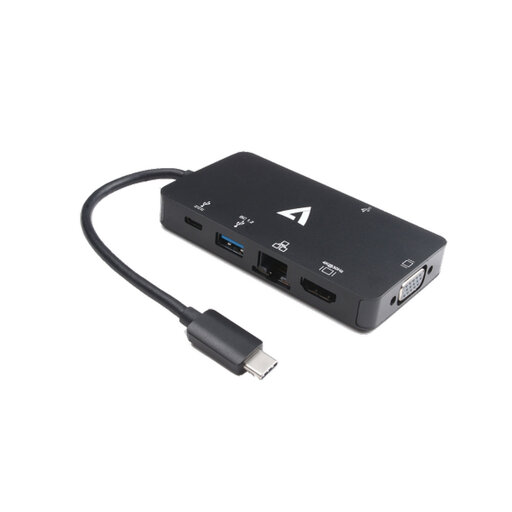
Consider this adapter for a single-monitor desk connection with peripherals. Its name also specifies Gigabit Ethernet and dual USB 3.0 ports; check that the laptop’s USB-C port supports video and confirm the intended display mode. Do not assume the HDMI and VGA connections provide two independent extended displays.
 No image available
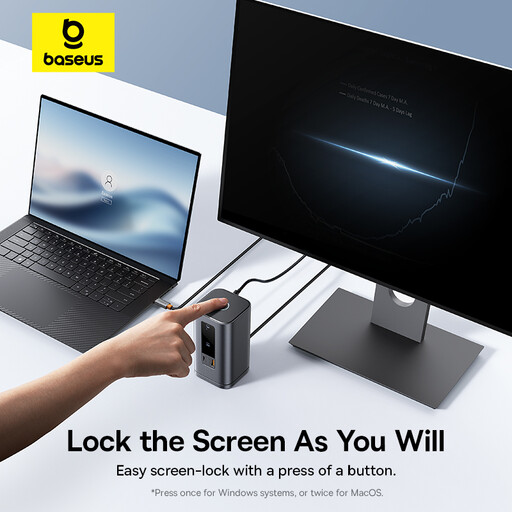
This workstation-style connection is relevant if you want to bring several desk devices together. Before choosing it for multiple monitors, confirm its simultaneous display modes with your exact laptop, along with host charging and any required power adapter.
 No image available
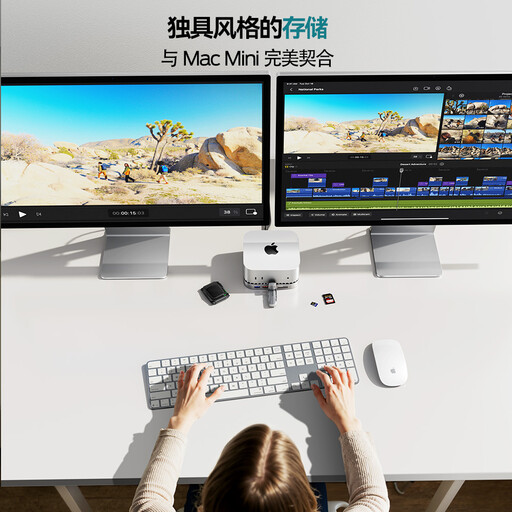
Consider this for a desk centred on one external display and USB peripherals. The product name specifies HDMI up to 4K 60Hz, USB-C 10Gbps, USB-A 10Gbps/5Gbps, SD/TF 160MB/s and 3.5mm audio. Check the laptop’s video support and whether this connection can charge the host laptop before planning a one-cable setup.
No: Microsoft Support says a display splitter duplicates the same signal rather than creating two independent desktops. For separate workspaces, check the laptop’s graphics support and use a connection method specified for independent external displays.
Confirm that the laptop’s intended USB-C port supports the video output you need, then match the dock’s host requirements, display modes, charging output and cable requirements. Microsoft Support cautions that USB-C-compatible cables do not all support the same features.
It can be a compatibility option for office-style work when a suitable native display connection is unavailable. Because DisplayLink uses host software to send display frames to the device, check operating-system support, drivers, USB requirements and any employer restrictions before buying.
No. The laptop’s graphics and connection capabilities can limit the number and settings of independent displays even when a dock has several sockets. Compare the exact laptop model’s documented support with the dock’s simultaneous display configurations.