What to consider before buying
Plan the screen and input positions first, then check whether your desk and laptop suit a separate monitor, a portable stand or a connection hub. If an applicable DSE assessment identifies an equipment need, discuss the finding and provision arrangements with your employer.
| Concern |
What to check when buying |
Who this matters to |
| Screen and input position |
Plan where the screen, keyboard and mouse will sit together; check the monitor stand or laptop riser can be positioned as needed. |
If I work at a laptop for long periods, I want to position the screen separately from my keyboard and mouse. Around 33% of consumers put sustained screen and input positioning first. |
| Limited desk space |
Allow room for the laptop, screen and separate input devices; check the stand’s stated laptop-size range if choosing a riser. |
When my desk is small, I need to fit the screen and input devices without losing useful working space. About 27% of consumers prioritise a workable setup on a limited desk. |
| Reliable reconnection |
Check the laptop’s video mode, supported displays, charging needs and any workplace restrictions on drivers. |
If I reconnect the same laptop to a screen and peripherals, I need a hub or dock that matches its ports and operating system. Around 20% of consumers prioritise reliable display and peripheral reconnection. |
| Assessed equipment needs |
For employees, clarify the assessment finding and agree equipment provision and support with the employer before buying. |
If an applicable DSE assessment identifies a workstation need, I want to resolve provision with my employer before purchasing equipment myself. About 20% of consumers put assessed equipment and support decisions first. |
Joybuy products for laptop workstations
These Joybuy product options relate to setting up or connecting a laptop workstation, including stands, screens, input devices and a USB-C hub. Check each item’s compatibility with your laptop and working arrangement.
 No image available
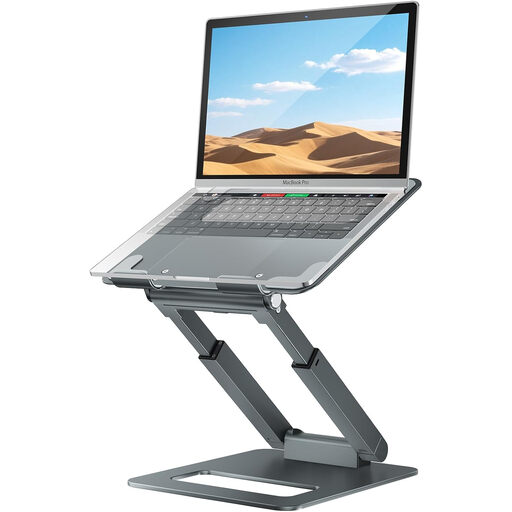
Adjustable Telescopic Laptop Stand with Pull-Out Design
A laptop stand option for a setup where raising the screen and making room for separate input devices are priorities.
The product name describes a telescopic, height-adjustable stand with a pull-out design.
For prolonged laptop work, HSE guidance pairs an elevated laptop with a separate keyboard and mouse.
Joybuy
 No image available
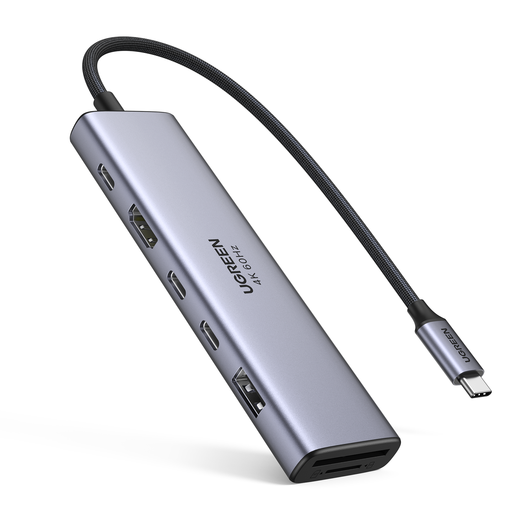
UGREEN 7-in-1 USB-C Docking Station
A hub option when you need to connect a laptop to a display and peripherals, provided its video and power routes suit the laptop.
The product name lists HDMI, two USB-C 3.2 ports, USB-A 3.2, SD/TF card slots and PD.
USB-C video output depends on the host system supporting the applicable video mode.
Joybuy
 No image available
HP 680 CFT Dual-Mode Keyboard/Mouse Combo
A combined keyboard and mouse option for a workstation using separate input devices.
Check the connection mode and workplace device requirements before choosing a keyboard and mouse set.
Joybuy
 No image available
ASUS ProArt PA278CV IPS WQHD Monitor
A separate display option for a laptop workstation; check its connection and positioning requirements against your desk and laptop.
The product name identifies an IPS WQHD monitor.
Joybuy
 No image available
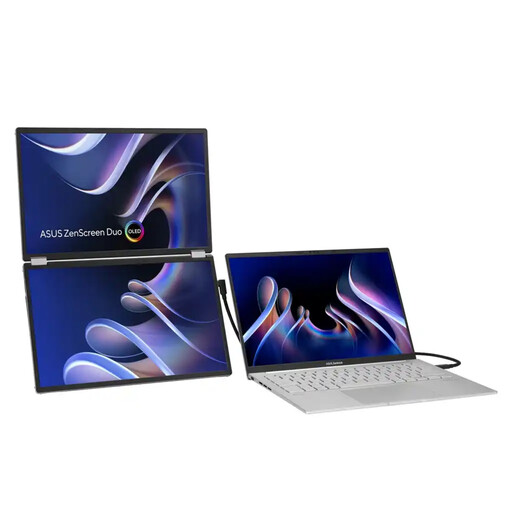
ASUS ZenScreen Duo OLED MQ149CD 360° Foldable Portable Monitor
A portable display option to consider if you need an external screen in a setup that moves between locations.
The product name lists dual 14-inch, 16:10, 1920 × 1200 OLED panels, dual USB Type-C, mini-HDMI, a kickstand and a standard tripod hole.
Check that your laptop supports the intended display connection.
Joybuy
Frequently asked questions
If I work from home as an employee, should I buy equipment identified by a DSE assessment?
Discuss the assessment finding and equipment arrangements with your employer before buying. Where DSE requirements apply, the HSE says an assessment should cover the home workstation and, for people working in both places, both home and office arrangements. HSE guidance also says workers cannot be charged for DSE equipment provided as an action indicated by the assessment.
Will any USB-C hub connect my laptop to a monitor?
No. For a hub that sends video using DisplayPort Alt Mode, the laptop’s host port must support that mode. Check the laptop specifications and the hub’s video method, display support, operating-system requirements and charging path before ordering.
Can I raise my laptop on a stand and keep using its built-in keyboard?
For prolonged laptop work, HSE posture guidance describes using a separate keyboard and mouse so the screen can be elevated, or using a separate display. Consider the screen and input positions together rather than choosing a stand on its own.
What should I check before choosing a dock or hub for repeated connections?
Check that the laptop supports the hub’s video method and the number of displays you need, then confirm the charging path and any operating-system or driver requirements. A USB-C connector alone does not confirm video support.
Who should I speak to about repairs or support for home-working equipment?
If you are an employee, agree equipment provision, repairs and technical support with your employer. Acas advises clarifying who provides or pays for equipment and repairs, and what technical support and training are needed.


