Who is this setup for?
The useful starting point is how long you work at the laptop, whether your desk stays set up, and which parts of the workstation you can position independently.
Regular laptop-only home workers
If you use a laptop for prolonged desk work but have limited space, a separate keyboard and mouse allow you to raise its screen without typing on the raised laptop. This follows the Health and Safety Executive’s guidance on laptop positioning.
Fixed-desk hybrid workers
If your tasks involve comparing documents or working across several windows, a separate display may be worth the desk space. Check the laptop’s video output before choosing a monitor or a display-connected dock.
Employees planning home-work equipment
If you use display screen equipment daily for continuous periods of an hour or more as part of your normal work, the Health and Safety Executive says your employer must assess the workstation. Discuss needs identified by that assessment before treating every change as a personal purchase.
What should you choose first?
Choose how to position the screen and input devices first. Then check whether your tasks justify another display and whether the laptop can support the connections you want.
Stand with separate keyboard and mouse
Choose when: You mainly use the laptop screen and want a compact desk arrangement that lets you raise it.
Trade-off: Raising the laptop does not add screen space, and prolonged use calls for separate input devices, as the Health and Safety Executive advises.
Monitor with separate keyboard and mouse
Choose when: You have a regular desk and the laptop display constrains document, spreadsheet or multi-window tasks.
Trade-off: A monitor takes desk space and needs a compatible laptop video connection; a USB-C hub monitor’s charging and connection functions also depend on the laptop.
| Priority |
What to check |
Your needs |
| Screen and input positions |
Check where the screen will sit and whether a separate keyboard and mouse can be placed comfortably when the laptop is raised. The Health and Safety Executive recommends separate input devices for this laptop arrangement. |
I want to raise the laptop screen without having to type on its elevated keyboard. |
| Display space |
Consider whether a separate display fits the desk and the work. Check its adjustment options and the laptop’s compatible video output before choosing a connection. |
Several documents or windows need to remain visible during my regular desk work. |
| Connections and charging |
Check the exact laptop’s USB-C, USB4 or Thunderbolt functions, supported external displays and charging requirements. CalDigit notes that TS4 functionality depends on the host computer; its capabilities cannot establish what another dock-and-laptop combination will do. |
I want fewer connections to make each time I sit down, but the dock or hub still has to work with my laptop. |
| Workplace arrangements |
For employees who use display screen equipment daily for continuous periods of an hour or more, check the employer’s workstation assessment. Acas advises agreeing what equipment is needed for the job and who provides equipment, repairs and technical support. |
Before buying equipment for regular home work, I need to discuss any workstation requirements with my employer. |
Relevant brand references
These examples illustrate different equipment routes; their specifications apply to the named models, not every product from each brand.
Dell
Dell’s P2725DE is an example of a fixed-desk USB-C hub monitor, according to Dell Technologies’ UK product information.
- The P2725DE is listed with a 27-inch 2560 × 1440 display, height adjustment, 90W power delivery and a 1GbE Ethernet port.
- Check that your laptop supports the display connection and the charging arrangement you intend to use.
Logitech
Logitech’s Wave Keys and Lift combination is an example of separate wireless input devices for laptop work.
- Logitech describes the combination as Bluetooth-compatible with multiple operating systems and says the mouse fit is aimed at small to medium hands.
- The combination does not raise the laptop screen; check its fit and connection requirements alongside the rest of your setup.
CalDigit
CalDigit’s TS4 illustrates a dock for a fixed desk with several peripherals, according to CalDigit’s product information and user guide.
- CalDigit specifies 18 ports and up to 98W host charging for the TS4.
- CalDigit says full functionality depends on the host computer. Its stated external-display support varies by platform, so check the exact laptop before planning a multi-display setup.
Joybuy workstation options
These options cover separate monitors, a docking station, a USB-C hub and a keyboard-and-mouse set for laptop desk work. Check each connection against your laptop and plan screen positioning separately from peripheral connections.
 No image available
ASUS ZenScreen MB249C IPS USB-C monitor
A separate-display option for laptop work where you have room to position another screen.
The name specifies an IPS display and USB-C. Check your laptop’s USB-C video and charging capabilities before planning a single-cable setup.
View on Joybuy
 No image available
Targus USB-C Universal Dual HDMI 4K Docking Station, 100W PD Pass-Thru
A docking option for a desk where you want to connect external displays and other devices through the laptop’s USB-C port.
The product name specifies dual HDMI and 100W power-delivery pass-through. Check the laptop’s supported display configuration and charging requirements, and confirm whether the required external power adapter is included.
View on Joybuy
 No image available
Dell P2425H 24-inch Full HD IPS monitor
A separate screen for a regular laptop desk setup when the built-in display does not give you enough working space.
The product name specifies 1920 × 1080 resolution and lists USB-C, DisplayPort, HDMI and VGA. Confirm which connection your laptop can use; also check the applicable refresh rate and whether this monitor’s USB-C connection carries video or laptop charging.
View on Joybuy
 No image available
Baseus Metal Gleam Series II 10-in-1 USB-C hub, Cosmic Black
A hub option when a laptop desk needs additional display and peripheral connections.
The product name lists two HDMI connections, USB-A and USB-C ports, RJ45, SD/TF slots and a USB-C PD connection. Check that your laptop supports video through its USB-C port and confirm the charging power delivered to the laptop if you need pass-through charging.
View on Joybuy
 No image available
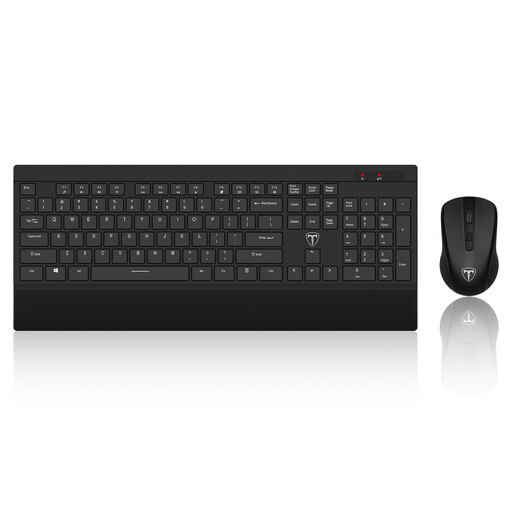
ET Silent 2.4GHz wireless keyboard and mouse set, US layout
Separate input devices let you place the keyboard and mouse away from a raised laptop screen.
The product name specifies a 2.4GHz wireless connection and US keyboard layout. Check that the layout suits your typing; for prolonged laptop use, plan a stand or riser if you need to elevate the screen.
View on Joybuy
Frequently asked questions
Does regular home laptop work call for a workstation assessment?
For employees who use display screen equipment daily as part of normal work for continuous periods of an hour or more, the UK Health and Safety Executive says employers must assess the workstation. Its home-working guidance says the display screen equipment rules can apply to permanent, long-term and hybrid home workers.
Is a laptop stand enough for prolonged desk work?
A stand raises the screen, but it does not let you position the built-in keyboard and trackpad independently. For prolonged laptop use, the Health and Safety Executive advises a separate keyboard and mouse when the laptop screen is elevated; consider a separate monitor if you also need more display space.
Will any USB-C dock charge my laptop and run two monitors?
No: the result depends on the particular dock, laptop and display configuration. CalDigit says TS4 functionality depends on the host computer and gives different display support by platform. Check your exact laptop’s external-display support and charging requirements against the dock before buying.
What should I discuss with my employer before buying home-work equipment?
Discuss the workstation assessment if you meet the UK display screen equipment user criteria, then identify what the job and your setup require. Acas advises employers to agree with staff and their representatives who provides or pays for equipment and repairs, and what technical support and training are needed.


