Buying priorities
Build the desk in stages: first make laptop screen height and input placement workable, then add display space or connectivity only where your work requires it.
| Priority |
What to check |
Your needs |
| Screen and input position |
Check that a stand leaves room for a separate keyboard and mouse. Confirm the stand is stable and that the screen can be raised without forcing you to type on the elevated laptop keyboard. |
I need to lift the laptop screen for longer work sessions while keeping my keyboard and mouse in a comfortable, central position. The Health and Safety Executive describes separate laptop inputs and an elevated screen as a practical setup route. |
| Monitor connection |
Match the laptop’s output to the monitor input and check supported resolution, refresh rate and external-display count. For USB-C, confirm video capability rather than relying on the connector shape. |
I want more room for documents or reference material, but the monitor must work with my laptop’s actual video connection and display limit. Apple notes that external-display capacity depends on the Mac model and display resolution and refresh rate. |
| Hub or dock scale |
Compare required ports, monitor count and charging wattage with the exact host laptop. Check whether an external power adapter, cable or adapter path is required. |
I only need the ports and charging my desk can use: a direct display cable may suit one monitor, while a dock can make sense when I regularly connect several peripherals. Kensington explains that USB-C names the connector, not guaranteed video, speed or power-delivery functions. |
Joybuy product options
These Joybuy options cover separate laptop inputs, external monitors and desk connectivity for prolonged laptop-based home working.
 No image available
HP 680 CFT Dual-Mode Keyboard/Mouse Combo
For a raised-laptop desk where keyboard and mouse placement need to be separate from the screen.
Bluetooth and receiver connectivity support up to three devices; the full-size keyboard measures 442.3 × 214.4 mm.
Check desk width and confirm that the supplied keyboard layout suits your preferred UK arrangement. A laptop stand is not included.
Joybuy
 No image available
AOC Q32V4 31.5-inch QHD IPS Monitor
For a fixed desk where a larger separate display is more useful than relying on the laptop panel.
31.5-inch IPS panel, 2560 × 1440 resolution, HDMI 1.4 and DisplayPort 1.2 inputs, with VESA 100 × 100 mm mounting compatibility.
Check laptop video output, cable path, desk depth and viewing distance. Confirm whether the supplied stand provides the adjustment you need.
Joybuy
 No image available
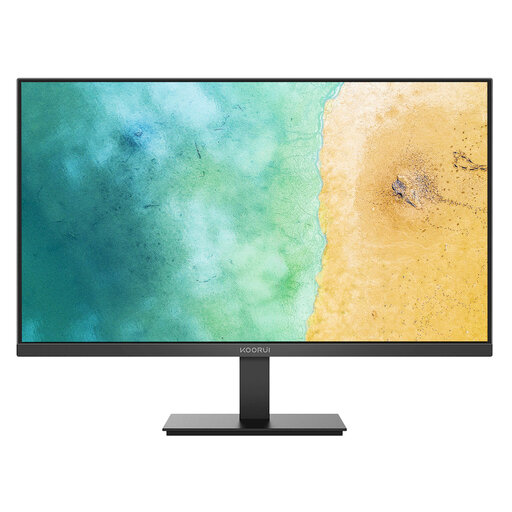
KOORUI MB27V29FS2 27-inch IPS Monitor
For adding a separate everyday screen for documents, communication and reference work at a fixed desk.
27-inch IPS panel, 1920 × 1080 resolution, HDMI 1.4 and VGA inputs, tilt adjustment and VESA 100 × 100 mm mounting support.
Confirm the laptop’s video output and any adapter requirement. The listed stand adjusts tilt only, and no built-in speakers are listed.
Joybuy
 No image available
Targus USB-C Universal Dual HDMI 4K Docking Station
For a regular desk connection with displays, USB peripherals, wired networking and charging through the host connection.
Two HDMI 2.0 outputs, USB 3.2 Gen 1 Type-A, Gigabit Ethernet, SD and microSD readers, and up to 100W power-delivery pass-through.
Check USB-C video support, independent-display limits, target resolution and charging requirements. Confirm whether a suitable external power adapter is included.
Joybuy
 No image available
ASUS ZenScreen MB166C 15.6-inch Portable USB Monitor
For hybrid work where a portable second screen is more practical than a large fixed monitor.
15.6-inch Full HD IPS display with USB Type-C upstream connection, anti-glare surface, 11.8 mm depth and 780 g weight.
USB Type-C is the listed input and HDMI is absent, so confirm that your laptop supports video output and sufficient power over USB-C. No built-in speakers are listed.
Joybuy
Frequently asked questions
What is the simplest setup for prolonged laptop work at a small home desk?
Start with a stable laptop riser or stand and a separate keyboard and mouse. This separates screen height from typing and pointing; the Health and Safety Executive specifically identifies separate laptop inputs as the way to raise the screen on a riser or similar support.
Do I need a dock for one external monitor?
Not necessarily. A direct cable can be enough when the laptop has a compatible HDMI, DisplayPort, Thunderbolt or video-capable USB-C output and the monitor has a matching input. A hub or dock is more useful when you also need power, USB peripherals, Ethernet or additional displays through one connection.
Will every USB-C port support a monitor and laptop charging through one cable?
No. USB-C describes the physical connector rather than a guaranteed set of functions. Check the laptop manufacturer’s specifications for video output, DisplayPort Alt Mode, USB4 or Thunderbolt support, charging support and the supported external-display count, then compare those details with the hub or dock.
Can a splitter create two independent external desktop screens?
Usually no. Microsoft explains that a display splitter duplicates the same signal rather than creating two independent signals. For extended dual displays, confirm that both the laptop output path and the dock or adapter explicitly support the number of independent screens you need.
Do UK home workers have to buy their own DSE accessories?
For workers covered by the DSE rules, the Health and Safety Executive says the employer should assess the home workstation and that workers cannot be charged where providing DSE equipment is indicated. The rules can apply to permanent home workers and hybrid workers using DSE daily for continuous periods of an hour or more, rather than occasional or short-period home use.


