For prolonged laptop work, start with a screen position that does not dictate where you type: the Health and Safety Executive advises pairing an elevated laptop screen with a separate keyboard and mouse. Add an external monitor if you need an independently positioned display; consider a dock when you also need to connect several devices, but check your exact laptop’s video and charging capabilities before choosing one.
Who is this setup for?
Laptop-only workers at a fixed desk
If you use one laptop screen for sustained desk work, raising it may be more useful than adding another display—but plan where the keyboard and mouse will go. The Health and Safety Executive advises separate input devices when elevating a laptop screen for prolonged use.
Hybrid workers setting up at home
A home desk needs a layout you can reassemble when moving between work locations. Check which screen, input devices and connections will stay at home and which you will carry with the laptop.
Workers connecting a monitor and peripherals
If a monitor and several accessories share your laptop, decide whether direct connections are manageable or a dock would simplify reconnection. Kensington’s USB-C guidance notes that data, video and power capabilities vary between device models, so the laptop port needs checking first.
What should you choose first?
Choose the screen and input layout before deciding how to connect it; a dock addresses connections, not the position of the keyboard or display.
Laptop riser with separate input devices
Choose when: One laptop screen meets your needs, but you want to raise it for sustained desk use. The Health and Safety Executive pairs an elevated laptop screen with a separate keyboard and mouse.
Trade-off: A riser does not add screen area or connections, and the keyboard and mouse also need room on the desk.
External monitor with separate input devices
Choose when: You need a display positioned independently of the laptop, with a compatible video connection from your computer.
Trade-off: Allow desk space for the monitor; using its separate screen does not resolve keyboard positioning if you still rely on the laptop’s built-in keys.
USB-C video dock or hub
Choose when: You want to reconnect a display and several peripherals through a compatible dock, potentially with laptop charging.
Trade-off: Kensington’s USB-C guidance says port functions vary by device; confirm video support, Power Delivery and the intended display configuration rather than relying on the connector’s shape.
DisplayLink dock
Consider when: A USB-based display connection suits your laptop and the dock’s software and operating-system requirements fit your setup.
Trade-off: DisplayLink says docks using a USB Standard A-B connection are not designed to charge the computer, so plan to use the laptop charger where that connection applies.
| Priority | What to check | Your needs |
|---|
| Screen and input position |
Check the screen’s usable height and the space for a separate keyboard and mouse. The Health and Safety Executive advises separating these devices from an elevated laptop screen for prolonged use. |
I work at a desk for extended periods and want to raise the screen without having to type on a raised laptop keyboard. |
| Independent display |
Check desk space, the monitor’s positioning options and a compatible video-output path from the exact laptop. Match the connection to the monitor input. |
A laptop screen alone does not give me the display position or screen area I need. |
| Dock compatibility |
For a USB-C video dock, confirm the laptop’s DisplayPort Alt Mode support. For dock charging, check USB-C Power Delivery input and compare the dock output with the laptop’s requirements; Kensington says USB-C functions vary by model. |
I would like to reconnect my display and accessories together, but I need to know which functions my laptop port actually supports. |
| Multiple displays |
Check the intended number of monitors, their resolution and refresh rate against the exact laptop, dock and operating-system configuration. Kensington’s dock specifications make some maximum display modes conditional on the connected equipment. |
More than one external screen matters to me, so the complete connection setup needs to support the display mode I plan to use. |
| Work equipment process |
For employees in Great Britain using display-screen equipment daily for continuous periods of an hour or more, the Health and Safety Executive says employers must carry out a workstation assessment. Ask how your home setup is assessed before deciding what to buy personally. |
I use a laptop for sustained work and want to clarify my employer’s workstation process before purchasing accessories. |
What should you avoid?
-
Raising the laptop but keeping its built-in keyboard in use
The keyboard and pointing device rise with the screen. That is not the prolonged-use laptop arrangement described by the Health and Safety Executive, which calls for a separate keyboard and mouse.
Plan the riser and input devices together, leaving space to place the keyboard and mouse within easy reach.
-
Assuming every USB-C port carries video and charging
Kensington’s compatibility guidance says USB-C functions differ between device models; the connector alone cannot establish whether a particular dock will provide its intended video or power functions.
Check the exact laptop model’s documentation for the video mode and Power Delivery functions required by the accessory.
-
Buying a multi-monitor dock by its maximum display claim
The usable display mode can depend on the laptop, dock and monitors. Kensington specifies additional equipment conditions for its highest multi-display configuration.
Write down the number of screens, resolution and refresh rate you intend to use, then check that full configuration against the dock’s compatibility information.
-
Buying work equipment before asking about an assessment
For covered employees, a workstation assessment considers the working setup rather than assuming every person needs the same accessory. The Health and Safety Executive identifies daily display-screen use for continuous periods of an hour or more as the assessment threshold in Great Britain.
If that describes your work, ask your employer about its home-workstation assessment and equipment process before making a personal purchase.
Brand references for the setup
These brands illustrate different equipment roles; a brand’s published specification applies to the named product and configuration, not every device it makes.
Kensington
A reference for USB-C hubs and docks when display output and laptop charging are part of the connection plan.
- Kensington specifies that the UH1400P hub requires a host supporting USB-C Power Delivery and DisplayPort Alt Mode.
- Its multi-display specifications can have further conditions; check the exact laptop and monitor configuration for the dock under consideration.
Dell
A dock reference for Dell and non-Dell laptop setups where charging output matters.
- Dell lists different Power Delivery outputs for the Pro Dock WD25Z: 130 W for Dell systems and 96 W for non-Dell systems.
- Check your laptop’s charging requirement against the output that applies to your system; the Dell-system figure does not apply to every laptop.
Logitech
An input-device reference when a raised laptop or separate monitor calls for a keyboard and mouse away from the laptop.
- Logitech describes its Wave Keys and Lift combination as a wireless keyboard-and-mouse pairing for Windows and Mac.
- Confirm the connection method and physical fit of the particular devices you choose; brand descriptions of ergonomic benefits are not a substitute for checking your desk layout.
Ergotron
A laptop-positioning reference where an adjustable support is part of the desk arrangement.
- Ergotron describes the WorkFit-P as a height-adjustable laptop mount.
- A mount positions the laptop; plan separate input devices and any display connections as distinct parts of the workstation.
Joybuy options for screens and connections
These options cover external screens and a USB-C connection accessory for laptop-based work. Choose the screen and input arrangement that suits your desk first, then check that any monitor or dock can connect to your particular laptop.
 No image available
Samsung 22-inch S40GD LS22D400GAUXXU Full HD monitor
A separate 22-inch Full HD screen is an option if you want the display positioned apart from your laptop keyboard. Check your laptop-to-monitor connection and plan separate input devices if you will raise or move the laptop aside.
View on Joybuy
 No image available
Targus USB-C Universal Dual HDMI 4K dock, 100 W PD pass-through
Consider this dock if you need dual HDMI connections and Power Delivery pass-through in a laptop setup. Confirm that your exact laptop supports the required USB-C video and charging functions, and check the intended monitor configuration before relying on dual-display output.
View on Joybuy
 No image available
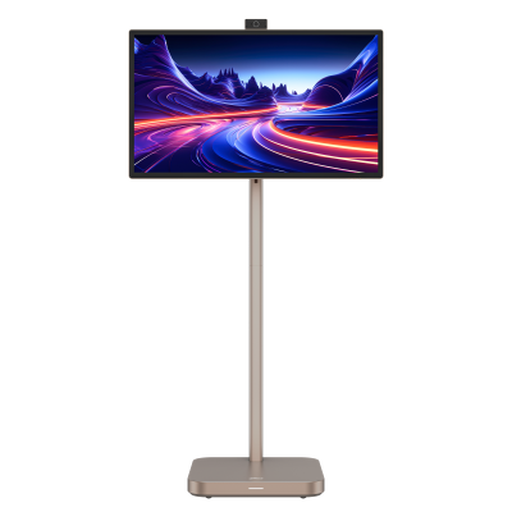
Dahua Explorer 31.5-inch 4K Smart Monitor, Android 11, 8GB+128GB
This 31.5-inch 4K monitor offers a separate screen for a laptop workstation. If you intend to move it between locations, confirm how it is powered; check the panel type before choosing it on that basis, and match the laptop’s video connection to the monitor.
View on Joybuy
 No image available
AOC Q32V4 31.5-inch 2K IPS monitor
A 31.5-inch separate display may suit a fixed desk where there is room for the screen and separate input devices. Check how you will connect your laptop, and confirm the stand’s adjustment options if screen height is important to your layout.
View on Joybuy
 No image available
ASUS ZenScreen MB166C 15.6-inch Full HD USB Type-C monitor
This 15.6-inch IPS monitor is a portable second-screen option for a laptop setup. Before choosing it, confirm that your laptop’s USB-C connection provides the video function the monitor requires and check its power arrangement.
View on Joybuy
Frequently asked questions
Do I need a separate keyboard and mouse with a laptop stand?
For prolonged laptop use, yes: the Health and Safety Executive advises a separate keyboard and mouse so the screen can be elevated on a riser or similar support. Plan enough desk space for both input devices rather than continuing to type on the raised laptop.
Will any USB-C port run a monitor and charge my laptop?
No. Kensington’s USB-C guidance says video and power capabilities vary by device model. For a dock using USB-C DisplayPort Alt Mode, check that your laptop supports that video function; for charging, check USB-C Power Delivery input and the power output of the dock.
Can a USB-A-connected dock charge my laptop?
Do not assume it can. DisplayLink says docking stations using a USB Standard A-B connection are not designed to charge the computer, so plan to keep the laptop charger connected for that type of dock.
Should I ask my employer before buying home-workstation equipment?
If you are an employee in Great Britain using display-screen equipment daily for continuous periods of an hour or more, ask about your employer’s workstation assessment process first. The Health and Safety Executive says employers must assess workstations for workers meeting that threshold; the assessment addresses the individual setup rather than prescribing the same accessories for everyone.


