Daily laptop desk workers
People using a laptop for sustained work at home who need to position the screen and input devices separately. The Health and Safety Executive (HSE) advises considering screen, keyboard and mouse position together.


For sustained laptop work, start by making the screen, keyboard and mouse positions workable; a stand with separate input devices may be enough if the laptop screen meets your needs. Add a monitor when screen space is the constraint, and consider a hub or dock when you need a reliable connection for the displays, charging and peripherals you use. A USB-C plug alone does not establish whether a laptop supports video output or a particular multi-monitor setup.
People using a laptop for sustained work at home who need to position the screen and input devices separately. The Health and Safety Executive (HSE) advises considering screen, keyboard and mouse position together.
People who routinely take a work laptop between home and office and want a desk setup they can reconnect without moving a full desktop system. HSE guidance says both work locations should be considered where both are used.
People who need more display space, several connected peripherals or a separate camera for frequent calls. Their purchase checks depend on the laptop's connections and the equipment used at each desk.
For a laptop used at home or across home and office, settle the screen and input arrangement first. Then decide whether the remaining constraint is display space, connected equipment or calls.
| Concern | What to check | Who this matters to |
|---|---|---|
| Screen and input position | Check the stand's stability and usable height, and whether a separate keyboard and mouse can sit comfortably on the desk. | If I work at a desk for long periods, I need to raise the screen without leaving the keyboard too high; around 33% of consumers put screen and input position first. |
| One external display | Match the laptop's video output to the monitor input, including the intended resolution and refresh rate; check how the screen can be positioned. | When I compare documents or keep several windows visible, one added screen matters more to me than a dock. Around 25% of consumers make extra display space their primary concern. |
| Desk connectivity | Check the exact laptop's dock compatibility, required display mode and charging needs; count the connections you will use together. | If I reconnect my laptop to several desk devices regularly, I want that routine to be manageable; connectivity comes first for around 25% of consumers. |
| Video-call equipment | Check the camera or headset connection and whether the planned screen position and available ports suit calls. | Frequent calls make camera placement or a separate audio device my first equipment question; around 17% of consumers prioritise their call setup. |
The connector shape does not establish that a laptop can send video through it. The intended display setup also depends on the host connection, cable and dock.
Check the exact laptop model and port specifications against the dock's requirements for your operating system, display count, resolution and refresh rate.
Plugable's docking guidance explains that MST-based display arrangements require compatible host support; individual docks can also specify operating-system or driver conditions.
Confirm the supported mode for your laptop and operating system rather than choosing by the number of video sockets alone.
A higher screen also raises the attached keyboard. HSE guidance treats screen, keyboard and mouse position as connected parts of the workstation.
If a stand lifts the screen for sustained work, allow desk space for a separate keyboard and mouse and assess their positions together.
For UK display-screen work covered by its guidance, the HSE says home and office arrangements should both be considered where a worker uses both. Buying an accessory does not by itself address the whole setup.
Use the applicable employer assessment process to identify workstation issues, then select equipment that addresses them.
Laptop docks for desks with several connected devices or displays.
USB-C, USB4 and Thunderbolt docks, including models with different approaches to connecting displays.
Docks for portable and fixed laptop workspaces, including universal models.
Separate keyboards, mice and combinations for laptop desks where input position is the first concern.
Compact USB-C hubs and docks for adding connections at a laptop desk.
These products address different parts of a laptop workspace: dock connectivity, extra screen area, separate input devices and video calls. Choose the part that matches your main constraint, then check it against your laptop and desk arrangement.
 No image available
Consider this dock if connecting external screens and other desk equipment through the laptop is your main need.
The product name specifies dual HDMI and 100W Power Delivery pass-through. Confirm the intended display mode with your laptop and check what power adapter the setup requires.
 No image available
A separate monitor addresses a need for more screen area without making a dock the starting point.
This is a 31.5-inch IPS model. Confirm a compatible video connection and check how the screen can be positioned at your desk.
 No image available
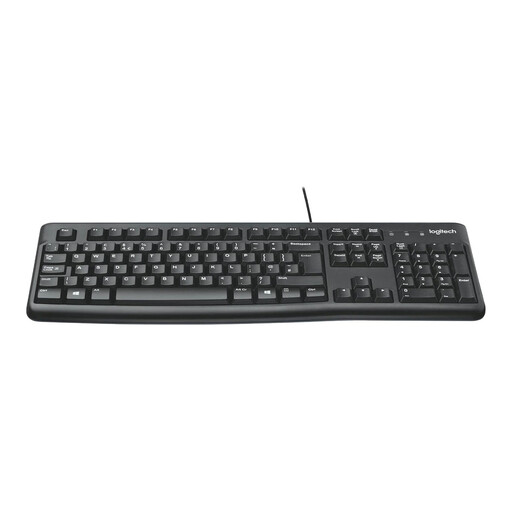
Separate input devices let you position a raised laptop screen without having to type on its raised keyboard.
This is a wired keyboard-and-mouse combination. Check the connections and operating-system compatibility for your laptop.
 No image available
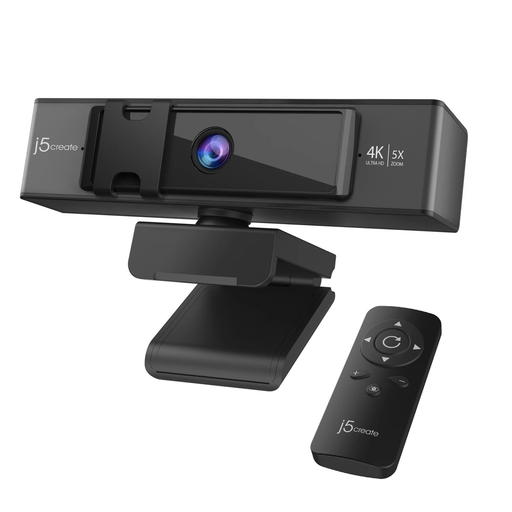
A separate webcam is worth considering when camera placement is the main issue in a call-focused setup.
The product name specifies 4K Ultra HD, 5x digital zoom and remote control. Check its computer connection and conferencing-app compatibility.
 No image available
A portable external screen may suit a laptop setup that moves between work locations and needs more display area.
This 15.6-inch Full HD IPS model uses USB-C. Confirm that the laptop can provide the required video output and check what is included to position the screen.
Not if your laptop has a compatible video output and the monitor has a matching input: a direct cable or suitable adapter may be enough. Consider a dock when you also need to reconnect several peripherals, charging or additional displays through one connection.
No. USB-C identifies the connector, not guaranteed video capability. Check your exact laptop's support for the connection technology required by the monitor or dock, then check the operating-system and display-mode conditions.
Start with the screen and input positions rather than a dock. HSE guidance considers screen, keyboard and mouse placement together; if raising the laptop makes its keyboard awkward to use, a stand with separate input devices may address that issue. Add a monitor if screen area remains the constraint.
They can apply to permanent or long-term home workers and people who routinely split their time between home and the workplace, according to the HSE. Where both locations are used, its guidance says the assessment should cover both situations; it does not prescribe a particular consumer purchase.
No. A dock changes how devices connect, not how the screen, keyboard and mouse should be positioned. HSE guidance also says daily display-screen work should be periodically interrupted by breaks or changes of activity that reduce that work.