Who needs which setup?
The useful starting point is whether you need to adjust a workstation in two places, make one home desk easier to use, or connect several devices through a dock.
Regular hybrid laptop workers
If you use a laptop at home and in the office, consider how the screen and input devices will be positioned in each place. The UK Health and Safety Executive (HSE) says a DSE assessment should cover both settings when work involves DSE in both.
Laptop users setting up a fixed home desk
If the built-in screen sits too low for your desk arrangement, consider a separate display or a riser alongside separate input devices. HSE guidance pairs a raised laptop screen with a separate keyboard and mouse for prolonged use.
Multi-display and one-cable desk users
A USB-C or Thunderbolt dock may bring display and peripheral connections together. Check the exact laptop’s video capability and the intended display arrangement before choosing one; a USB-C-shaped port alone does not establish what it can drive.
What should you check before choosing?
Decide how you want to position the screen and inputs, then check the connections and charging requirements against the laptop you actually use.
| Priority | What to check | Your needs |
|---|
| Screen and inputs |
Check whether a monitor can be positioned independently, or whether a riser will put the laptop screen at a workable height. For prolonged laptop use, plan separate keyboard and mouse positions too, as HSE advises. |
I want to position the screen without having to use the laptop keyboard and trackpad at the same height. |
| Display connection |
Confirm the laptop’s supported external-display count, video-capable port or protocol, and the intended resolution and refresh rate through the chosen cable, adapter or dock. Apple Support and Microsoft Support describe limits that depend on the computer and connection arrangement. |
My monitor or dock needs to run the number of screens I plan to use with this particular laptop. |
| Dock charging |
Compare the dock’s stated power delivery with the laptop’s charging requirement, and check the power supply and cable for the exact dock version. Charging figures can have brand-specific conditions: Dell lists different power-delivery figures for Dell and non-Dell systems on its WD25TB4. |
A single desk connection would be useful if it can also meet my laptop’s charging needs. |
| Work equipment |
If you are a UK employee using DSE daily for continuous periods of an hour or more as part of normal work, ask about the workstation assessment. HSE says assessments can apply to home and hybrid work, and workers cannot be charged for equipment an assessment indicates should be provided. |
Before buying equipment for my work setup, I want to know whether my employer needs to assess and provide it. |
Which brands are relevant to these choices?
These brand examples illustrate specifications and fit questions for particular product lines; a brand name alone cannot confirm compatibility with your laptop.
Lenovo
Lenovo’s ThinkPad Universal USB-C Dock (40AY0090UK) is a dock to examine for a desk with displays and peripherals.
- Lenovo UK lists three 4K displays at 60 Hz and 65 W charging in the dock’s key details.
- Lenovo states host-protocol requirements, including USB-C Alt Mode, DisplayLink or Thunderbolt support. Check the exact host and display arrangement rather than assuming the listed modes apply to every laptop.
Dell
Dell’s WD25TB4 is a Thunderbolt 4 dock for comparison with the requirements of a compatible laptop.
- Dell UK lists power delivery of up to 130 W for Dell systems and 96 W for non-Dell systems for this model.
- Those manufacturer figures do not establish the charging or display result for a particular host. Check the laptop’s requirements and the intended connection.
Logitech
Logitech offers keyboard-and-mouse combinations to consider when a laptop screen is raised or a separate monitor is used.
- Logitech describes options aimed at different hand sizes and desk arrangements.
- That positioning does not establish individual fit. Check the keyboard layout, mouse shape, connection requirements and available desk space.
Joybuy options for a hybrid laptop desk
These options cover a USB-C dock, two external monitors and separate input devices for laptop work at a desk or across work locations. Check each option against your laptop and workstation needs; the mouse on its own does not provide a separate keyboard.
 Image unavailable
Targus USB-C Universal Dual HDMI 4K Dock, 100W Power Delivery Pass-Thru (Retail Packaging)
Consider this dock if you want to connect HDMI displays and desk devices through a USB-C setup. Its name specifies dual HDMI 4K connections and 100W Power Delivery pass-through; check your laptop’s video support, charging requirement and the power hardware included with this exact package.
View on Joybuy
 Image unavailable
AOC Q32V4 31.5-inch IPS monitor
A separate screen lets you plan its position independently of the laptop’s keyboard. This model is listed as a 31.5-inch IPS monitor; check desk fit and whether your laptop and chosen connection support the display mode you intend to use.
View on Joybuy
 Image unavailable
ASUS ZenScreen MB166C 15.6-inch Full HD IPS portable USB-C monitor
This portable external screen is an option if you need an additional display when moving between locations. Its listed connection is USB Type-C; confirm that the intended laptop port supports the video connection this monitor requires.
View on Joybuy
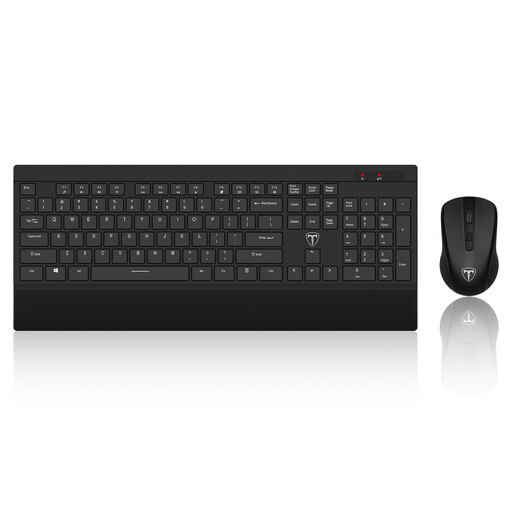 Image unavailable
ET 2.4GHz full-size wireless keyboard and mouse set, US layout
A separate keyboard and mouse can accompany a raised laptop screen. This set is labelled with a US keyboard layout, so check whether that layout suits your typing needs, as well as its power requirements before setup.
View on Joybuy
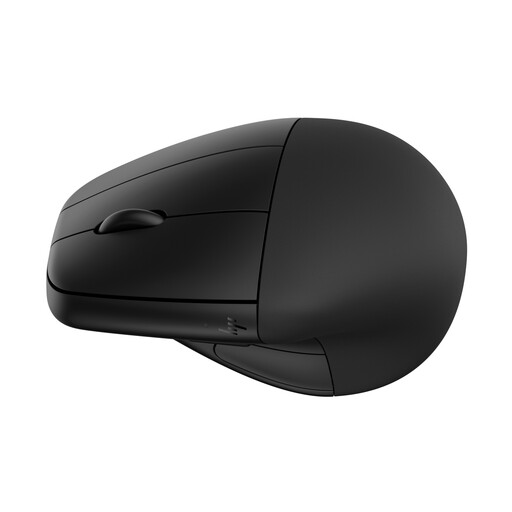 Image unavailable
HP 920 Ergonomic Wireless Mouse (Black), detachable wrist rest
This provides a separate mouse for a laptop desk, with a detachable wrist rest named in the product title. Check whether its shape fits your hand and working position; if you raise the laptop screen, plan for a separate keyboard as well.
View on Joybuy
Frequently asked questions
Does my employer need to assess my home laptop workstation?
For UK employees who use display screen equipment daily as part of normal work for continuous periods of an hour or more, HSE says employers must carry out a workstation assessment. DSE requirements can apply to home and hybrid workers; where DSE is used at home and in the office, the assessment should cover both settings.
Can I be charged for equipment identified by a DSE assessment?
HSE says workers cannot be charged for equipment a DSE workstation assessment indicates should be provided. That condition concerns assessed work needs, not every optional personal upgrade, so raise the equipment need through your employer’s assessment process.
Is a laptop stand enough for prolonged work?
A stand raises the screen, but HSE advises using a separate keyboard and mouse for prolonged laptop use so the screen can be elevated independently of the input devices. Plan the stand and inputs together.
Will any USB-C dock run two monitors from my laptop?
No: the connector alone does not establish two-monitor support. Apple Support and Microsoft Support describe display capabilities that depend on the computer and connection arrangement, so check your exact laptop’s supported display count and modes alongside the dock’s requirements.
Does a multi-display dock for a Mac need software?
Check whether the intended dock uses DisplayLink for its display connection. DisplayLink says its Manager app enables DisplayLink technology on macOS, making software requirements a specific compatibility check rather than something to assume for every dock.


