Who each setup suits

People working in compact spaces

If you work at a coffee table or another shallow surface, a laptop riser and separate keyboard and mouse may address screen height and input position without leaving space for a permanent monitor. Check that all three items fit when in use. The Health and Safety Executive recommends separate inputs when elevating a laptop screen for prolonged use.

People who need more screen space

A separate display is worth considering when viewing documents or other material side by side matters more than raising the laptop screen alone. You will need room to position it and a display connection your laptop supports; a direct connection may be enough for one monitor.

People connecting several peripherals

If you repeatedly connect a display, input devices, charging or wired networking, a dock or USB-C hub monitor may make the setup easier to reconnect. Check the exact laptop’s video protocol, display limits and charging requirements against the device you plan to use.

What to check before buying

Riser with separate inputs

Choose when: The main problem is laptop screen and typing position, and the surface has room for a keyboard and mouse.

Trade-off: It does not add viewing area for side-by-side work.

Directly connected monitor

Choose when: One extra screen meets your needs and the laptop has a suitable display output.

Trade-off: The display connection alone does not add charging, networking or peripheral ports.

USB-C hub monitor

Choose when: You need one external screen and want to connect supported peripherals or laptop charging through the monitor.

Trade-off: Its stated power delivery does not establish that it meets your laptop’s charging requirement.

Dock or multiport adapter

Choose when: You regularly reconnect several peripherals or need a more complex display arrangement.

Trade-off: Supported screens and charging depend on both the dock and the laptop, not the USB-C connector alone.

Concern What to check Who this matters to
Laptop-only position Measure space for a separate keyboard and mouse; check the riser’s size and weight limits. If I raise my laptop on a small surface, I still need somewhere comfortable to type and use a mouse. Roughly 36% of consumers would put that laptop-only arrangement first.
Viewing area Check the laptop’s display output and supported modes, then measure the space available for a monitor. When I need documents visible alongside my work, changing the laptop’s height will not give me another screen. For around 29% of consumers, more viewing area would be the primary need.
Repeatable connections Confirm the laptop’s video protocol, external-display limits and charging requirement against the dock or hub monitor. If I reconnect displays and peripherals each working day, I want those connections to form a practical routine. Approximately 21% of consumers would prioritise that connectivity need.
Easy storage Check folded size, carrying weight and how the input devices connect, without overlooking stable laptop support. When the table returns to household use after work, I need equipment I can clear away. Keeping the setup movable would come first for roughly 14% of consumers.

Mistakes to avoid

  • Assuming every USB-C port supports a dock’s displays

    A USB-C connector does not, by itself, establish video support, the number of external displays or available charging power. A dock’s stated display configuration may depend on a particular host protocol.

    Look up your exact laptop model’s display-output and charging specifications, then compare them with the dock’s host, cable and operating-system requirements.

  • Raising the laptop but using its built-in keyboard

    Moving the laptop screen higher also moves its keyboard. For prolonged laptop use, the Health and Safety Executive advises using a separate keyboard and mouse so the screen can be elevated.

    Make room for both input devices in front of the riser, and check that the riser supports your laptop’s size and weight.

  • Buying for the monitor’s headline resolution alone

    The laptop and connection path may limit the display mode you can use. Microsoft’s Surface guidance, for example, says supported resolution and refresh rate can vary with the connection, display count, processor and whether the built-in screen remains active.

    Check the laptop’s supported configuration alongside the monitor, dock and any required cable or adapter.

  • Buying equipment before checking an employer assessment

    For UK workers who use display screen equipment daily for continuous periods of an hour or more, the Health and Safety Executive says employers must assess the workstation. Individual working conditions can affect what equipment is appropriate.

    If that describes your work, check your employer’s display screen equipment assessment process before deciding what to buy yourself.

Brands to consider for these setups

Dell

A reference point for conventional and USB-C hub monitors.

  • Dell lists the P2425HE as an FHD USB-C hub monitor with up to 90W power delivery.
  • That output does not establish whether a particular laptop supports video and charging through the same connection.

Logitech

A reference point for separate keyboard and mouse options.

  • Logitech lists Bluetooth and a Unifying USB receiver as connection options for its MK850 keyboard-and-mouse set.
  • Check the connection your laptop can use and whether the separate inputs fit on your working surface.

Kensington

A reference point for laptop risers that can be put away after work.

  • Kensington lists six height and angle positions for its Easy Riser Aluminium Laptop Riser, with support for laptops up to 16 inches.
  • Check your laptop against the particular riser’s limits and leave room for separate input devices.

Lenovo

A reference point for compact USB-C docks with stated host requirements.

  • Lenovo lists display and charging capabilities for its USB-C Dual Display Travel Dock.
  • Lenovo specifies compatible USB-C Alt Mode or Thunderbolt host support; check the laptop and power-adapter conditions for the configuration you want.

StarTech.com

A reference point when a dock’s display-protocol conditions need close attention.

  • StarTech.com states host-protocol conditions for the display configurations of its triple-display USB-C dock.
  • Its higher display configurations require the specified DisplayPort Alt Mode capabilities; the laptop must meet those conditions.

Joybuy products for these setups

These products cover separate input devices, external displays and a dock for a laptop workspace. Choose the type of equipment your surface and laptop can accommodate before comparing individual models.

Targus USB-C Universal Dual HDMI 4K Docking Station

Targus USB-C Universal Dual HDMI 4K Docking Station, 100W PD pass-through

Consider this dock if you regularly reconnect displays and peripherals and your laptop supports the required USB-C video mode. The named variant has dual HDMI outputs and 100W power-delivery pass-through; check your laptop’s display limits and charging requirement, and confirm the external power adapter needed for pass-through.

View on Joybuy

ASUS ZENSCREEN MB166CR FHD display

ASUS ZENSCREEN MB166CR FHD

Consider this additional display if your workspace needs to remain movable. Before relying on its USB-C connection, check that your laptop supports the required DisplayPort Alt Mode and can provide the necessary power; do not plan around an HDMI connection for this model.

View on Joybuy

Dahua 32-inch 4K curved OLED monitor

Dahua 32-inch 4K 165Hz curved OLED monitor, Type-C 65W

Consider this larger display only if the surface can accommodate it. The named variant includes a 3840 × 2160 display, a USB hub and a Type-C connection listed at 65W; confirm the laptop’s video mode and charging requirement before planning a one-cable setup.

View on Joybuy

HP 680 CFT Dual-Mode keyboard and mouse set

HP 680 CFT Dual-Mode keyboard and mouse set

A separate keyboard and mouse can accompany a raised laptop screen when both fit on the surface. Check which connection method your laptop can use and allow space for the mouse as well as the keyboard.

View on Joybuy
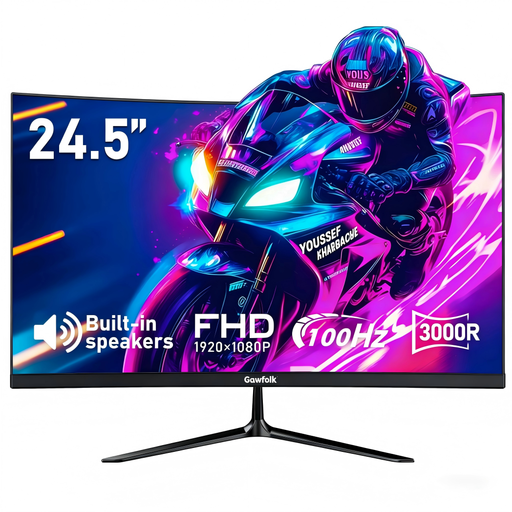
Gawfolk 24.5-inch FHD curved monitor

Gawfolk 24.5-inch FHD curved monitor, 100Hz

Consider this separate screen if you have space for a monitor and a suitable laptop display output. The named variant includes HDMI and a 75 × 75 mm VESA mounting pattern; check the connection and the available surface before choosing where to place it.

View on Joybuy

Frequently asked questions

What should I check before buying a USB-C dock or monitor?

Check your exact laptop model’s USB-C video support, external-display limits and charging requirement. A USB-C-shaped port alone does not establish which display configurations or power levels will work; compare the laptop’s specifications with the dock or monitor’s host requirements.

Can I improve a laptop setup without an external monitor?

Yes, if screen position is the main issue and there is room for separate inputs. For prolonged laptop use, the Health and Safety Executive advises a separate keyboard and mouse so the laptop screen can be raised on a riser or similar support; this does not add viewing area.

Does my employer need to assess a home-working laptop setup?

For UK workers who use display screen equipment daily for continuous periods of an hour or more, the Health and Safety Executive says employers must carry out a workstation assessment. Its home-working guidance also covers relevant home and hybrid working arrangements, so check your employer’s process for your individual workstation before deciding what equipment it needs.

Will a dock’s stated charging wattage replace my laptop charger?

Not necessarily: compare the dock’s available power delivery and adapter requirements with the laptop’s charging specification. The stated wattage describes a capability under the dock’s conditions, not a guarantee for every laptop.

When does a USB-C hub monitor make more sense than a separate dock?

A hub monitor is worth considering when one external screen meets your needs and its connections match your laptop and peripherals. If you need additional ports or a more complex display arrangement, consider a separate dock, checking its host protocol and display limits before buying.